AMD Ryzen 9 3900X
12-core, 24-thread AMD Ryzen 9 3900X desktop processor (Zen 2, AM4) with 4.6 GHz max boost for high-end content creation and multitasking.
3 retailers


This tutorial takes about 4 minutes to complete.
Open your preferred web browser and visit the official VMware website to locate the Workstation Pro download section. Scroll down to the Windows downloads area and click the link for VMware Workstation Pro.
If you do not already have an account, click Register and enter your email address along with the required security verification. Check your inbox for a verification code, paste it into the prompt, and complete the account creation form with your personal details.
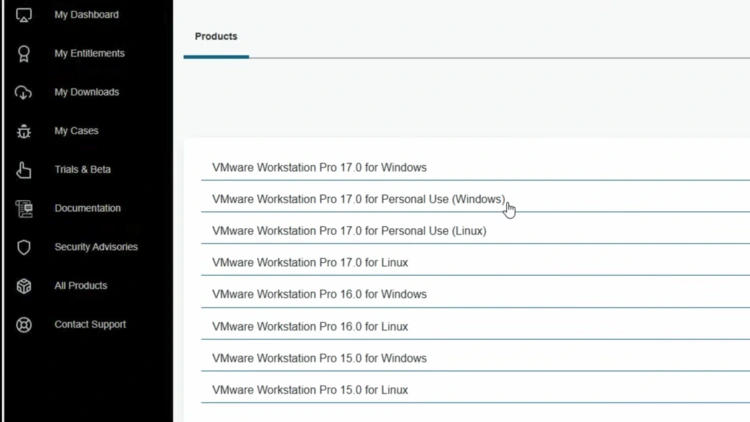
Return to the download page and sign in with your newly created credentials. Navigate to the software selection menu, ensure you select version 17.6, and choose VMware Workstation Pro 17 for personal use for Windows.
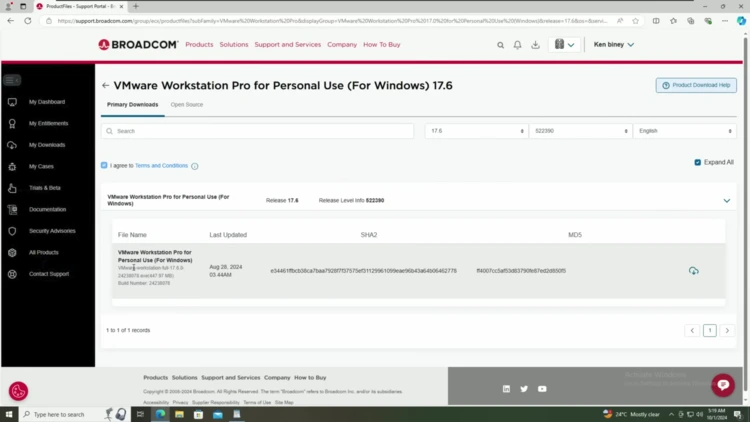
Check the box to agree to the Terms and Conditions, then select the personal use license option before clicking the Download button. You will be prompted to complete an additional verification step, so enter your shipping address and submit the form to initiate the roughly 448 MB file transfer.
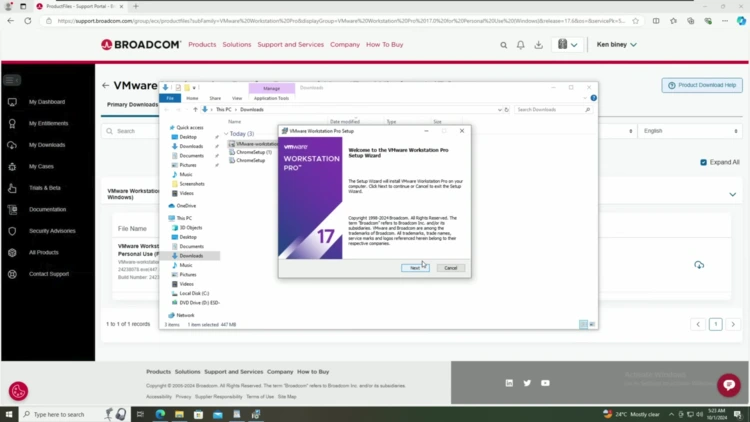
Locate the downloaded executable file in your Downloads folder and double-click to launch the installation wizard. Click Next, accept the license agreement, and customize your installation preferences such as desktop shortcuts and update checks before proceeding with the Install button.
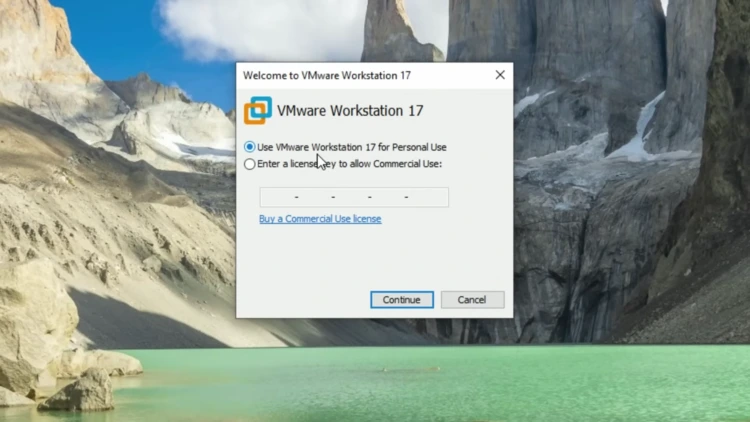
Once the installation finishes, launch VMware Workstation Pro and click to accept the personal use license agreement when prompted. Click Finish to complete the setup, and your virtualization software will now be fully operational on your Windows 10 machine.
One email a week on local LLMs, DIY AI hardware, and the tools that power them. No spam — unsubscribe anytime.
Subscribe free12-core, 24-thread AMD Ryzen 9 3900X desktop processor (Zen 2, AM4) with 4.6 GHz max boost for high-end content creation and multitasking.
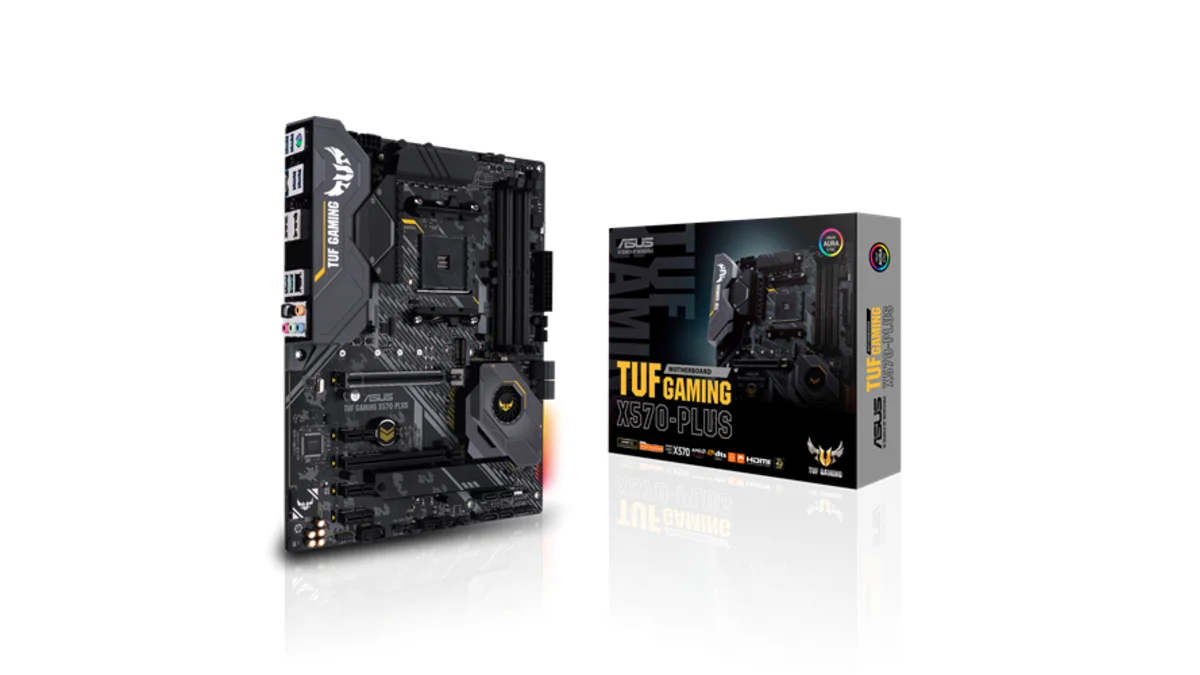
AMD X570 ATX motherboard for AM4 with PCIe 4.0, DDR4 memory support and USB 3.2 Gen 2 ports - a durable foundation for Ryzen 3000-series desktop builds
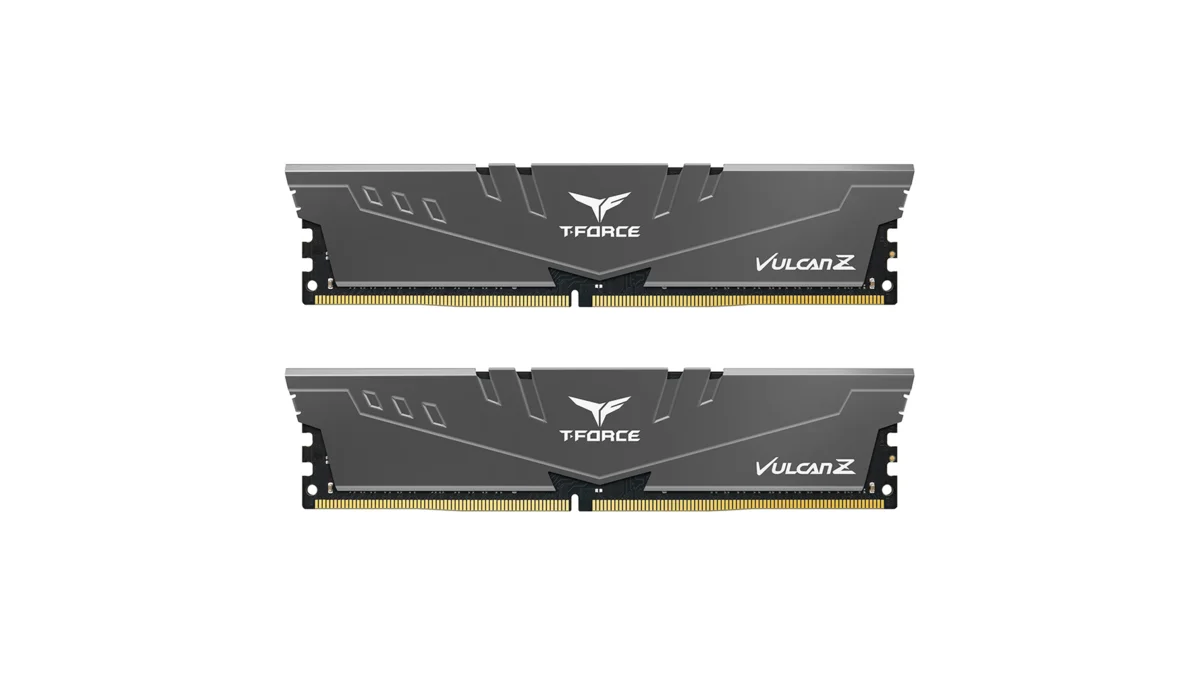
TEAMGROUP T-Force Vulcan Z 64GB DDR4 UDIMM kit - reliable overclocking memory with Intel XMP 2.0 profiles for AM4 desktop builds and Ryzen 3000-series
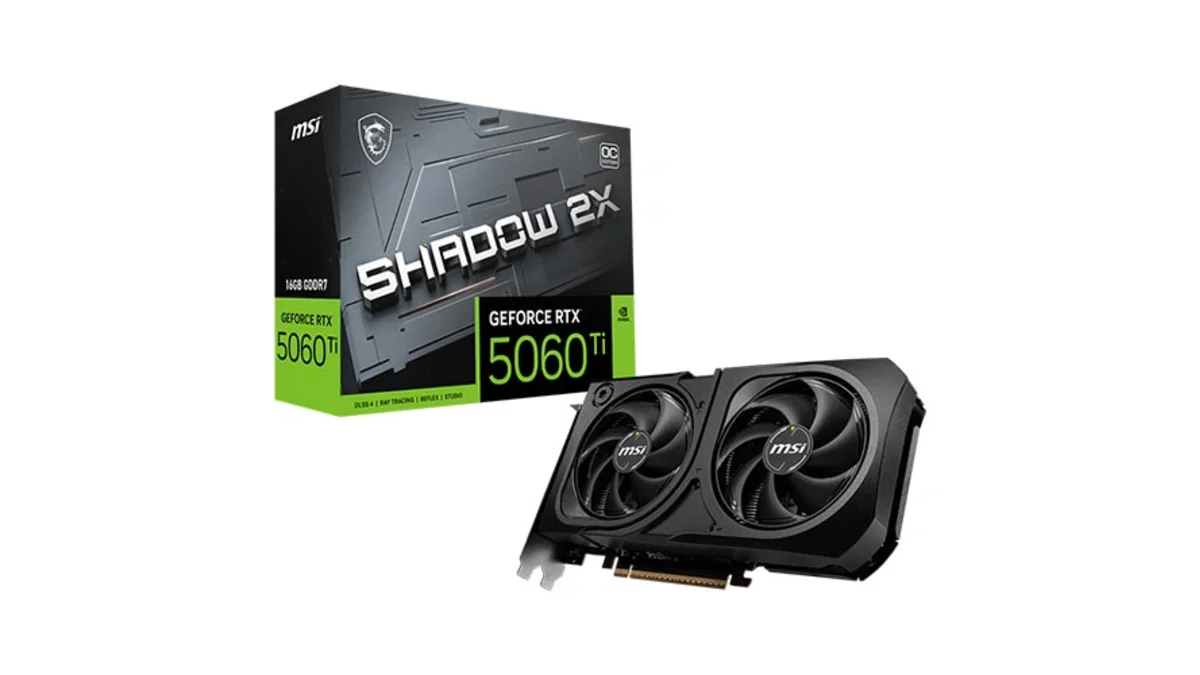
MSI GeForce RTX 5060 Ti 16GB GDDR7 graphics card with dual-fan thermal design and HDMI 2.1b DisplayPort 2.1b for gaming and content creation
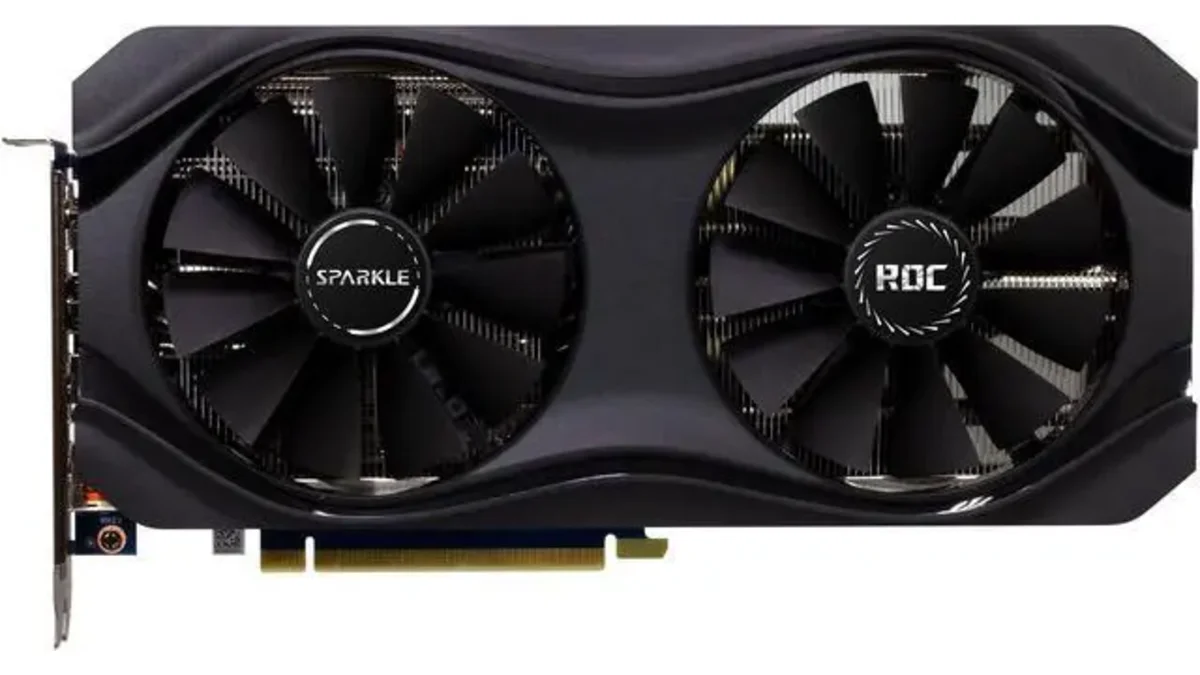
Sparkle Intel Arc A770 ROC OC Edition graphics card with 16GB GDDR6 dual DBB fans and metal backplate for gaming content creation and video editing
Microsoft Windows 11 Pro - the professional edition of Windows 11 with advanced security, remote desktop, and enterprise management features.
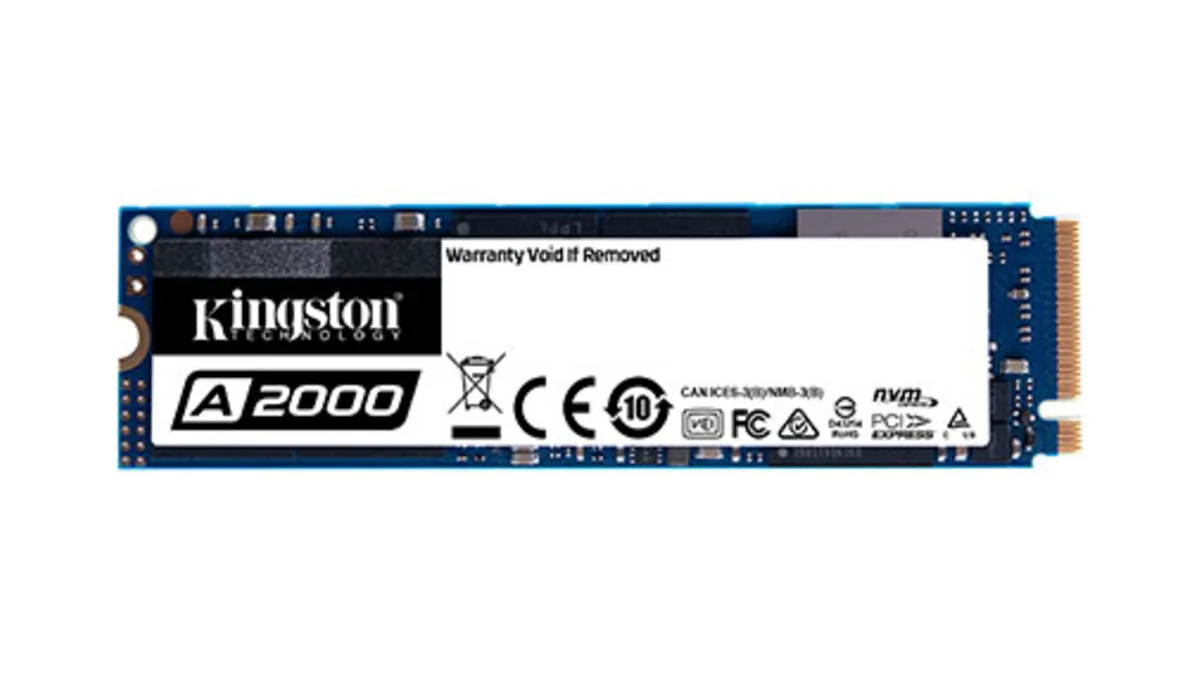
Kingston A2000 1TB PCIe 3.0 x4 NVMe M.2 SSD - reliable budget-friendly storage for everyday computing on desktops and laptops with fast sequential performance
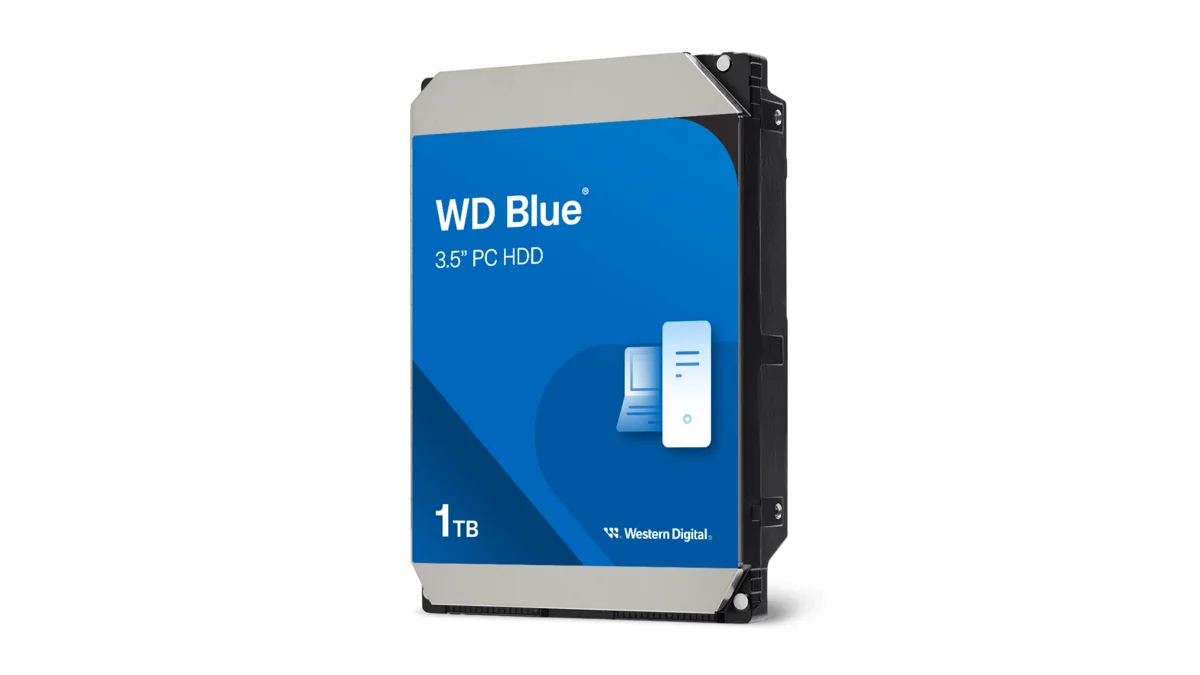
Western Digital Blue WD10EZEX 1TB 3.5" desktop hard drive with SATA III interface - reliable high-capacity storage for everyday computing needs.
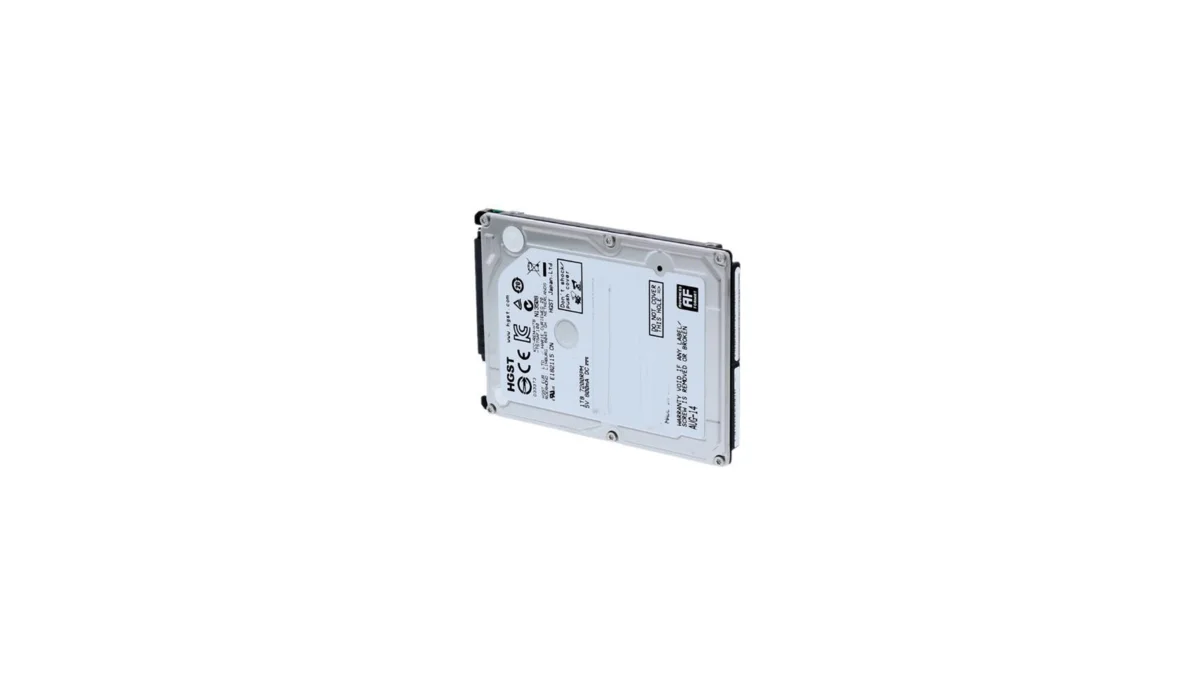
HGST Travelstar Z5K1000 1TB 2.5" laptop hard drive - reliable energy-efficient storage for desktops and workstations with SATA III interface
fanxiang S880R 1TB PCIe 4.0 NVMe M.2 SSD with built-in heatsink — up to 7300MB/s reads and 3D TLC NAND for high-performance desktop and console storage.