AMD Ryzen 9 3900X
12-core, 24-thread AMD Ryzen 9 3900X desktop processor (Zen 2, AM4) with 4.6 GHz max boost for high-end content creation and multitasking.
3 retailers


This tutorial takes about 4 minutes to complete.
Open your preferred web browser and search for your desired background image, such as a high-resolution dark theme from a wallpaper site.
Right-click the downloaded image and select the option to set it as your desktop background to bypass the unactivated Windows restriction.

To revert to an original background, open File Explorer and navigate to the C drive, then double-click into the Windows folder and open the Web directory. Browse through the 4K Screen and wallpaper subfolders, right-click your preferred default image, and select set as desktop background.
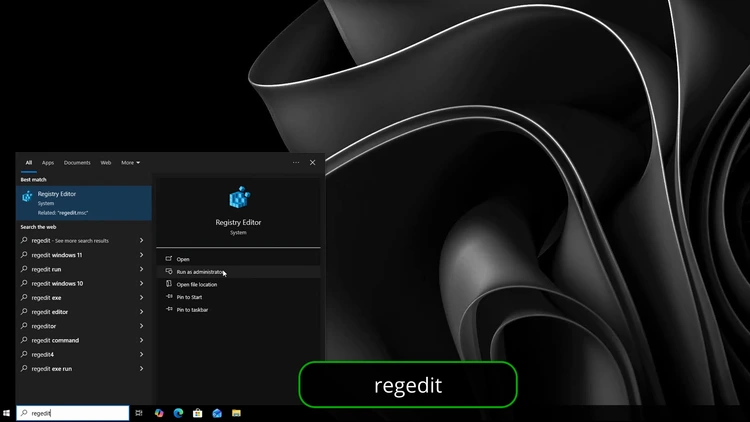
Press the Windows search key, type Reg Edit, and select Registry Editor when it appears as an administrator option.
Confirm the User Account Control prompt by clicking yes to proceed with system modifications.
In the left navigation pane, expand HKEY_CURRENT_USER, then Software, Microsoft, Windows, and Current Version to locate the Themes folder.
Click into Themes, expand Personalize, and use the path bar at the top to paste the exact registry path for direct access.
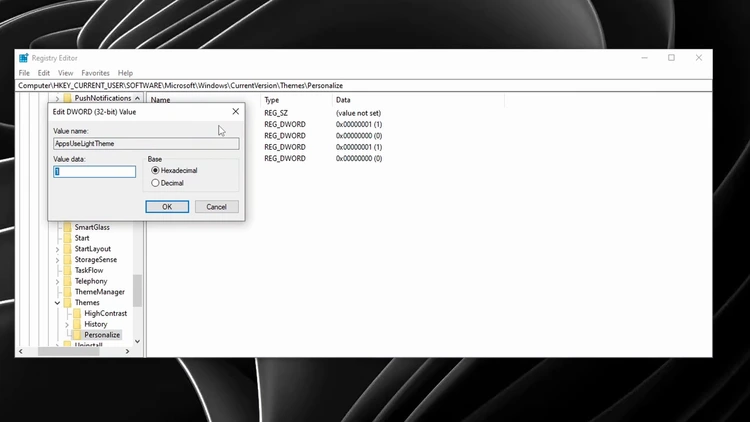
Locate the AppsUseLightTheme entry on the right pane, double-click it, and change the value data from 1 to 0 before clicking OK. This toggle switches built-in applications like the Settings app, File Explorer, and Microsoft Store to a dark appearance.
Find the SystemUsesLightTheme entry directly below, double-click it, and enter 0 to fully activate dark mode for the taskbar, Start menu, Action Center, and context menus.
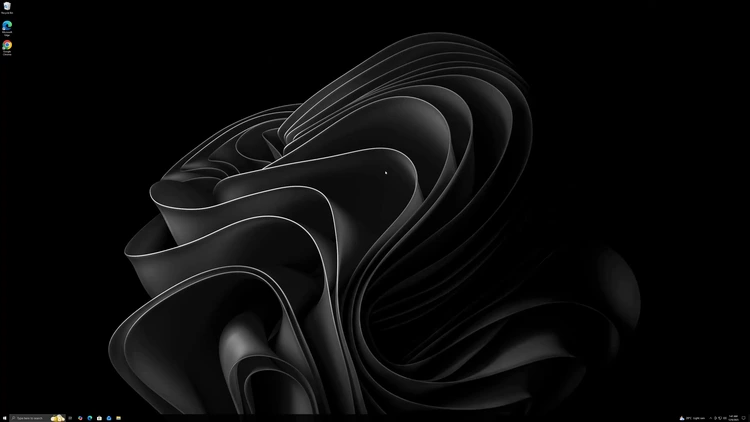
Click OK to apply the changes, and you will immediately see the desktop interface switch to complete dark mode.
One email a week on local LLMs, DIY AI hardware, and the tools that power them. No spam — unsubscribe anytime.
Subscribe free12-core, 24-thread AMD Ryzen 9 3900X desktop processor (Zen 2, AM4) with 4.6 GHz max boost for high-end content creation and multitasking.
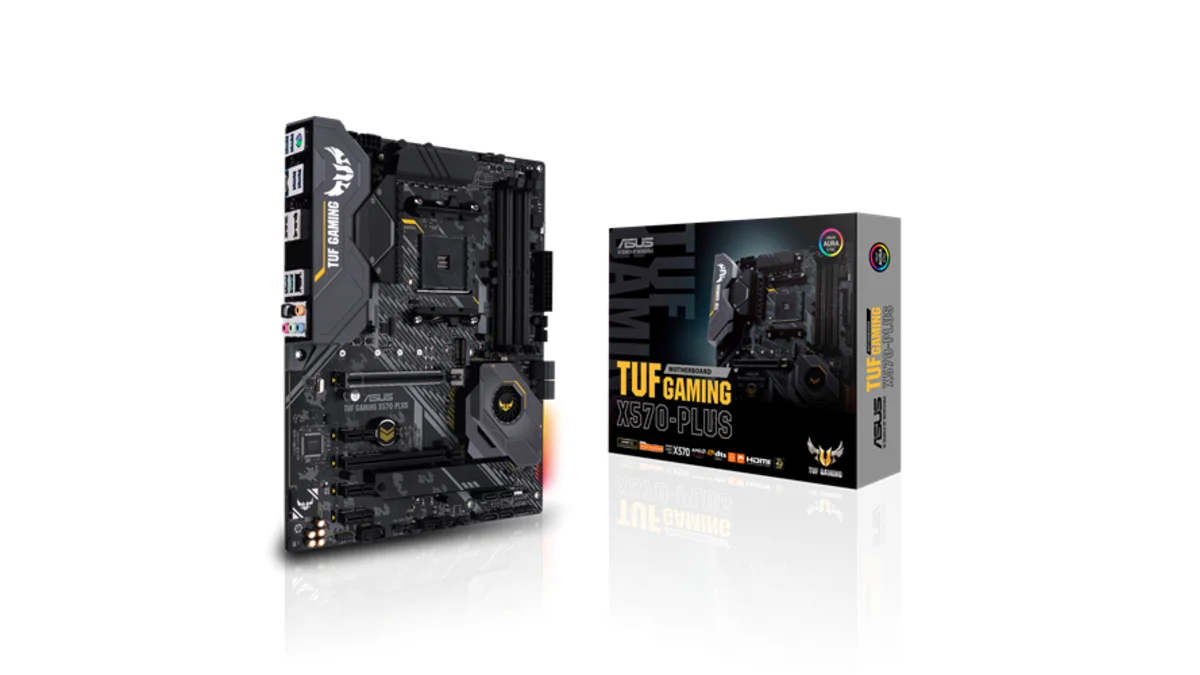
AMD X570 ATX motherboard for AM4 with PCIe 4.0, DDR4 memory support and USB 3.2 Gen 2 ports - a durable foundation for Ryzen 3000-series desktop builds
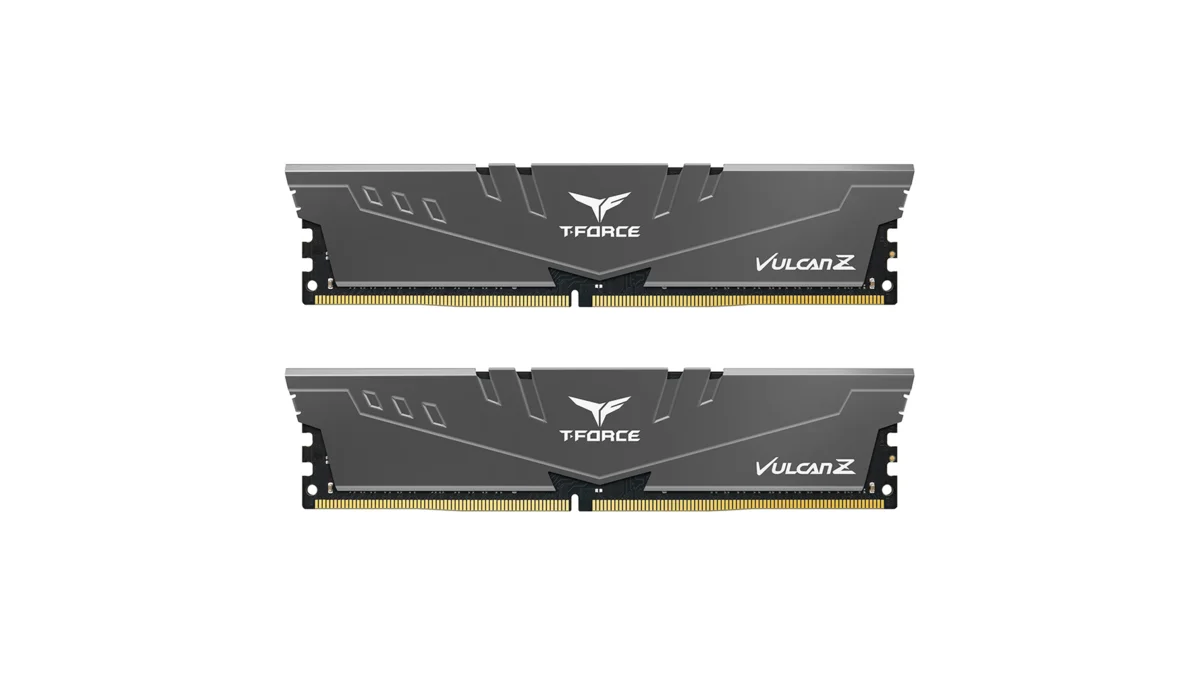
TEAMGROUP T-Force Vulcan Z 64GB DDR4 UDIMM kit - reliable overclocking memory with Intel XMP 2.0 profiles for AM4 desktop builds and Ryzen 3000-series
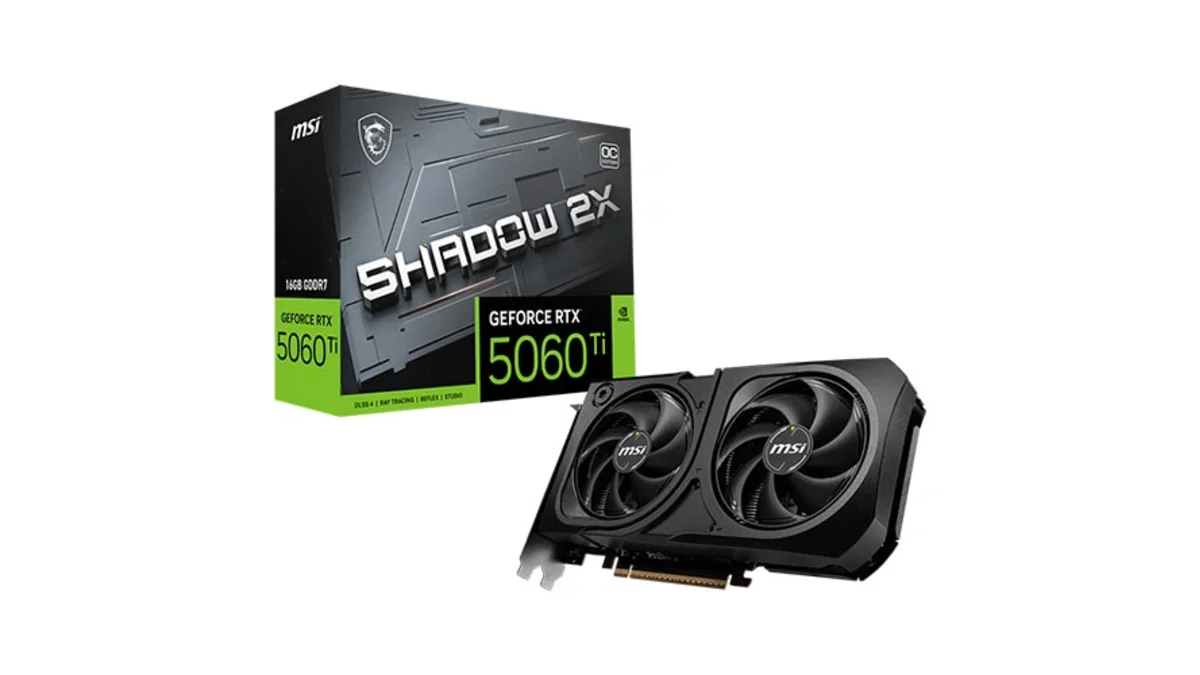
MSI GeForce RTX 5060 Ti 16GB GDDR7 graphics card with dual-fan thermal design and HDMI 2.1b DisplayPort 2.1b for gaming and content creation
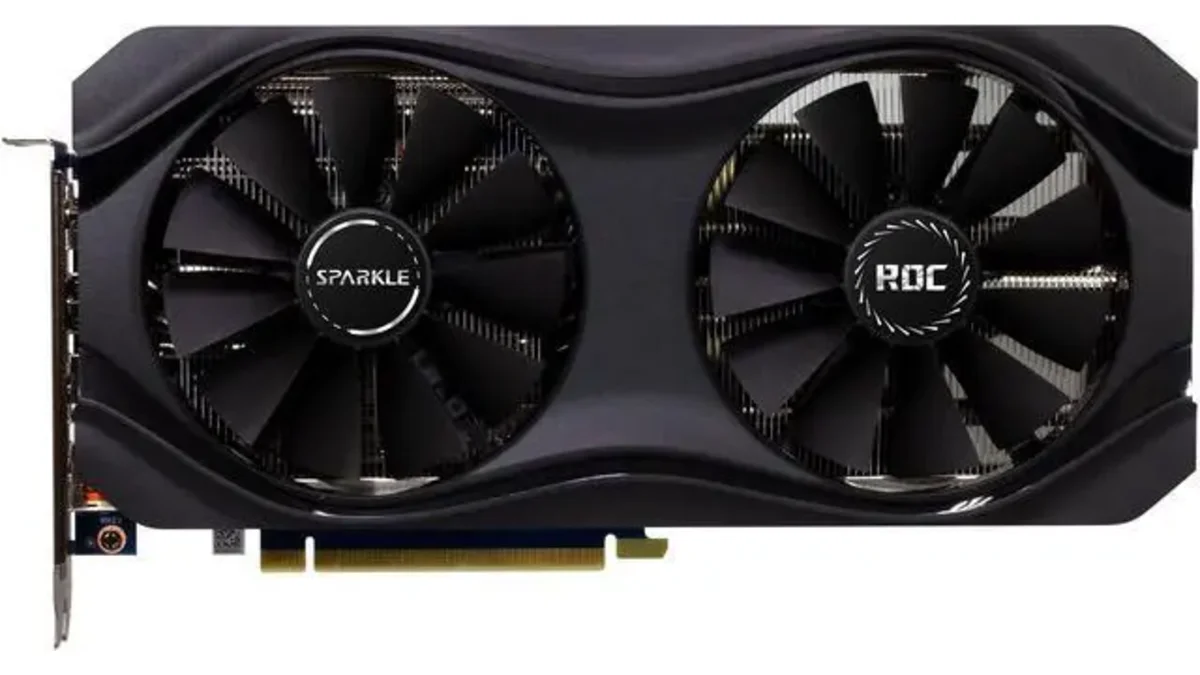
Sparkle Intel Arc A770 ROC OC Edition graphics card with 16GB GDDR6 dual DBB fans and metal backplate for gaming content creation and video editing
Microsoft Windows 11 Pro - the professional edition of Windows 11 with advanced security, remote desktop, and enterprise management features.
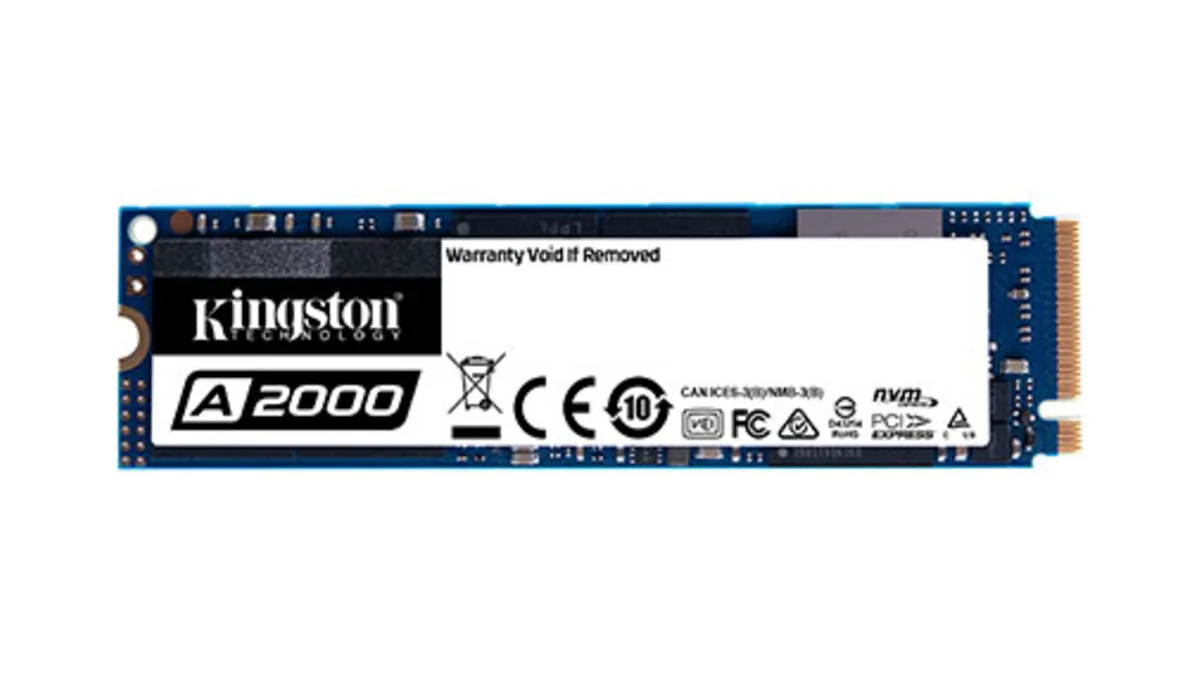
Kingston A2000 1TB PCIe 3.0 x4 NVMe M.2 SSD - reliable budget-friendly storage for everyday computing on desktops and laptops with fast sequential performance
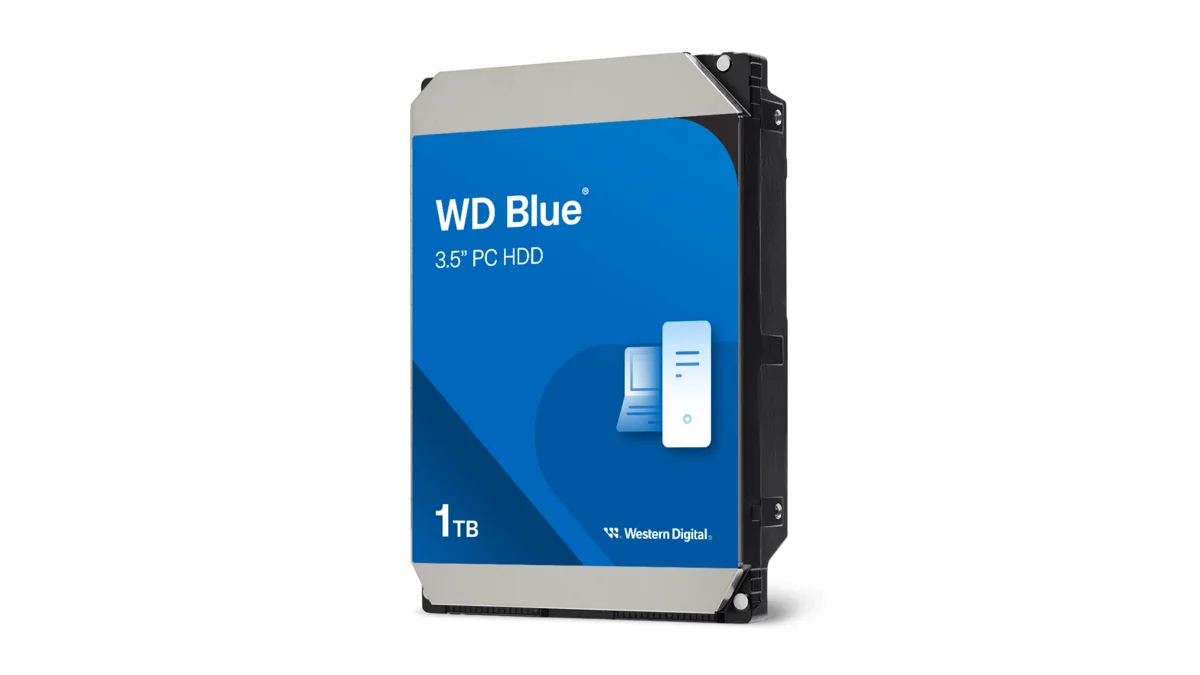
Western Digital Blue WD10EZEX 1TB 3.5" desktop hard drive with SATA III interface - reliable high-capacity storage for everyday computing needs.
HGST Travelstar Z5K1000 1TB 2.5" laptop hard drive - reliable energy-efficient storage for desktops and workstations with SATA III interface
fanxiang S880R 1TB PCIe 4.0 NVMe M.2 SSD with built-in heatsink — up to 7300MB/s reads and 3D TLC NAND for high-performance desktop and console storage.