
AMD Ryzen 9 9950X
16-core, 32-thread AMD Ryzen 9 9950X desktop processor (Zen 5, AM5) with 5.7 GHz max boost and Radeon graphics — AMD's flagship mainstream CPU.
3 retailers


This tutorial takes about 5 minutes to complete.
Alpine Linux doesn't ship with sudo installed. It gives you root and expects you to add what you need — which is exactly what trips up a lot of people coming from Ubuntu or Debian, where sudo is there from the first login. This tutorial fixes that: it installs sudo, then creates a new user and gives that user sudo access, which is the more common real-world setup. You'll do the initial work as root, then reboot and confirm the new user can actually use sudo.
Open a terminal and switch to the root user:
su -
Enter the root password when prompted. If you're already logged in as root, you can skip this step.
Before installing anything, refresh the list of available packages. Alpine uses apk — the Alpine Package Keeper:
apk update
This refreshes the local index of available packages from the configured repositories.
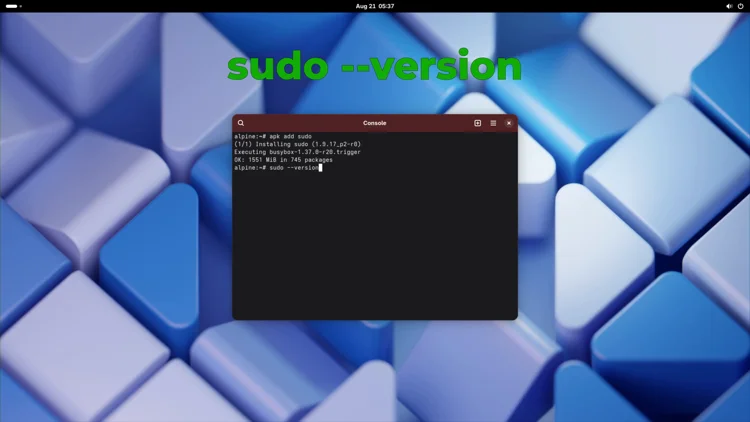
Now install the sudo package:
apk add sudo
apk add sudo installs the package plus any dependencies it needs.
Confirm the install worked and check the version:
sudo --version
If it prints a sudo version string, the install succeeded.
Create the user you want to grant sudo access to. This example uses test — substitute your own username:
adduser test
You'll be prompted to set a password and confirm it. Once that's done, the user exists on the system.
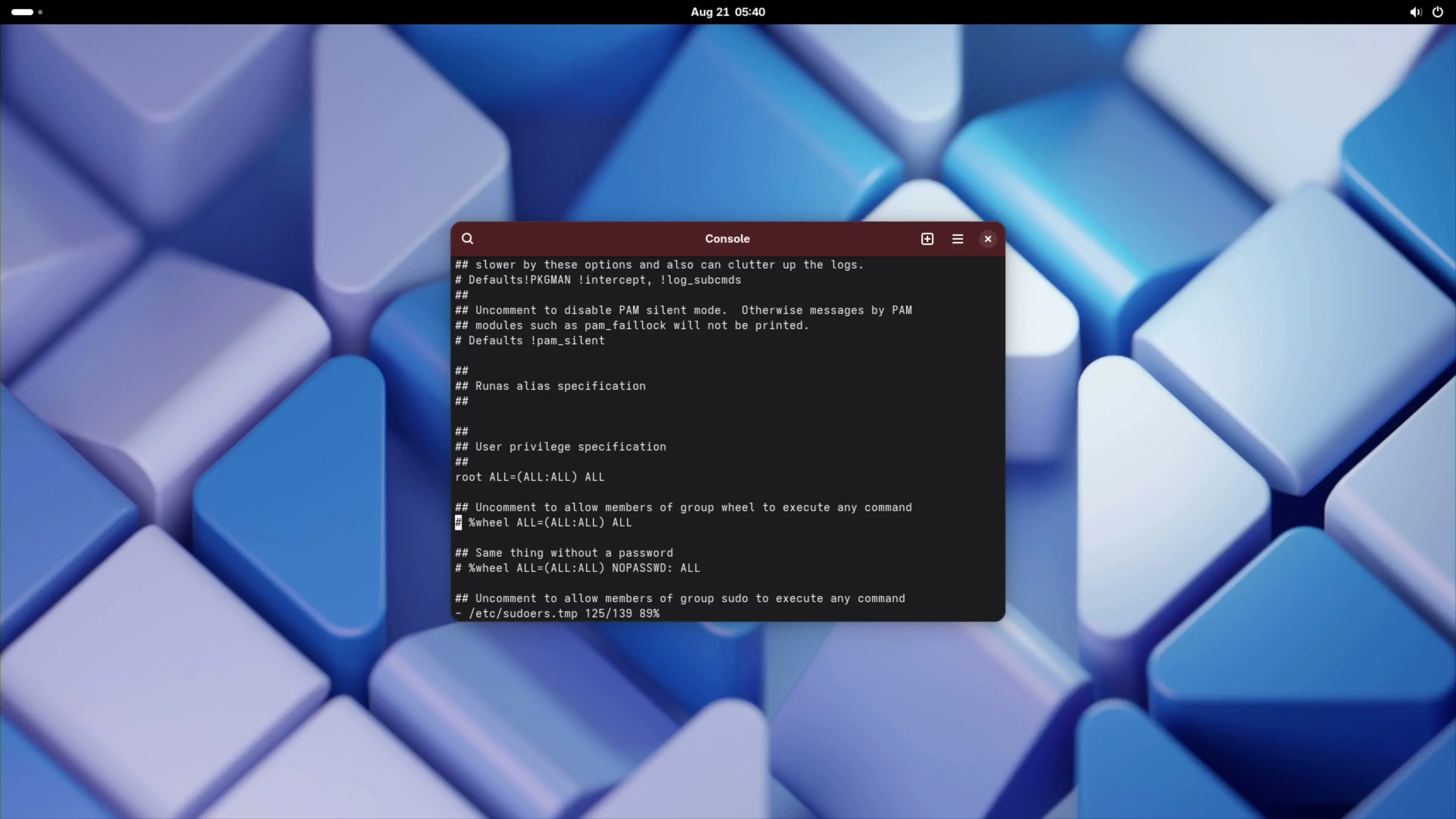
Alpine's default /etc/sudoers has the wheel-group rule commented out. You need to uncomment it so that members of the wheel group can run sudo.
Alpine 3.22 doesn't include nano by default, so visudo opens the file in vi:
visudo
Scroll down until you find this line:
#%wheel ALL=(ALL) ALL
Remove the leading # so the line reads:
%wheel ALL=(ALL) ALL
Then save and exit: press Shift + :, type wq, and hit Enter.
Uncommenting the line only defines the rule — it doesn't put anyone in the group yet. Add your user to wheel:
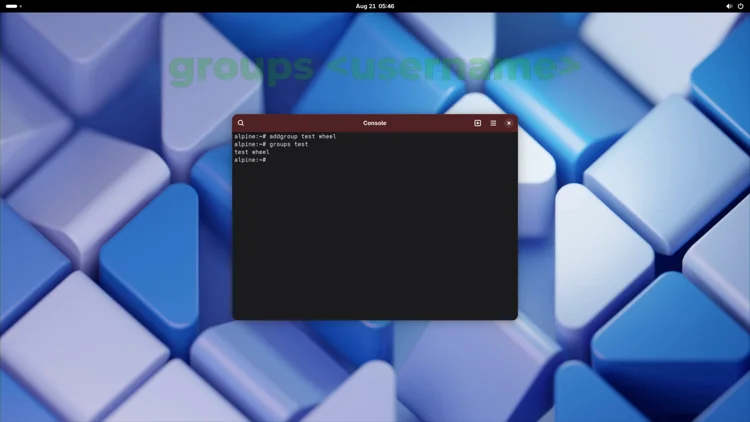
adduser test wheel
This is the step that actually grants the permission, since sudoers now says anyone in the wheel group can run sudo. Confirm the membership:
groups test
The output should list wheel among the user's groups.
Reboot the system so the new user is available at the login screen:
reboot
After it comes back, select the new user (test) at the login prompt and enter its password. Open a terminal.
Now that you're logged in as the new user, you're no longer root — so privileged commands need sudo. This is the moment you find out whether the setup actually works. Update the package index:
sudo apk update
Install the nano editor:
sudo apk add nano
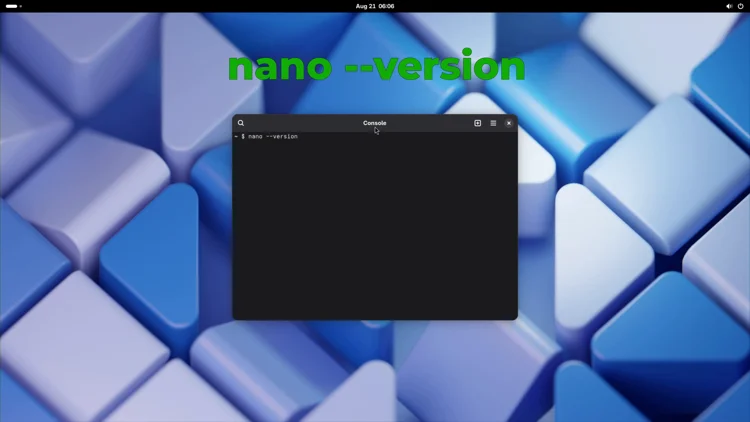
Confirm it installed:
nano --version
If it prints a nano version string, the new user's sudo access is working.
Do a quick end-to-end check. Create a file:
nano test.txt
Type hello world, then save and exit: press Ctrl-X, type Y, and hit Enter. Read the file back:
cat test.txt
You should see Hello World.
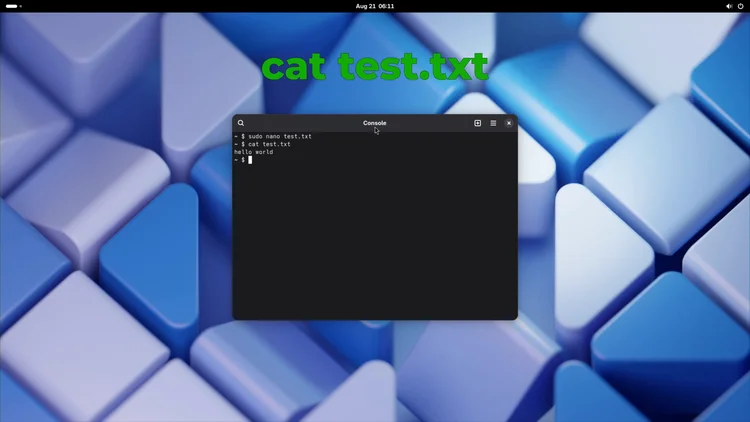
That's it — you've added a new user, granted it sudo privileges, and confirmed it works by installing and using nano as that user.
One email a week on local LLMs, DIY AI hardware, and the tools that power them. No spam — unsubscribe anytime.
Subscribe free16-core, 32-thread AMD Ryzen 9 9950X desktop processor (Zen 5, AM5) with 5.7 GHz max boost and Radeon graphics — AMD's flagship mainstream CPU.

AMD X870 ATX motherboard for AM5 with PCIe 5.0, DDR5, USB4, Wi-Fi 7 and 2.5GbE LAN — a modern foundation for Ryzen 9000-series desktop builds.

32GB (2x16GB) DDR5-6400 CL32 UDIMM kit from Crucial Pro — 1.35V overclocking memory with Intel XMP 3.0 and AMD EXPO for demanding desktop builds.

fanxiang S880R 1TB PCIe 4.0 NVMe M.2 SSD with built-in heatsink — up to 7300MB/s reads and 3D TLC NAND for high-performance desktop and console storage.