AMD Ryzen 9 9950X
16-core, 32-thread AMD Ryzen 9 9950X desktop processor (Zen 5, AM5) with 5.7 GHz max boost and Radeon graphics — AMD's flagship mainstream CPU.
3 retailers


This tutorial takes about 6 minutes to complete.
This guide shows how to install Ollama on Ubuntu 26.04, set up your graphics card for NVIDIA, AMD or Intel, manage the Ollama server and run your first model. It follows the video, and every command below is the one typed on screen, ready to copy.
You need a computer running Ubuntu 26.04, an internet connection and your account password: the install commands ask for it. A graphics card is optional: if you run on a CPU, skip the GPU section and go straight to the install script in Step 3.
Jump to a chapter in the video: Update and install curl · GPU drivers · Install Ollama · Manage the server · Run a model and commands
Open a terminal. Update your package list, then install curl, which downloads the Ollama install script.
sudo apt update
sudo apt install curl -y
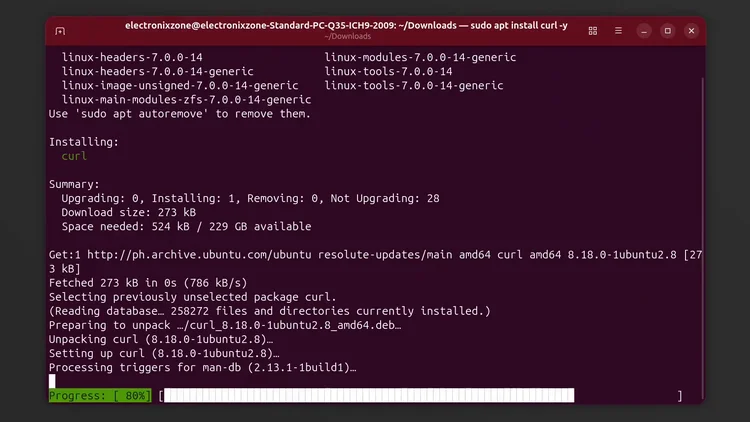
Do this before you run the Ollama installer, so Ollama can bind to your hardware without display conflicts or black screens. The setup depends on your GPU. The video uses an NVIDIA RTX 5060 Ti 16 GB.
For RTX 20, 30, 40 and 50 series cards, install the open driver:
sudo apt install nvidia-driver-595-open -y
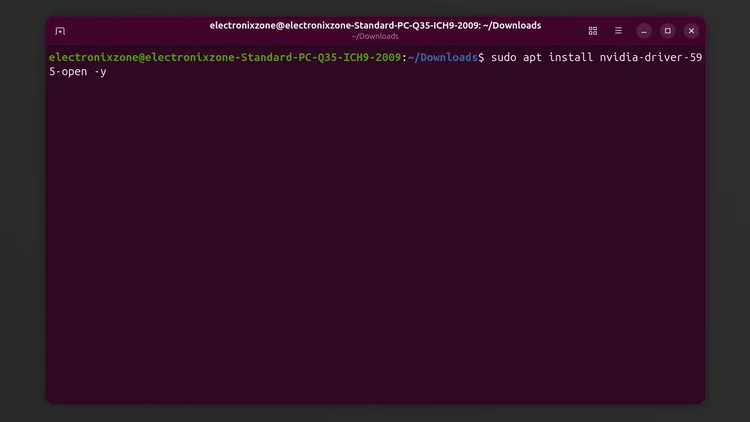
For GTX 10 series and 16 series cards, use sudo apt install nvidia-driver-595 -y instead, then reboot your system.
Ubuntu 26.04 includes up-to-date open source AMD GPU kernel drivers, but you must give your user account access to the hardware by adding it to the render and video groups so Ollama can talk to the GPU. Run sudo usermod -aG render,video $USER, then reboot your computer. This works for RX 6800 cards and newer, which Ollama auto-detects.
Ollama uses Vulkan as the backend on Intel GPUs, so install the Vulkan drivers with sudo apt install mesa-vulkan-drivers vulkan-tools -y and set the permissions with sudo usermod -aG render,video $USER. Then reboot your computer.
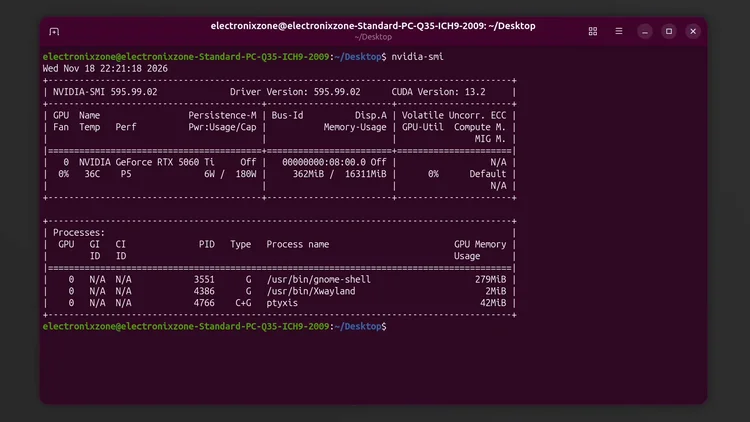
After the reboot, open a terminal and run the command below. It lists your GPU, which means the driver is installed.
nvidia-smi
Open your browser, go to ollama.com/download/linux, select Linux and copy the curl command.
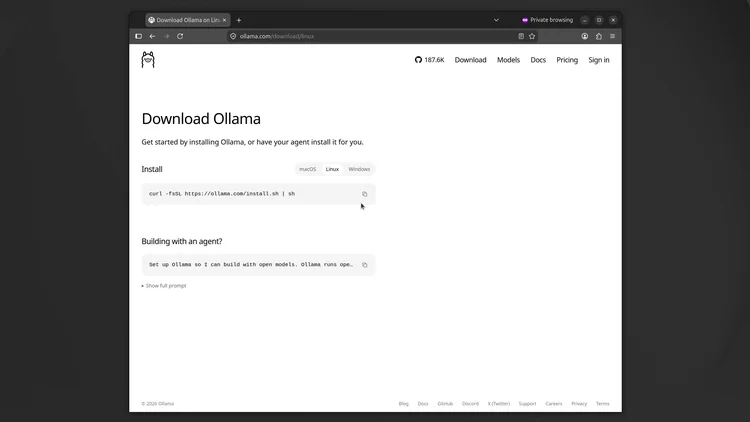
Close the browser, paste the command into the terminal and press Enter. Enter your password and the installation starts automatically.
curl -fsSL https://ollama.com/install.sh | sh
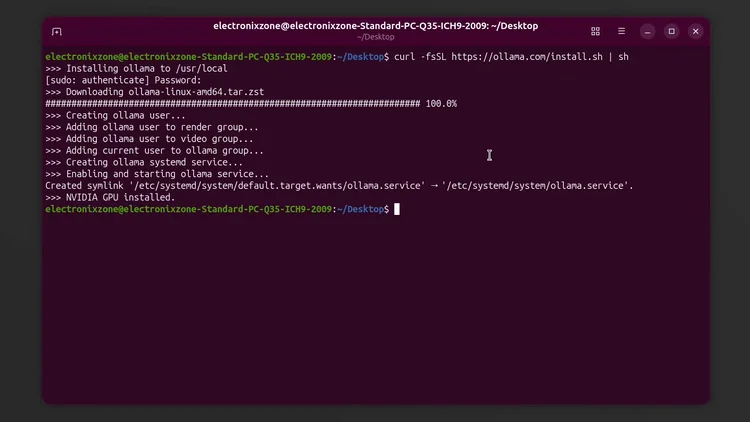
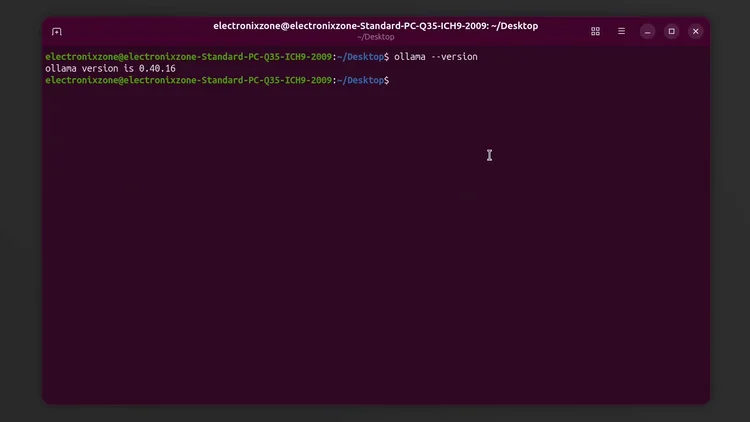
When it finishes, check the installed version:
ollama --version
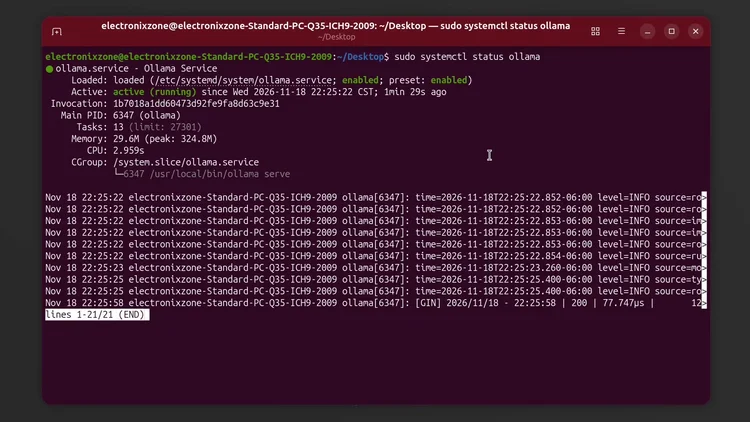
Ollama runs as a background service. Check its status with the first command; it shows active (running). Press Ctrl+C to exit the status view.
sudo systemctl status ollama
To stop the server, run the stop command and check the status again: it now shows inactive (dead).
sudo systemctl stop ollama
sudo systemctl status ollama
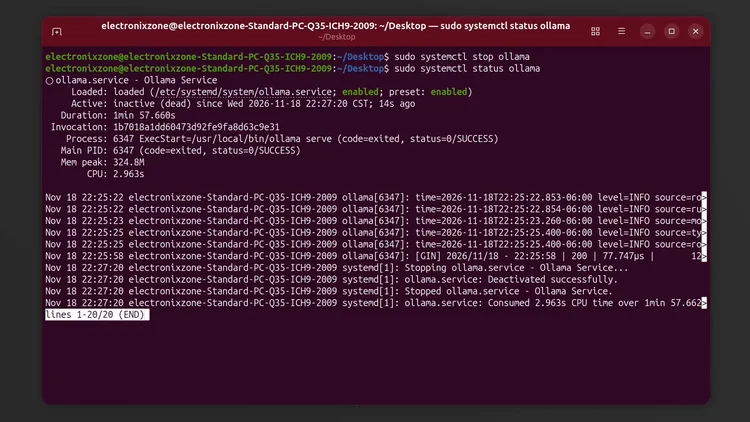
To start it again, run the start command and check the status: it is active (running) again.
sudo systemctl start ollama
sudo systemctl status ollama
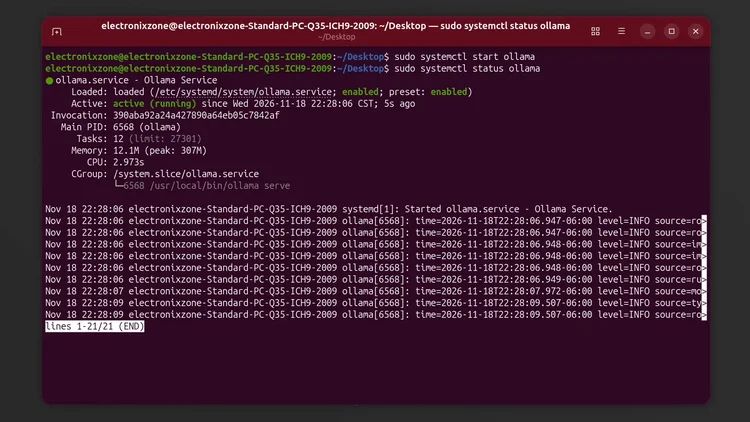
Clear the screen and show the server address with this command:
clear
sudo ss -tulpn | grep ollama
Open your browser, go to the Ollama website, click Models and copy the name of the model. The video uses Qwen 3.5 0.8B.
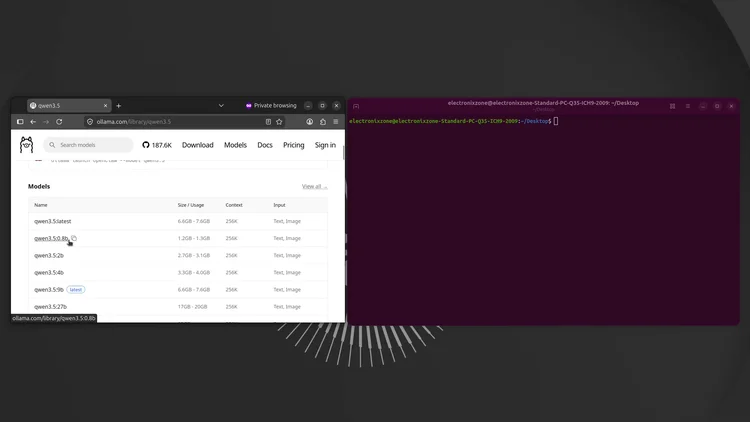
Run it. Ollama downloads the model and opens a chat. Ask a question, then type /bye to exit the chat.
ollama run qwen3.5:0.8b
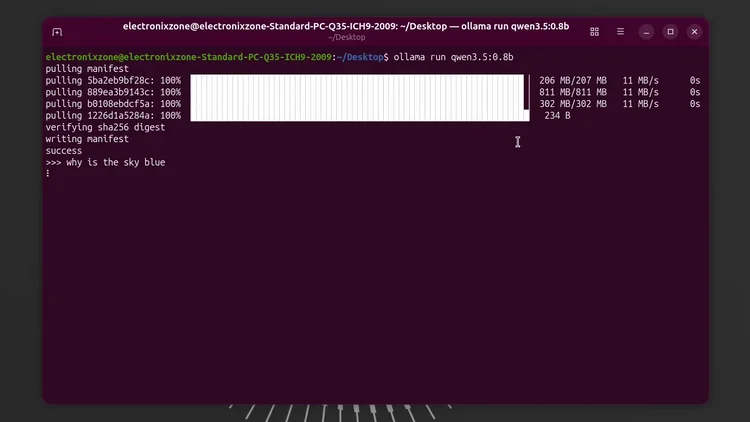
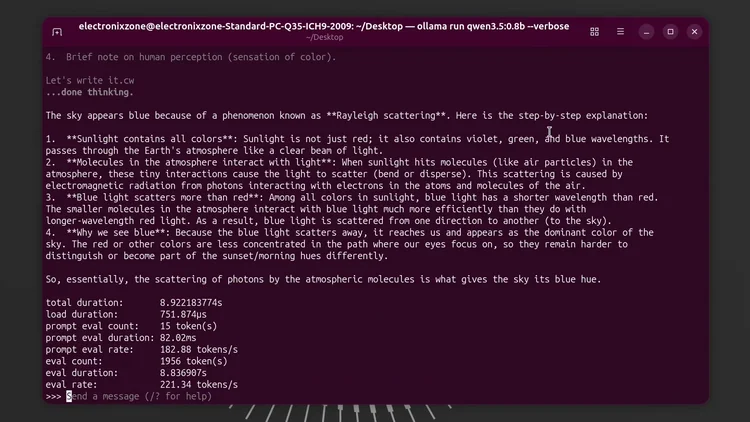
To see the timing data at the end of every response, add the verbose flag:
ollama run qwen3.5:0.8b --verbose
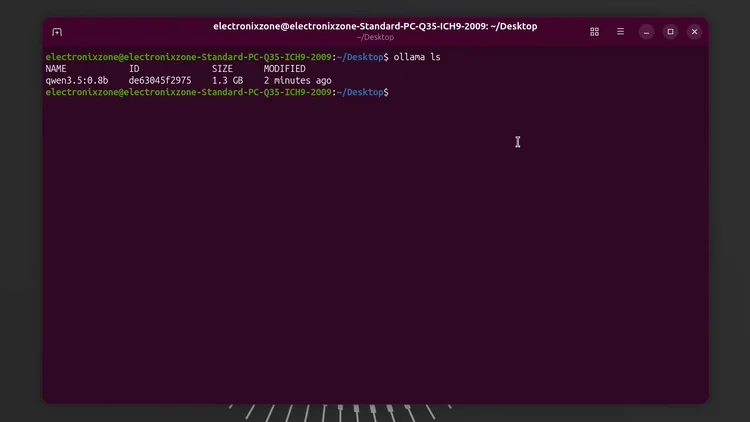
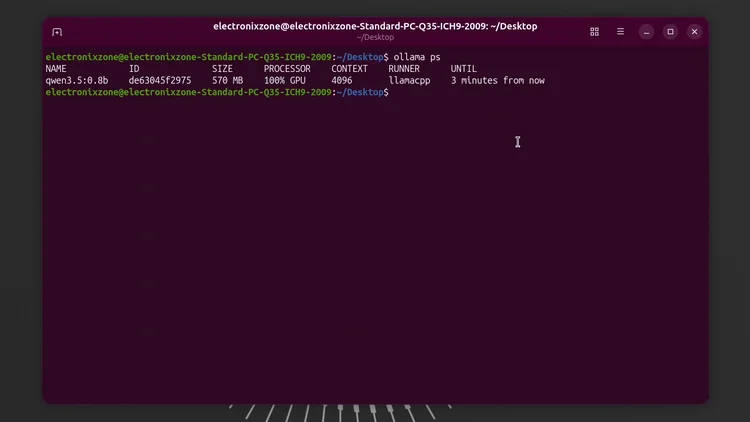
ollama ls lists the models you have downloaded on your computer.ollama ps lists the models loaded into VRAM and shows whether they use the GPU or the CPU. The video shows 100% GPU.ollama rm qwen3.5:0.8b deletes a model: type ollama rm and the model name.ollama stop qwen3.5:0.8b unloads the model from memory: type ollama stop and the model name.ollama help lists all the commands.ollama ls
ollama ps
Ollama on Linux does not come with a GUI. In the next tutorial the video connects it to a GUI application called Open WebUI, which gives you a chat interface where you can chat with your documents and upload pictures.
One email a week on local LLMs, DIY AI hardware, and the tools that power them. No spam — unsubscribe anytime.
Subscribe free16-core, 32-thread AMD Ryzen 9 9950X desktop processor (Zen 5, AM5) with 5.7 GHz max boost and Radeon graphics — AMD's flagship mainstream CPU.
AMD X870 ATX motherboard for AM5 with PCIe 5.0, DDR5, USB4, Wi-Fi 7 and 2.5GbE LAN — a modern foundation for Ryzen 9000-series desktop builds.
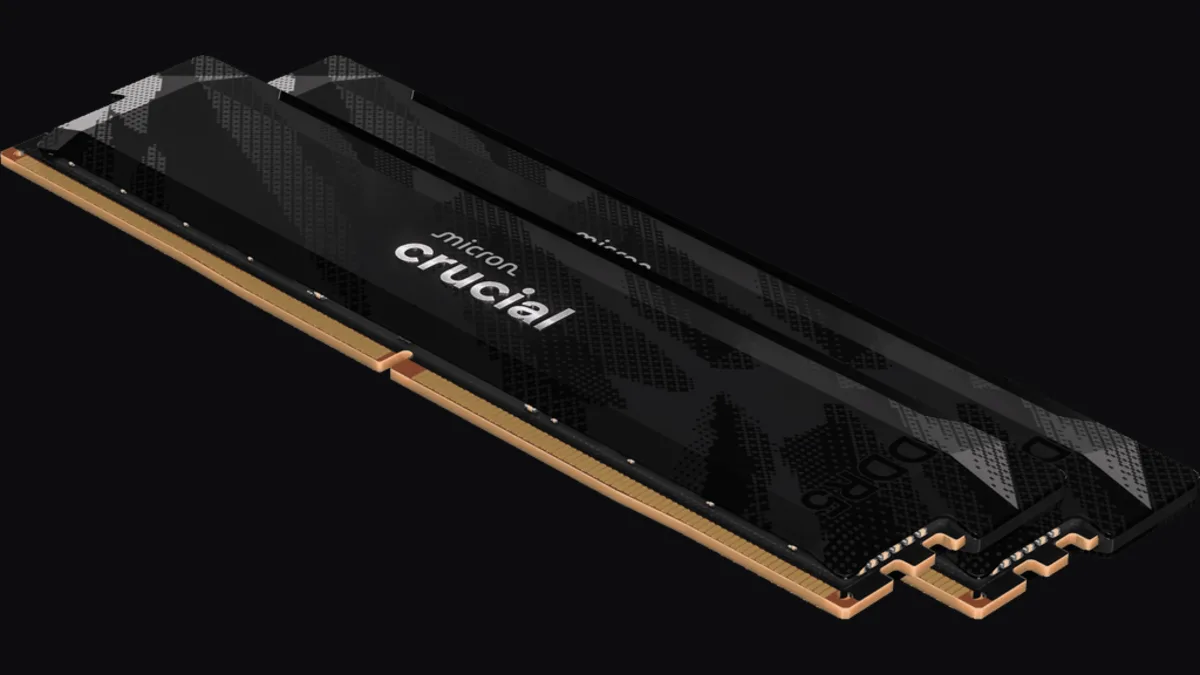
32GB (2x16GB) DDR5-6400 CL32 UDIMM kit from Crucial Pro — 1.35V overclocking memory with Intel XMP 3.0 and AMD EXPO for demanding desktop builds.
fanxiang S880R 1TB PCIe 4.0 NVMe M.2 SSD with built-in heatsink — up to 7300MB/s reads and 3D TLC NAND for high-performance desktop and console storage.