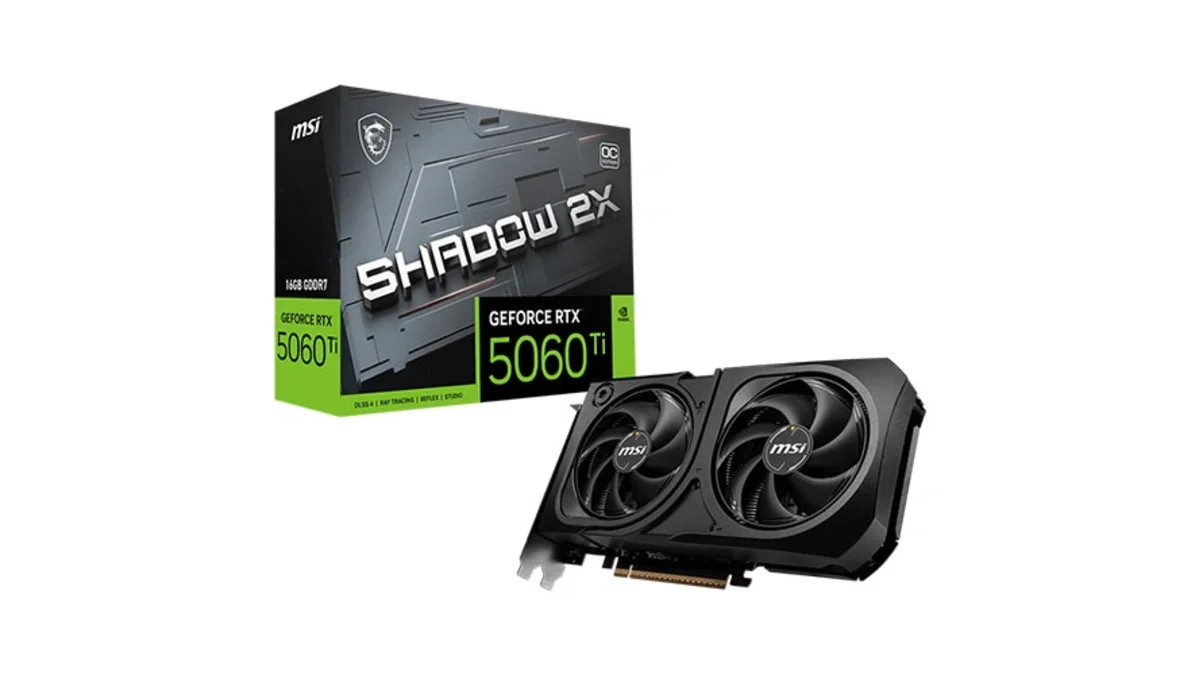
MSI GeForce RTX 5060 Ti 16G SHADOW 2X OC PLUS
MSI GeForce RTX 5060 Ti 16GB GDDR7 graphics card with dual-fan thermal design and HDMI 2.1b DisplayPort 2.1b for gaming and content creation
4 retailers


This tutorial takes about 4 minutes to complete.
This guide shows how to install Ollama on Windows 10 and run your first local AI model: download the installer, check the install in the Command Prompt, run Qwen 3.5 0.8B, check that it uses your GPU and chat in the Ollama app. It follows the video, so you can read each step here and watch it there.
You need a computer running Windows 10 and an internet connection. A supported AMD or NVIDIA GPU makes models faster, but Ollama also runs on the CPU. The model used here, Qwen 3.5 0.8B, is small (about 1.2 GB).
Jump to a chapter in the video: Download · Install · Run a model · GPU and chat
Open your browser, go to ollama.com/download and click Download manually. When the download is finished, go to your Downloads folder and close the browser.
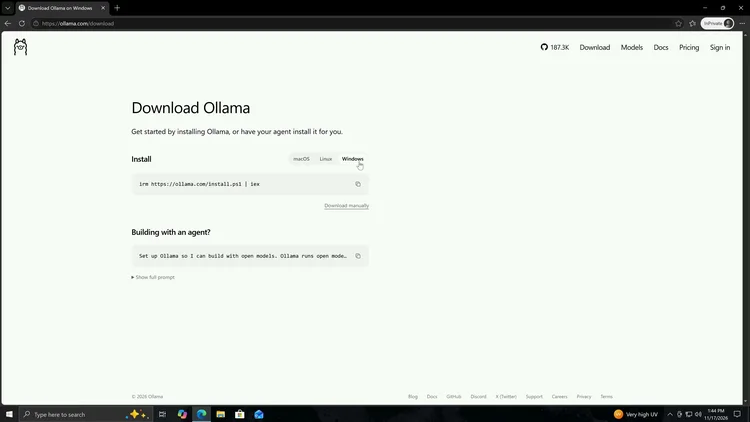
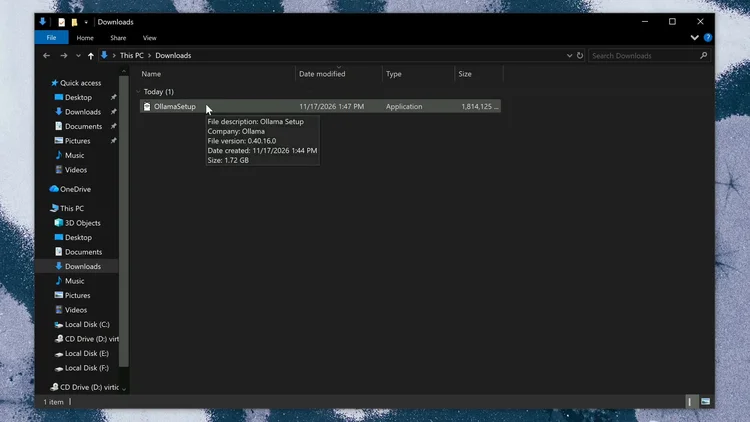
Double-click OllamaSetup and click Install. Ollama detects your GPU automatically (AMD or NVIDIA) and falls back to the CPU if there is none. When the install is done, click Continue. Cloud models need an Ollama account; to use Ollama locally, click No thanks.
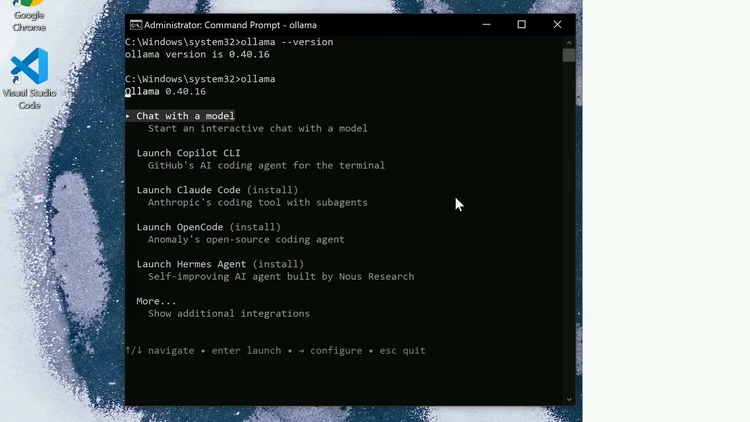
Type cmd in the search bar and run the Command Prompt as administrator, then click Yes. Check the installed version with ollama --version (this video shows version 0.40.16). Type ollama and press Enter to see the menu: the Ollama server is now running. Close the app, then open it again from the Start menu by clicking Ollama.
ollama --version
ollama
Close the Command Prompt, click Apps in the left corner and then Chat. In the model list, anything with a cloud icon needs an account and anything with a download button is downloaded and run on your own machine. To find more models, go to ollama.com and click Models.
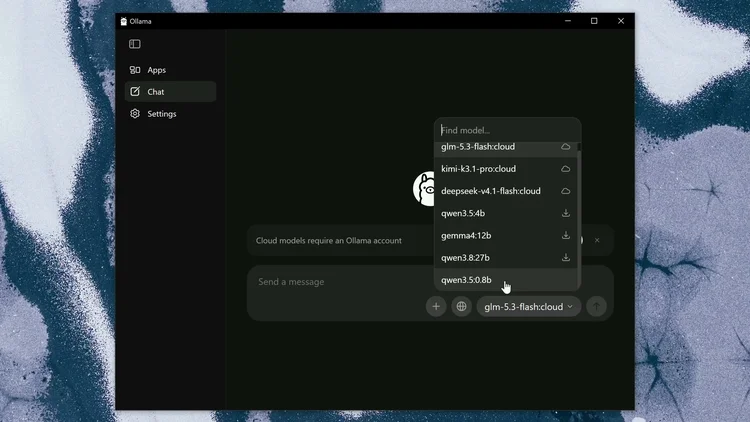
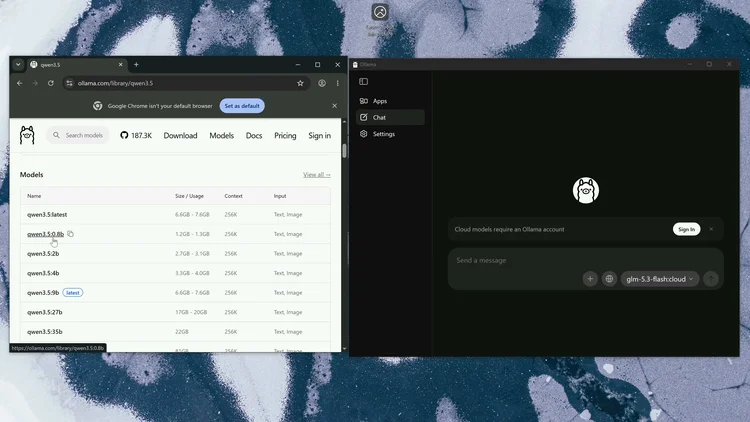
For this tutorial, download a small model: open the Qwen 3.5 page, scroll down to the qwen3.5:0.8b entry and click the copy icon. Open the Command Prompt again, type ollama run, paste the model name (ollama run qwen3.5:0.8b) and press Enter. When the download finishes, you can chat with the model in the Command Prompt, for example by asking why the sky is blue.
ollama run qwen3.5:0.8b
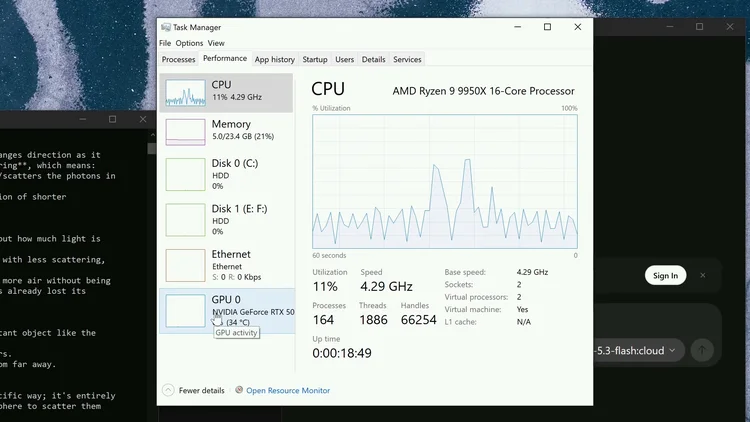
To see whether Ollama uses your GPU, type device manager in the search bar, open Task Manager, click More details and choose the Performance tab, then select GPU. While the model answers you should see GPU activity. When you are done chatting, type /bye and press Enter, then close the window and Task Manager.
/bye
You can also chat in the Ollama app: pick the model you downloaded (Qwen 3.5 0.8B appears in the list), start a new chat with the Chat button and use the + button to add documents or pictures; pictures need a vision model. In Settings, the context length controls how much the model remembers: the default of 4000 is too small for many tasks, so try 16K or 32K, but a longer context uses more VRAM. Click Chat and open your history to go back to an earlier chat.
One email a week on local LLMs, DIY AI hardware, and the tools that power them. No spam — unsubscribe anytime.
Subscribe freeMSI GeForce RTX 5060 Ti 16GB GDDR7 graphics card with dual-fan thermal design and HDMI 2.1b DisplayPort 2.1b for gaming and content creation
16-core, 32-thread AMD Ryzen 9 9950X desktop processor (Zen 5, AM5) with 5.7 GHz max boost and Radeon graphics — AMD's flagship mainstream CPU.
AMD X870 ATX motherboard for AM5 with PCIe 5.0, DDR5, USB4, Wi-Fi 7 and 2.5GbE LAN — a modern foundation for Ryzen 9000-series desktop builds.
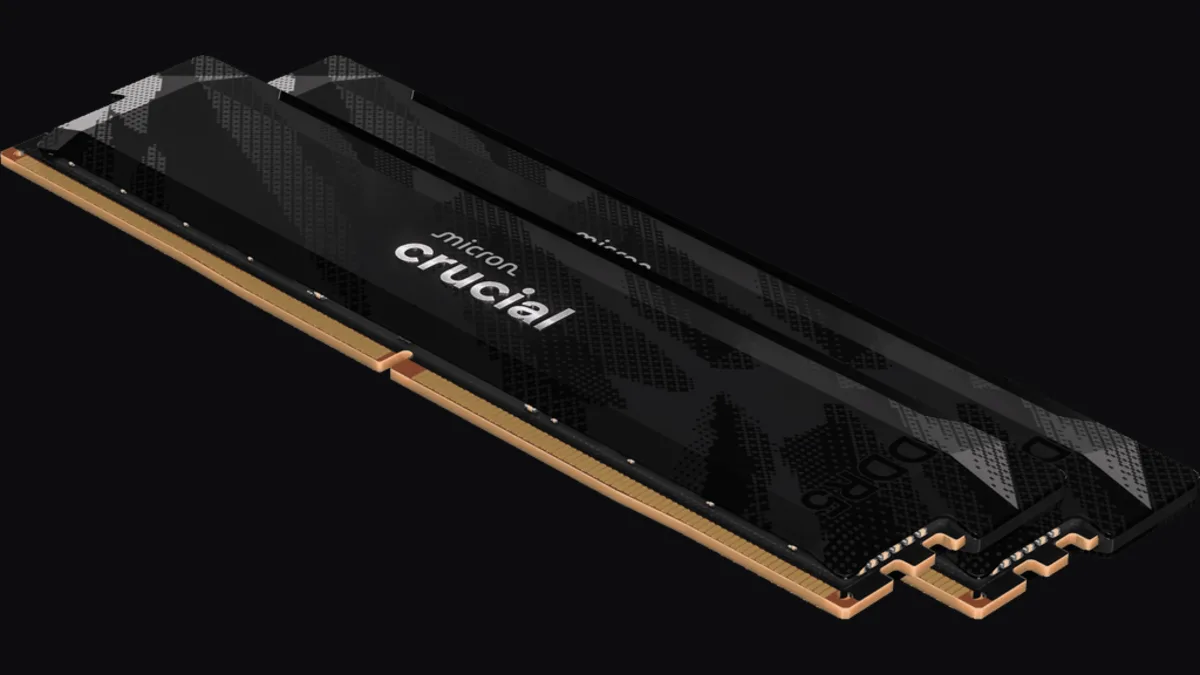
32GB (2x16GB) DDR5-6400 CL32 UDIMM kit from Crucial Pro — 1.35V overclocking memory with Intel XMP 3.0 and AMD EXPO for demanding desktop builds.
fanxiang S880R 1TB PCIe 4.0 NVMe M.2 SSD with built-in heatsink — up to 7300MB/s reads and 3D TLC NAND for high-performance desktop and console storage.