AMD Ryzen 9 9950X
16-core, 32-thread AMD Ryzen 9 9950X desktop processor (Zen 5, AM5) with 5.7 GHz max boost and Radeon graphics — AMD's flagship mainstream CPU.
3 retailers


This tutorial takes about 1 minute to complete.
This guide shows how to install Visual Studio Code on Arch Linux with pacman: one command updates your system and installs the open source Code - OSS build, then you start it from the applications menu or the terminal. It follows the video.
You need a computer running Arch Linux, an internet connection and your account password: the install command asks for it.
Jump to a chapter in the video: Intro · Install Code · Run Code OSS
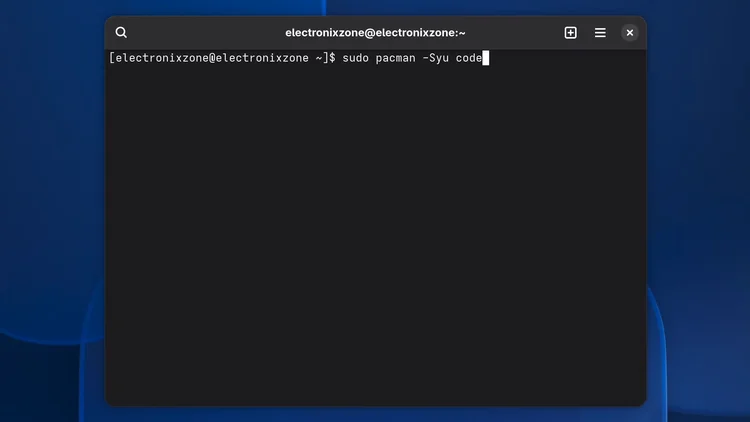
Open a terminal and run sudo pacman -Syu code. It updates your repositories, upgrades the system and installs the open source Code - OSS build of VS Code. Enter your password and answer yes to proceed. If you need the Microsoft branded build, install visual-studio-code-bin from the AUR instead. Reboot and log back in.
sudo pacman -Syu code
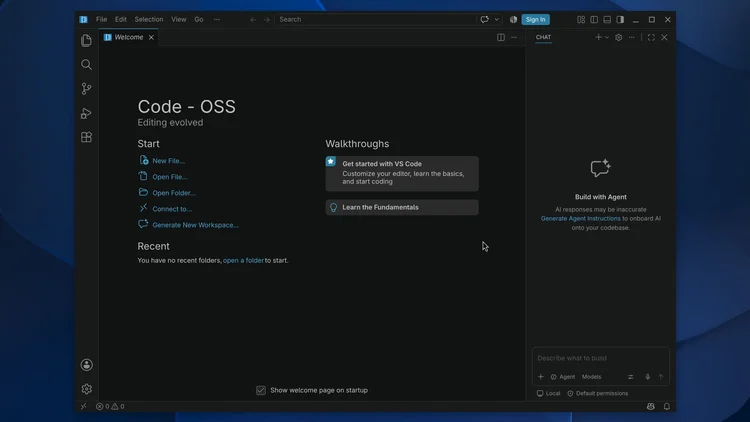
Open the applications menu and look for code-OSS, or open a terminal and type the word code. Either way VS Code starts.
code
One email a week on local LLMs, DIY AI hardware, and the tools that power them. No spam — unsubscribe anytime.
Subscribe free16-core, 32-thread AMD Ryzen 9 9950X desktop processor (Zen 5, AM5) with 5.7 GHz max boost and Radeon graphics — AMD's flagship mainstream CPU.
AMD X870 ATX motherboard for AM5 with PCIe 5.0, DDR5, USB4, Wi-Fi 7 and 2.5GbE LAN — a modern foundation for Ryzen 9000-series desktop builds.
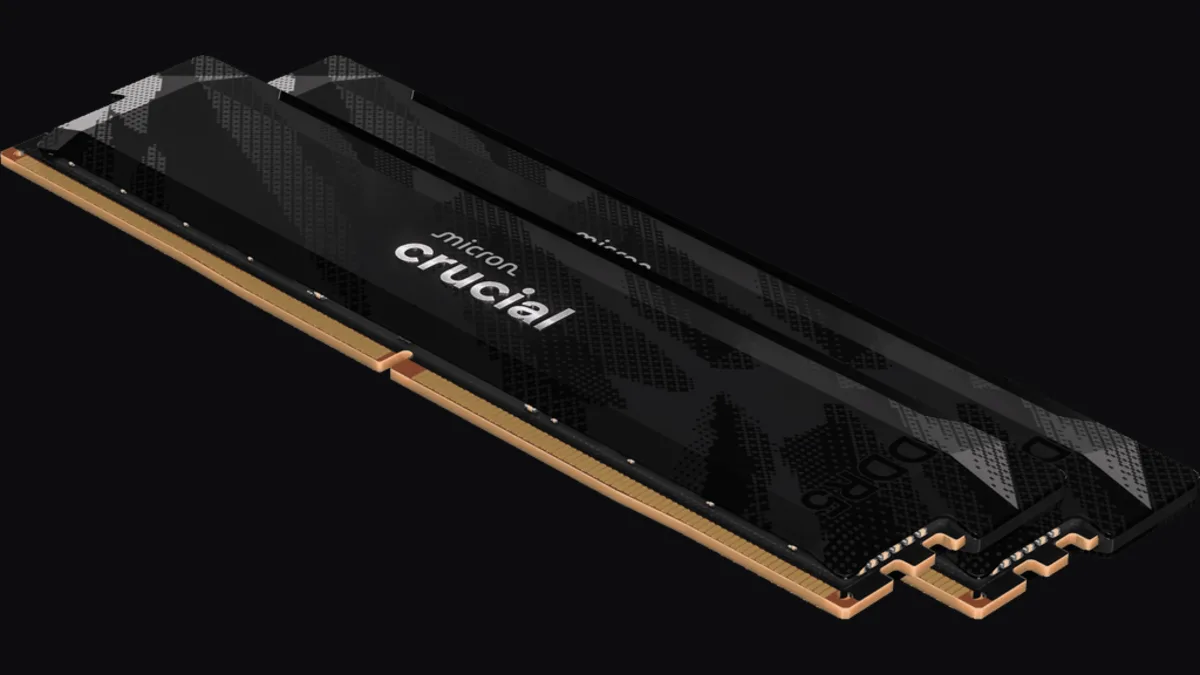
32GB (2x16GB) DDR5-6400 CL32 UDIMM kit from Crucial Pro — 1.35V overclocking memory with Intel XMP 3.0 and AMD EXPO for demanding desktop builds.
fanxiang S880R 1TB PCIe 4.0 NVMe M.2 SSD with built-in heatsink — up to 7300MB/s reads and 3D TLC NAND for high-performance desktop and console storage.