AMD Ryzen 9 9950X
16-core, 32-thread AMD Ryzen 9 9950X desktop processor (Zen 5, AM5) with 5.7 GHz max boost and Radeon graphics — AMD's flagship mainstream CPU.
3 retailers


This tutorial takes about 2 minutes to complete.
This guide shows how to install Visual Studio Code on Ubuntu 26.04 with apt: download the .deb file, install it with one command and start it. It follows the video, and every command below is the one typed on screen, ready to copy.
You need a computer running Ubuntu 26.04, an internet connection and your account password: the install command asks for it.
Jump to a chapter in the video: Download .deb · Install .deb · Run VS Code
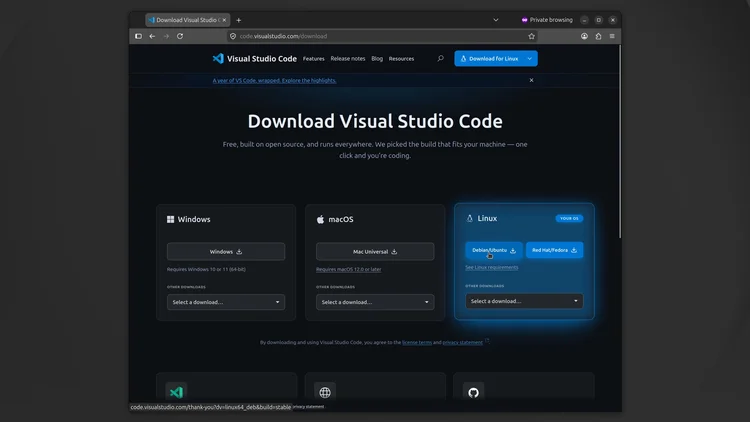
Open your browser and go to code.visualstudio.com/download. Download the Debian/Ubuntu .deb file. If your browser tries to open it automatically, click Cancel. Then open your Downloads folder, where the Visual Studio Code .deb file is, and close the window.
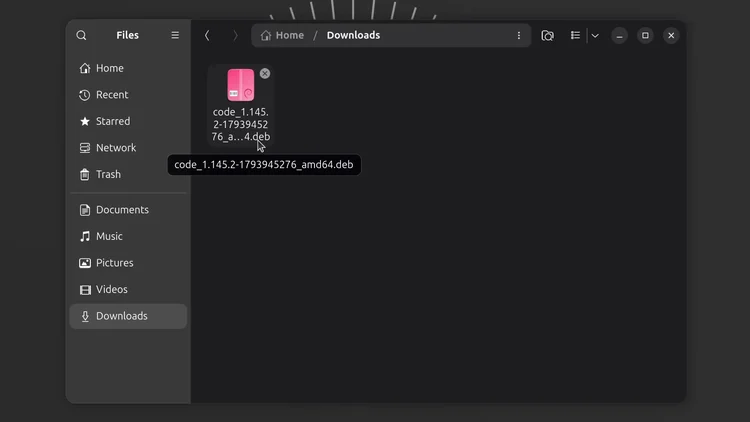
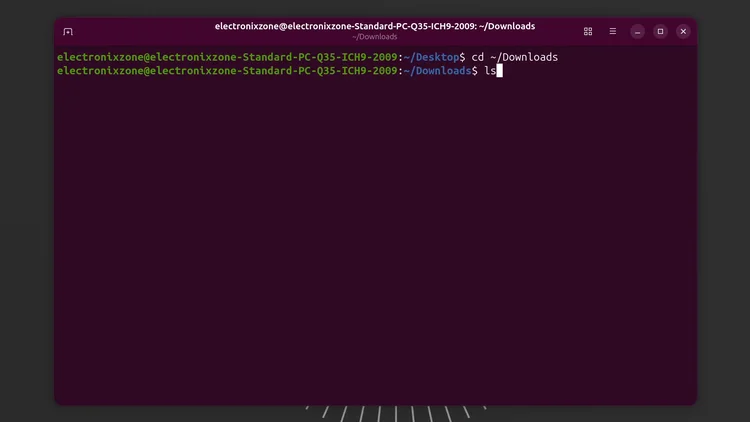
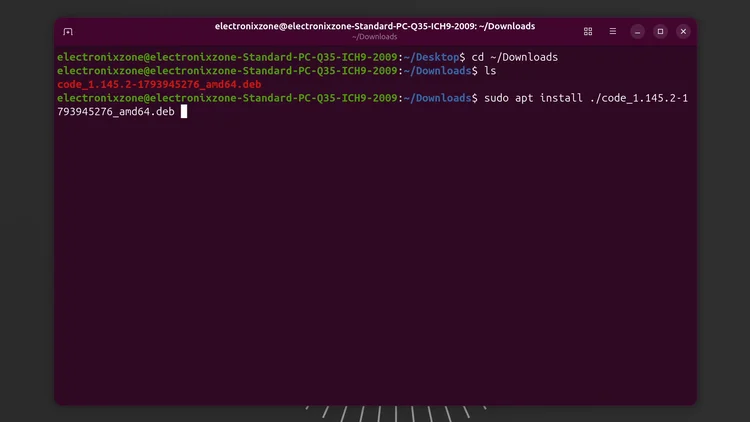
Right-click and choose Open in Terminal. Change into the Downloads folder with the first command below, then run the second command to see the file name: it starts with code and ends with .deb.
cd ~/Downloads
ls
Now install it. Type sudo apt install ./ and the first letters of the file name, then press Tab to autocomplete the name and press Enter. The finished command is below. Enter your password to start the installation. Type Y for yes to add the Microsoft APT repository for Visual Studio Code, which updates VS Code to the latest stable version when you run sudo apt update or sudo apt upgrade.
sudo apt install ./code_1.145.2-1793945276_amd64.deb
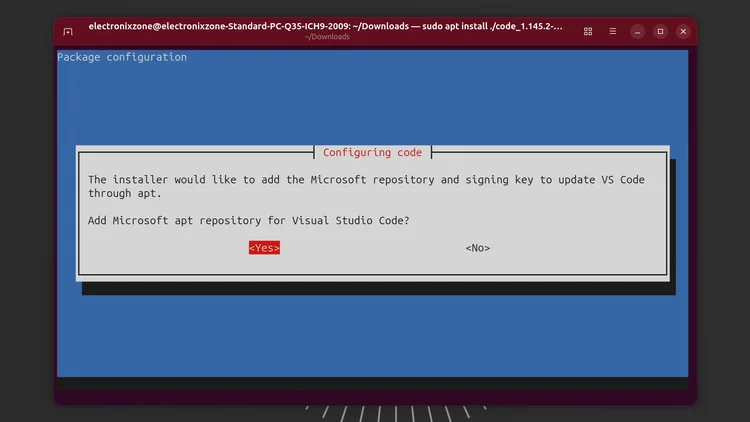
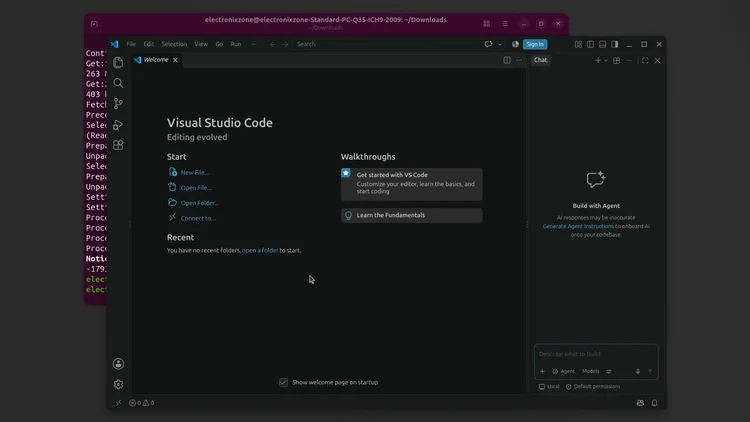
VS Code is installed when the prompt returns. Type the command below and press Enter to open it. You can also open it from the applications menu: find the Visual Studio Code icon and double-click it.
code
One email a week on local LLMs, DIY AI hardware, and the tools that power them. No spam — unsubscribe anytime.
Subscribe free16-core, 32-thread AMD Ryzen 9 9950X desktop processor (Zen 5, AM5) with 5.7 GHz max boost and Radeon graphics — AMD's flagship mainstream CPU.
AMD X870 ATX motherboard for AM5 with PCIe 5.0, DDR5, USB4, Wi-Fi 7 and 2.5GbE LAN — a modern foundation for Ryzen 9000-series desktop builds.
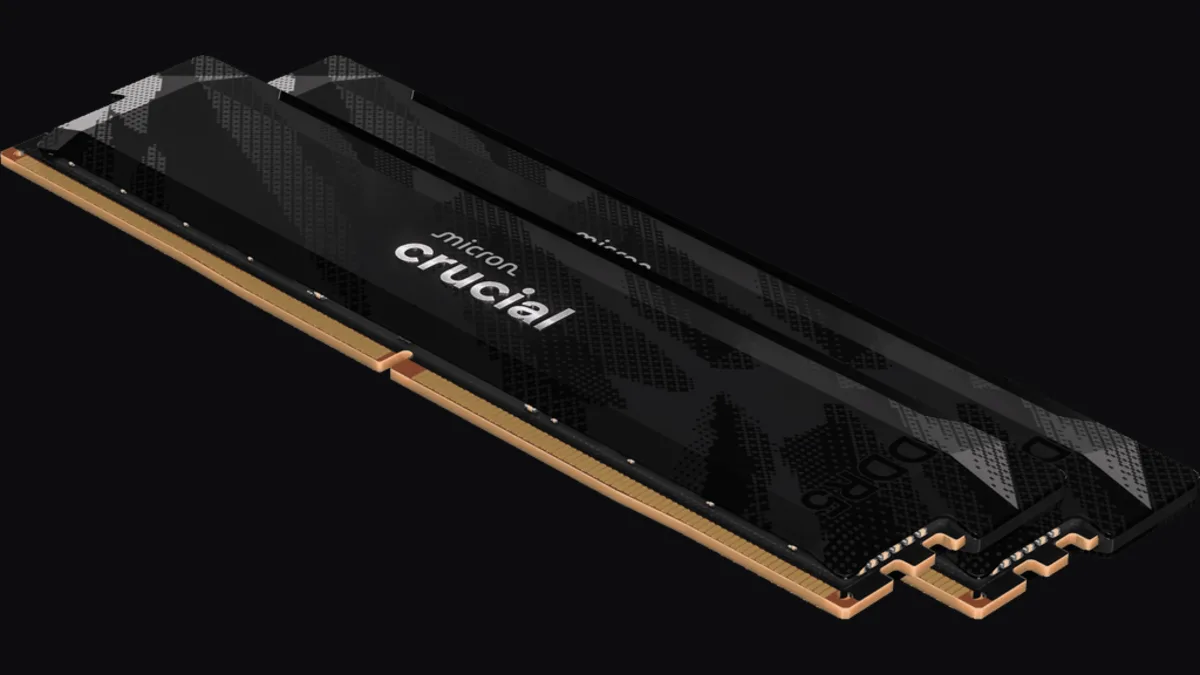
32GB (2x16GB) DDR5-6400 CL32 UDIMM kit from Crucial Pro — 1.35V overclocking memory with Intel XMP 3.0 and AMD EXPO for demanding desktop builds.
fanxiang S880R 1TB PCIe 4.0 NVMe M.2 SSD with built-in heatsink — up to 7300MB/s reads and 3D TLC NAND for high-performance desktop and console storage.