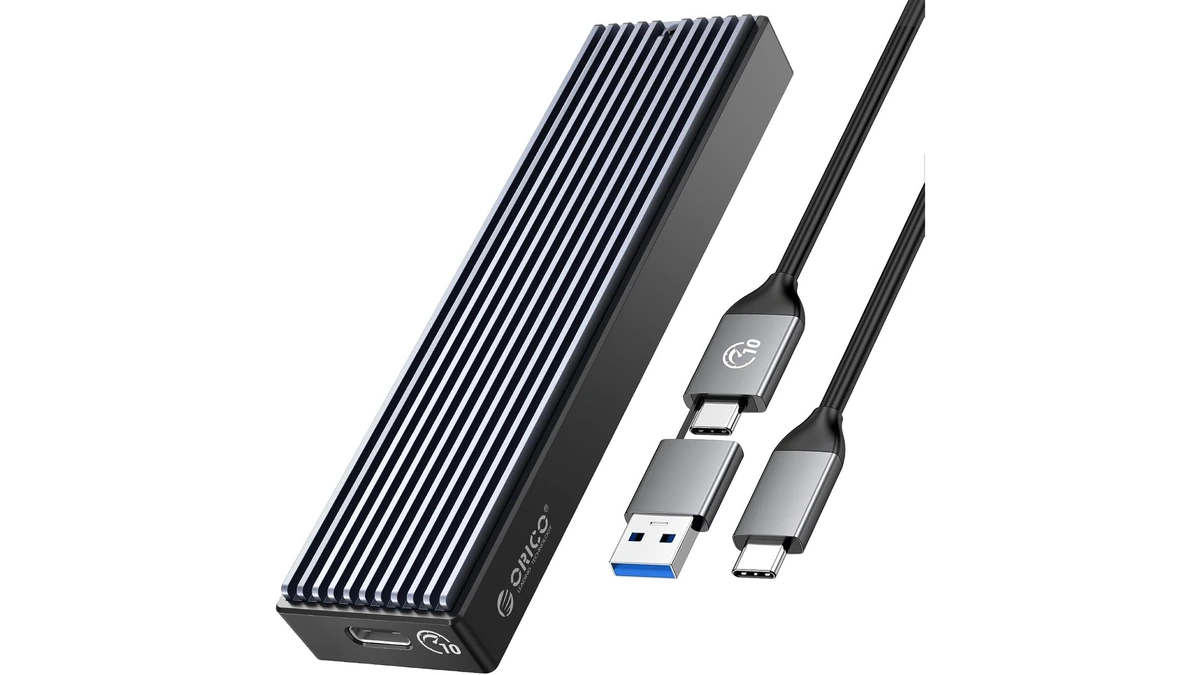
ORICO M.2 NVMe SSD Enclosure (10Gbps)
ORICO USB 3.1 Gen 2 (10Gbps) M.2 NVMe SSD enclosure supporting 2230/2242/2260/2280 form factors up to 8TB, with UASP support for fast external drive performance.
3 retailers


This tutorial takes about 5 minutes to complete.
Backup all important data from the target drive before making any changes. Connect any USB flash drives or external SSDs to your computer if you plan to format removable storage.
Type Disk Management into the Windows search box and select Create and Format Hard Disk Partitions. Locate the specific disk you intend to modify within the main window.
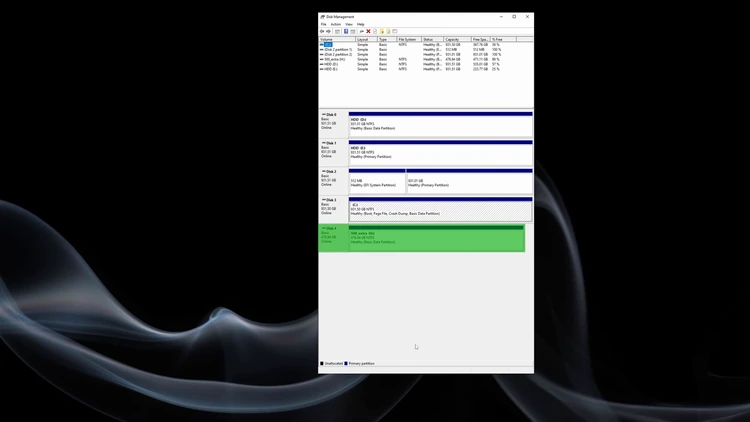
Right-click the target drive entry and choose the format option from the context menu. This opens the formatting dialog where you can configure the drive settings.
Enter your desired volume label and leave the file system set to NTFS with the default allocation unit size. Ensure the Quick Format box is checked before clicking OK to proceed.
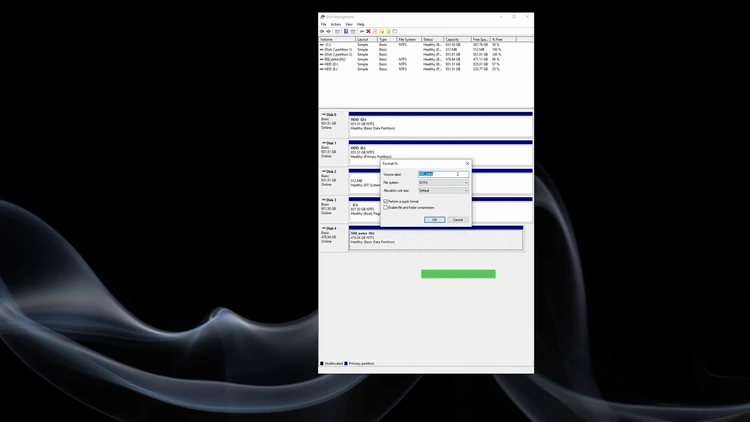
Acknowledge the warning that all data will be erased and verify you selected the correct drive before confirming. If a message states the volume is in use, click Yes to allow the operation to continue.
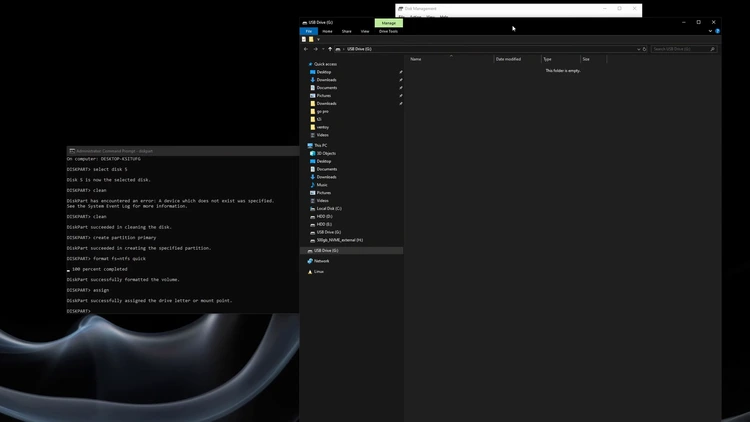
If the format option is grayed out for your target partition, type CMD into the Windows search box and click Run as Administrator. Accept the User Account Control prompt to open the required elevated command window.
Return to Disk Management to confirm the exact disk number you need to format. In the command prompt, type diskpart and press Enter to launch the utility and list all connected drives.
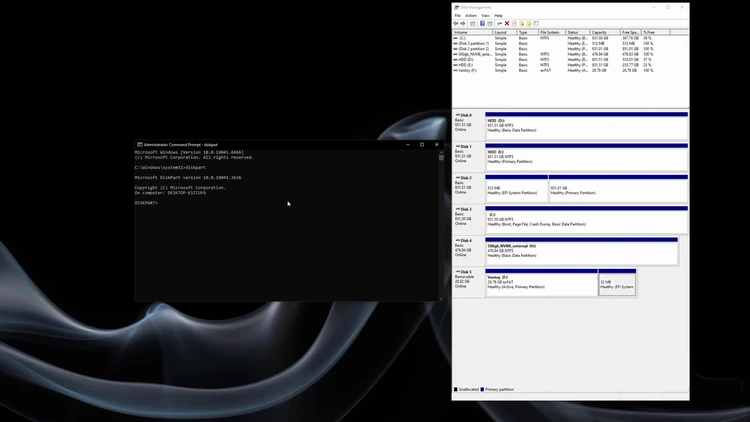
Type select disk X replacing X with your confirmed disk number and press Enter to verify selection. Follow this by typing clean to remove all partitions, then enter create partition primary to establish a fresh partition.
Type format fs=NTFS quick and press Enter to complete the file system formatting process. Finally, enter assign to allocate a new drive letter, then verify the healthy partition status in Disk Management.
One email a week on local LLMs, DIY AI hardware, and the tools that power them. No spam — unsubscribe anytime.
Subscribe freeORICO USB 3.1 Gen 2 (10Gbps) M.2 NVMe SSD enclosure supporting 2230/2242/2260/2280 form factors up to 8TB, with UASP support for fast external drive performance.
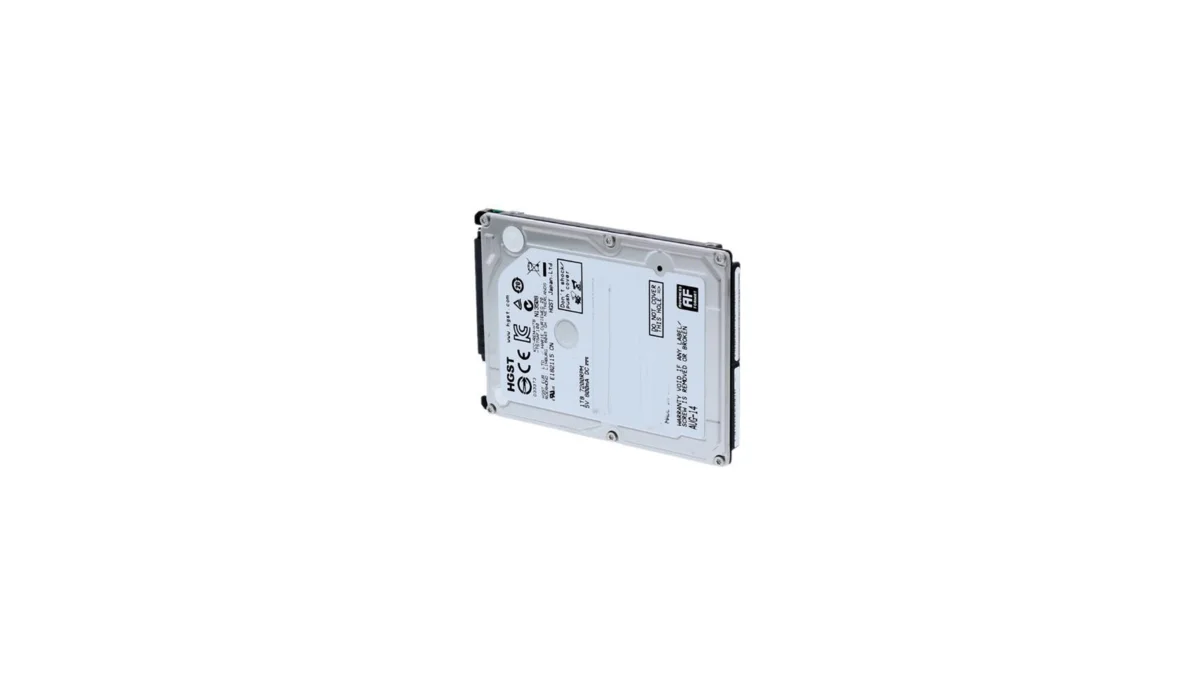
HGST Travelstar Z5K1000 1TB 2.5" laptop hard drive - reliable energy-efficient storage for desktops and workstations with SATA III interface
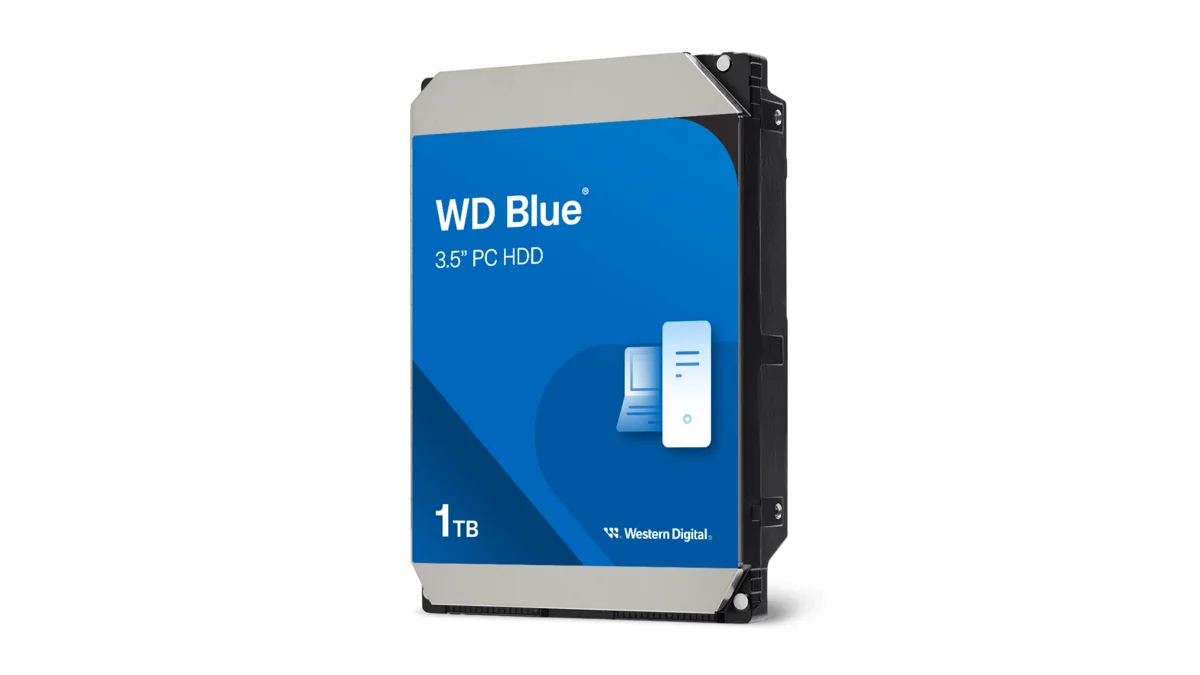
Western Digital Blue WD10EZEX 1TB 3.5" desktop hard drive with SATA III interface - reliable high-capacity storage for everyday computing needs.
fanxiang S880R 1TB PCIe 4.0 NVMe M.2 SSD with built-in heatsink — up to 7300MB/s reads and 3D TLC NAND for high-performance desktop and console storage.
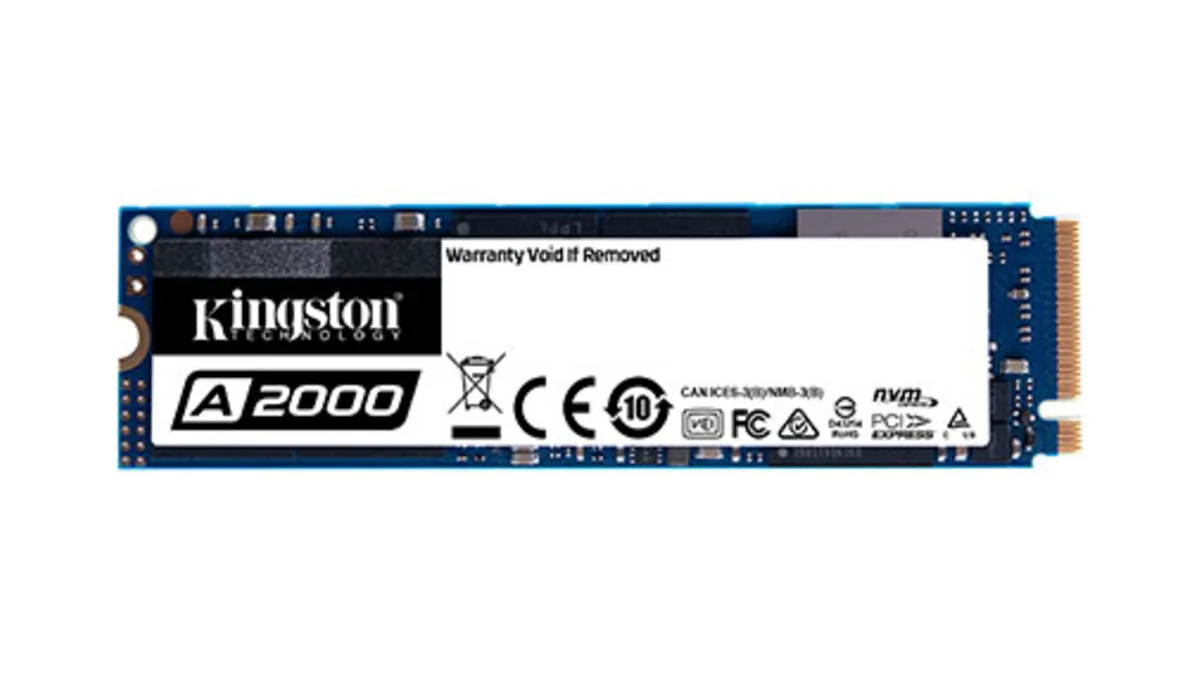
Kingston A2000 1TB PCIe 3.0 x4 NVMe M.2 SSD - reliable budget-friendly storage for everyday computing on desktops and laptops with fast sequential performance