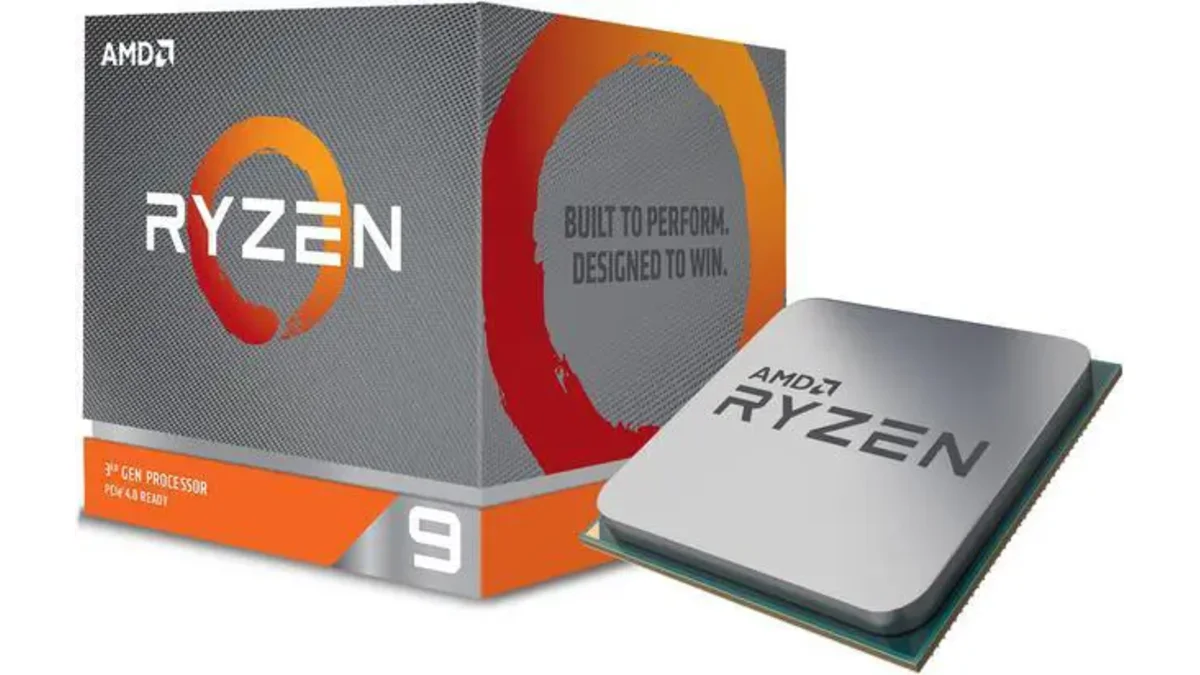
AMD Ryzen 9 3900X
12-core, 24-thread AMD Ryzen 9 3900X desktop processor (Zen 2, AM4) with 4.6 GHz max boost for high-end content creation and multitasking.
3 retailers


This tutorial takes about 2 minutes to complete.
Windows 10 doesn't come with Google Chrome pre-installed — it ships with Microsoft Edge instead. Installing Chrome through the Microsoft Store is the quickest method: one click and it's installed. You'll need administrator access on the PC, which is required for any software installation on Windows 10.
Click the Start button (Windows icon) in the bottom-left corner of your screen, then type Google Chrome in the search box. When the Chrome Web Browser result appears, click on it.
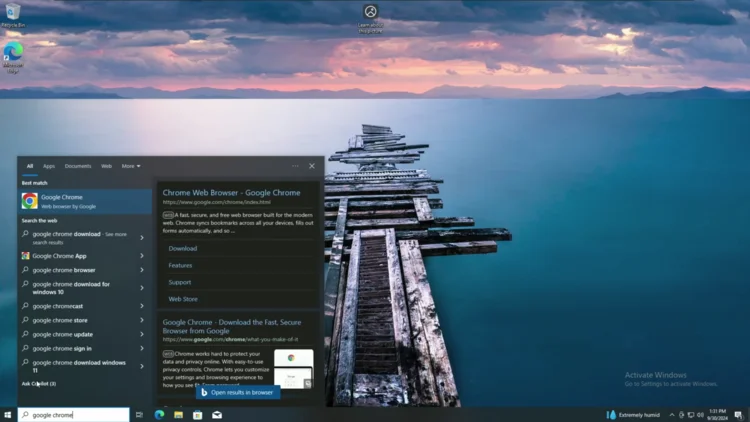
Clicking the search result opens the Chrome page in the Microsoft Store. This is the official install page for Chrome on Windows — it's maintained and verified by Google.

On the Microsoft Store page, click the Get button to start the download. Chrome will install automatically in the background. When the download finishes, the button will change to Open.
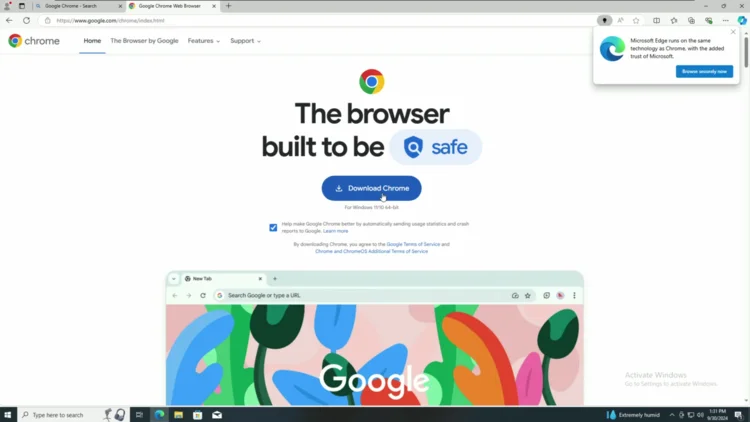
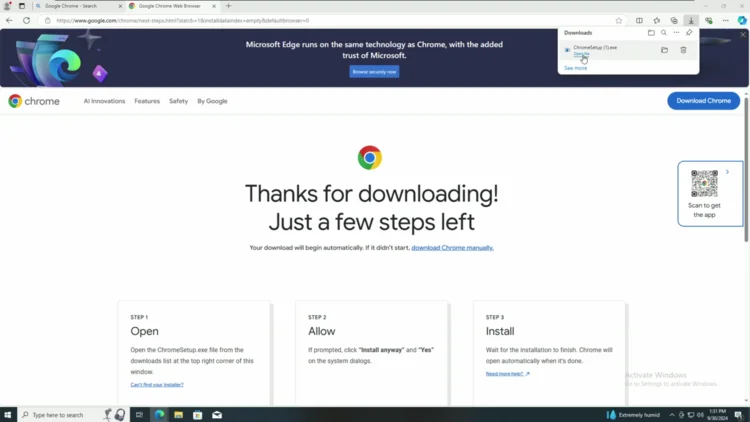
Click the Open File button when the download bar appears. Chrome's installer will launch and a Windows prompt may ask "Do you want to allow this app to make changes?" — click Yes to continue. The installer will run automatically and Chrome will open when it's done.
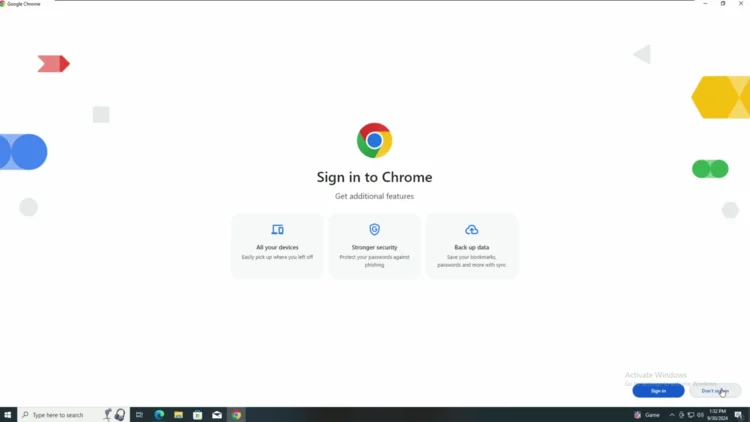
When Chrome first opens, you'll see a sign-in prompt asking if you want to sync your data. If you don't want to sign in right now, click Skip in the bottom-left corner. You can always sign in later from Chrome's settings.
After skipping the sign-in prompt, you'll see Chrome's welcome page with a "Got It" banner at the bottom. Click Got It to close it. Chrome is now installed and ready to use.
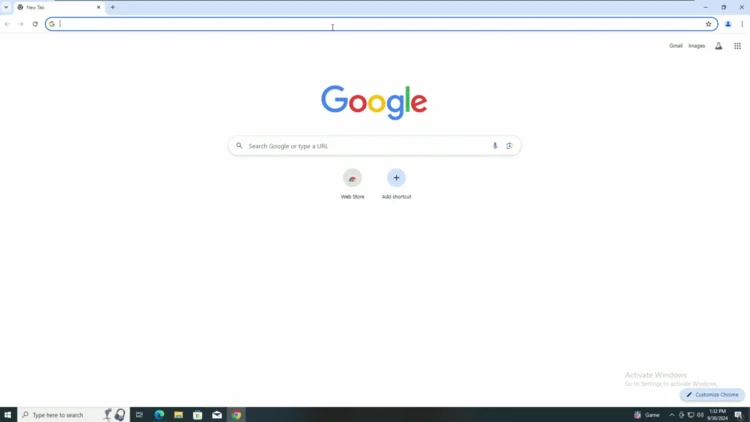
That's it — Google Chrome is installed and ready to use on your Windows 10 PC.
One email a week on local LLMs, DIY AI hardware, and the tools that power them. No spam — unsubscribe anytime.
Subscribe free12-core, 24-thread AMD Ryzen 9 3900X desktop processor (Zen 2, AM4) with 4.6 GHz max boost for high-end content creation and multitasking.
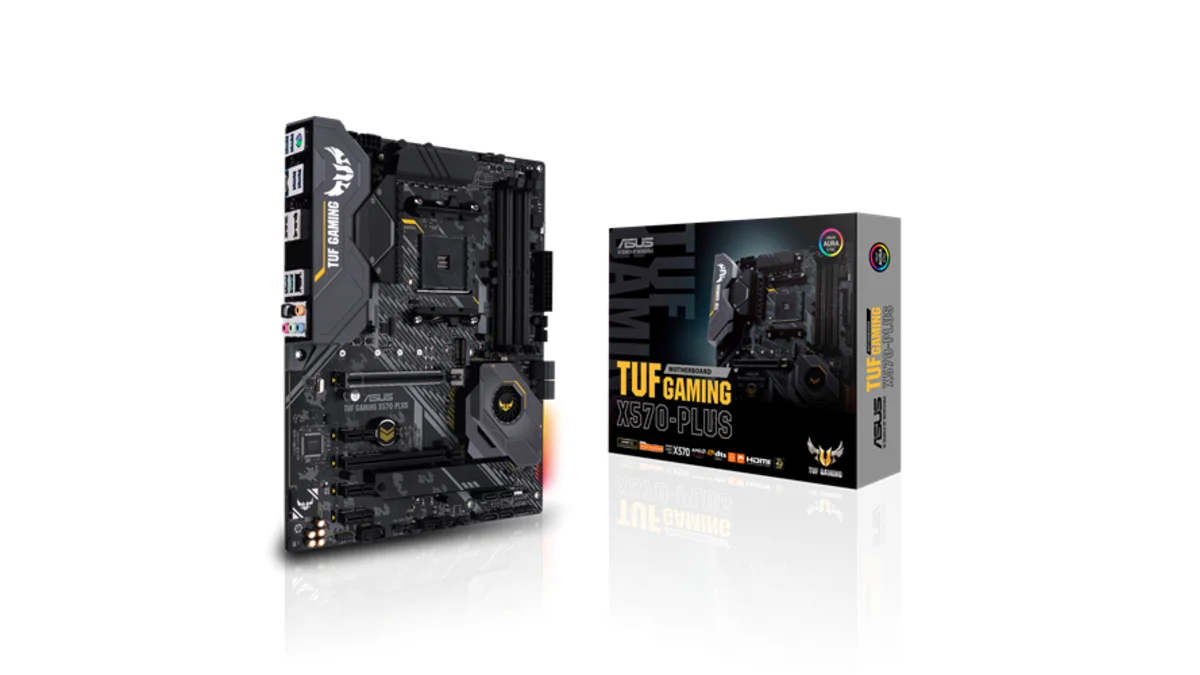
AMD X570 ATX motherboard for AM4 with PCIe 4.0, DDR4 memory support and USB 3.2 Gen 2 ports - a durable foundation for Ryzen 3000-series desktop builds
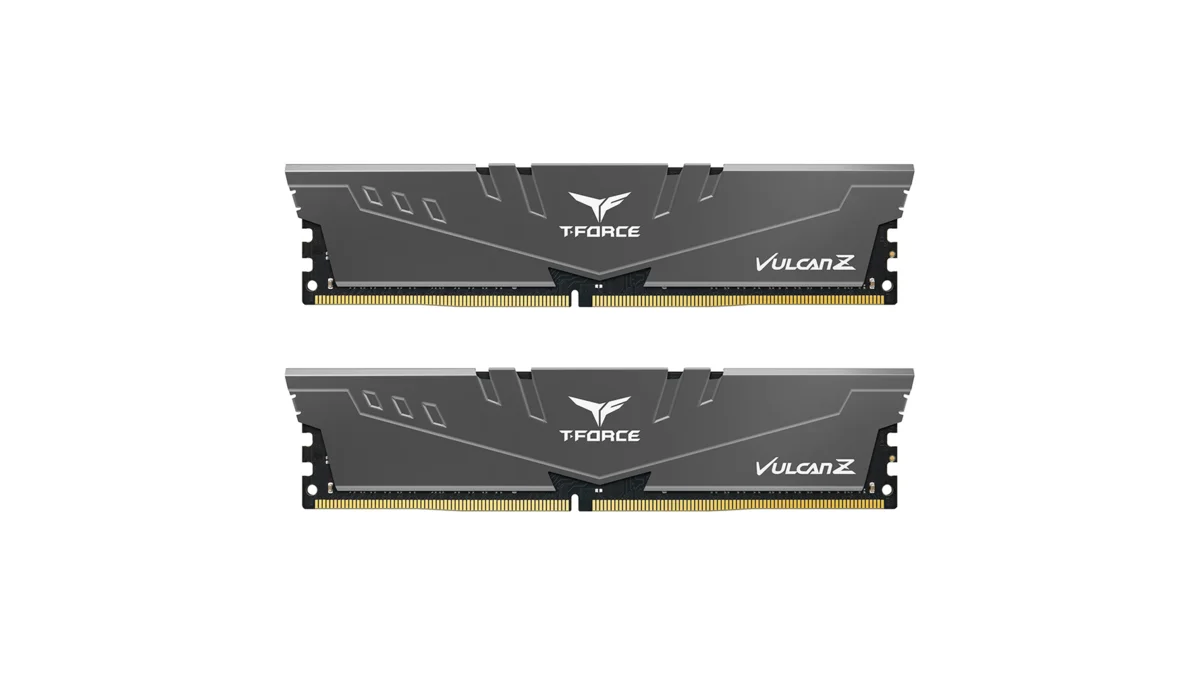
TEAMGROUP T-Force Vulcan Z 64GB DDR4 UDIMM kit - reliable overclocking memory with Intel XMP 2.0 profiles for AM4 desktop builds and Ryzen 3000-series
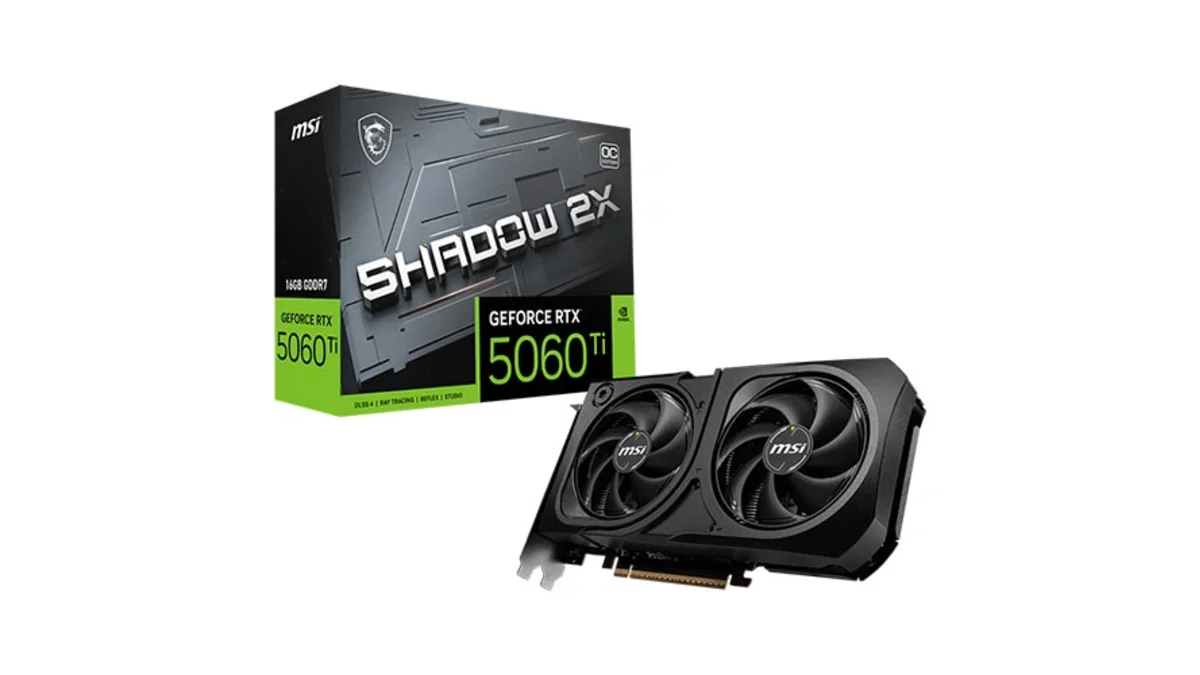
MSI GeForce RTX 5060 Ti 16GB GDDR7 graphics card with dual-fan thermal design and HDMI 2.1b DisplayPort 2.1b for gaming and content creation
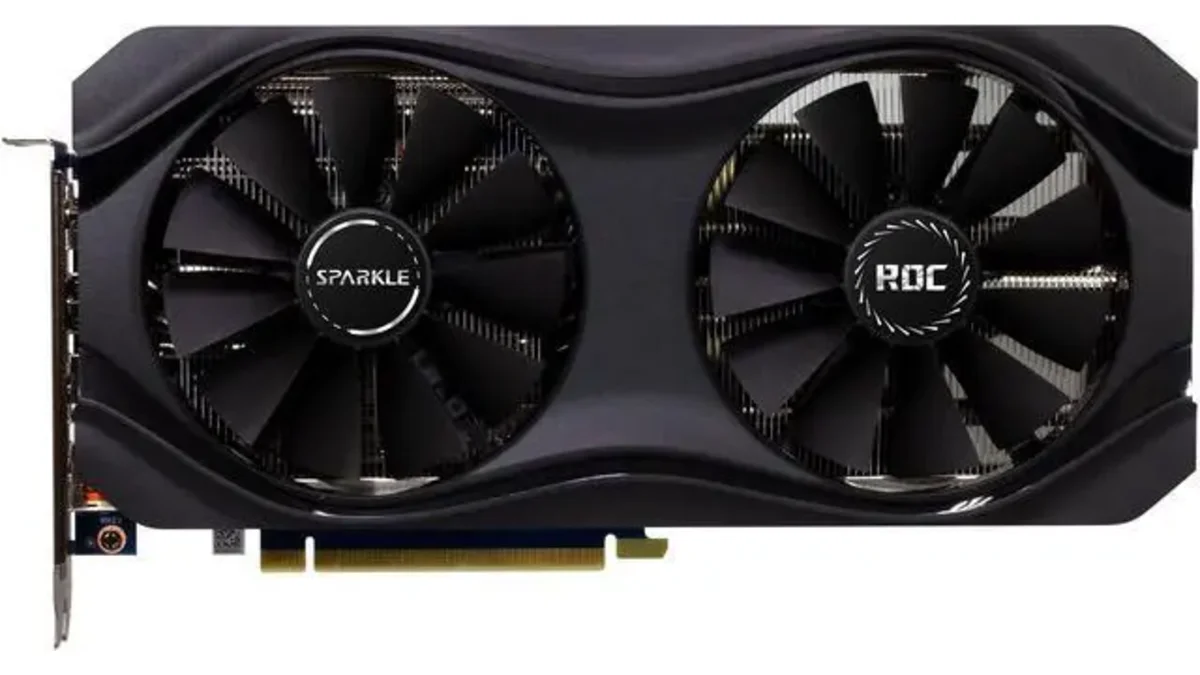
Sparkle Intel Arc A770 ROC OC Edition graphics card with 16GB GDDR6 dual DBB fans and metal backplate for gaming content creation and video editing
Microsoft Windows 11 Pro - the professional edition of Windows 11 with advanced security, remote desktop, and enterprise management features.
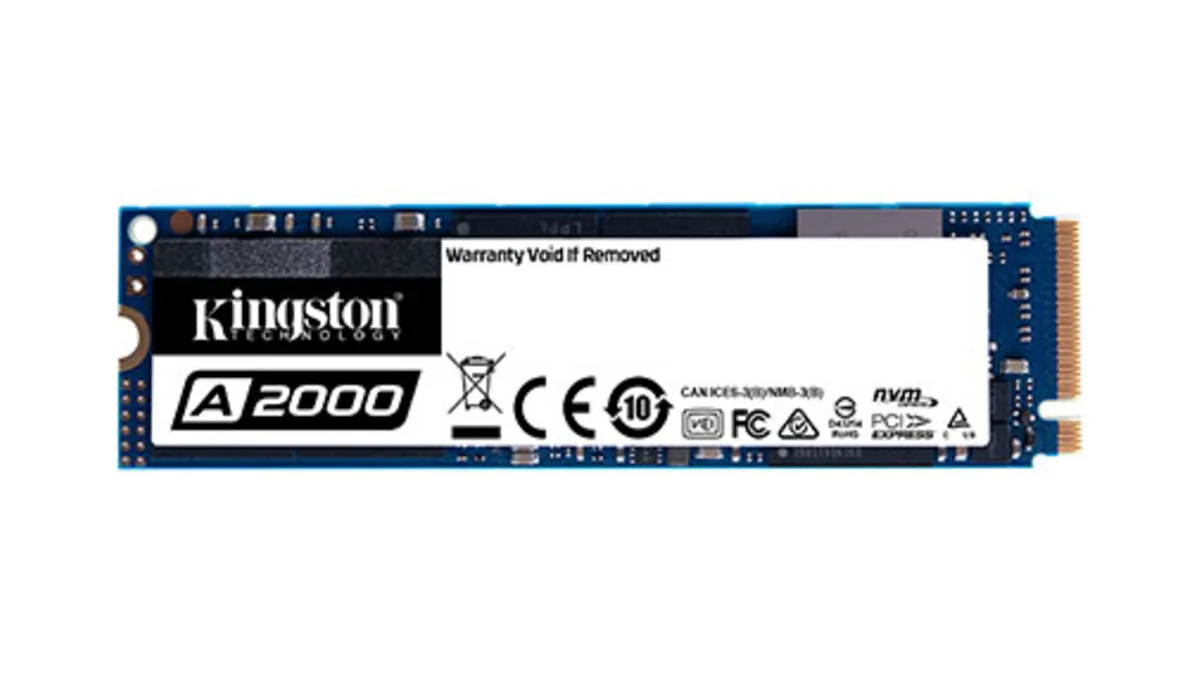
Kingston A2000 1TB PCIe 3.0 x4 NVMe M.2 SSD - reliable budget-friendly storage for everyday computing on desktops and laptops with fast sequential performance
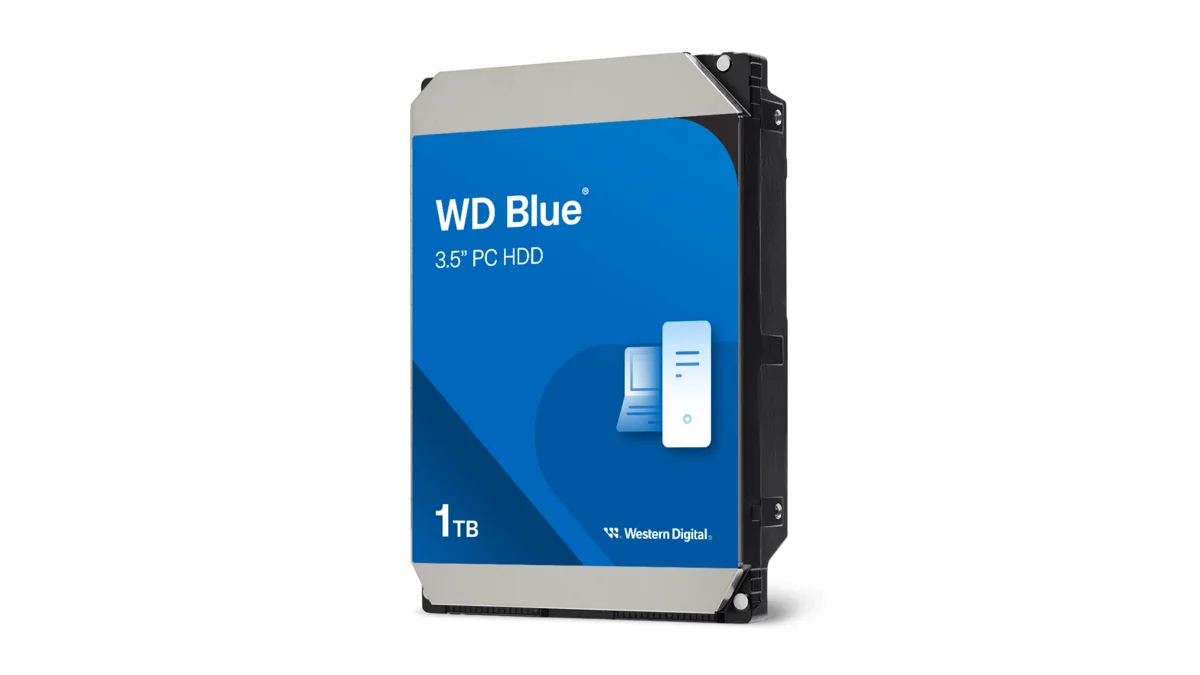
Western Digital Blue WD10EZEX 1TB 3.5" desktop hard drive with SATA III interface - reliable high-capacity storage for everyday computing needs.
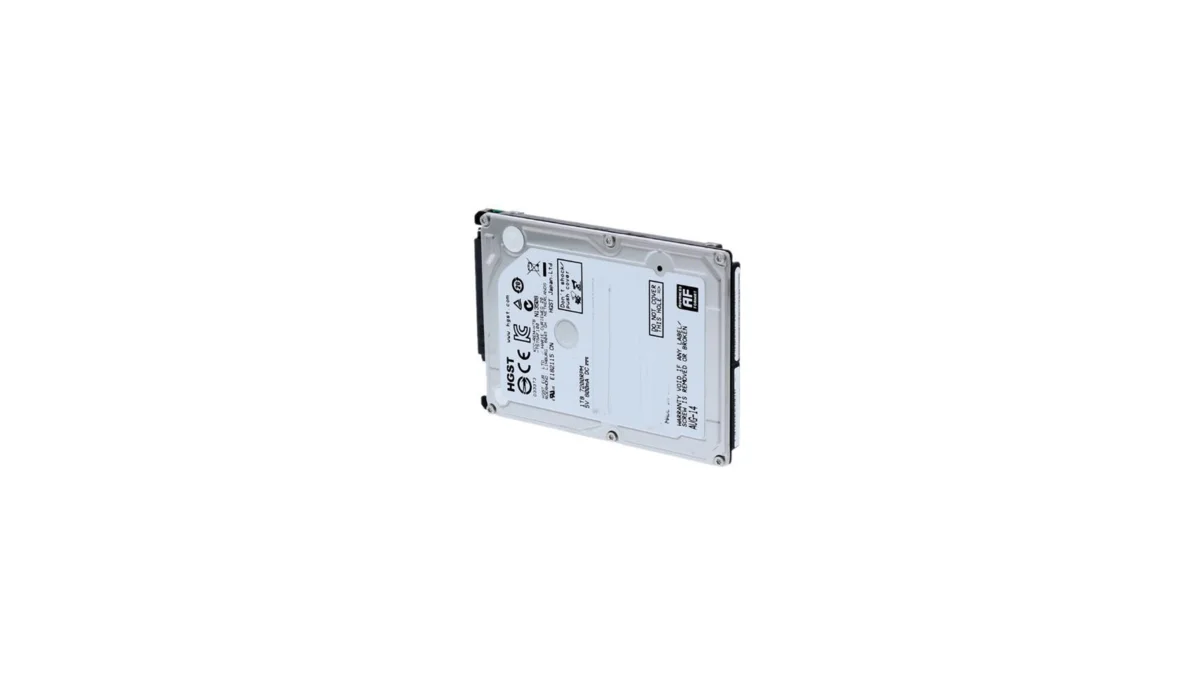
HGST Travelstar Z5K1000 1TB 2.5" laptop hard drive - reliable energy-efficient storage for desktops and workstations with SATA III interface
fanxiang S880R 1TB PCIe 4.0 NVMe M.2 SSD with built-in heatsink — up to 7300MB/s reads and 3D TLC NAND for high-performance desktop and console storage.