AMD Ryzen 9 9950X
16-core, 32-thread AMD Ryzen 9 9950X desktop processor (Zen 5, AM5) with 5.7 GHz max boost and Radeon graphics — AMD's flagship mainstream CPU.
3 retailers


This tutorial takes about 2 minutes to complete.
Google Chrome isn't in AlmaLinux 8's default repository because of licensing — Chrome is closed-source, so it doesn't meet the criteria for inclusion. That doesn't mean it's hard to install, though. Google publishes an official RPM you can install directly with DNF, and doing it this way has a real advantage over a manual download: DNF automatically registers Google's repository on your system at the same time, so future updates to Chrome arrive through your normal sudo dnf update runs, same as any other package.
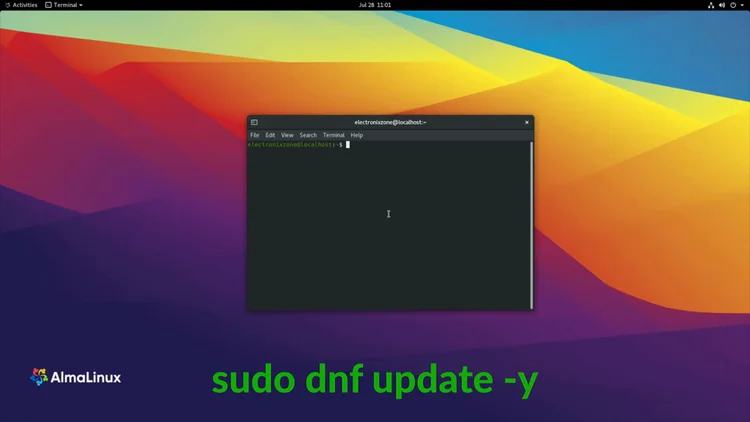
Before installing anything new, it's good practice to make sure your existing packages are current. Open a terminal and run:
sudo dnf update -y
Enter your password if prompted. On a system that's already current, you'll see output like this:
Last metadata expiration check: 1 day, 8:22:07 ago on Mon 27 Jul 2026 02:39:49 AM PST.
Dependencies resolved.
Nothing to do.
Complete!
Nothing to do. Complete! just means there was nothing new to update — that's expected and fine.
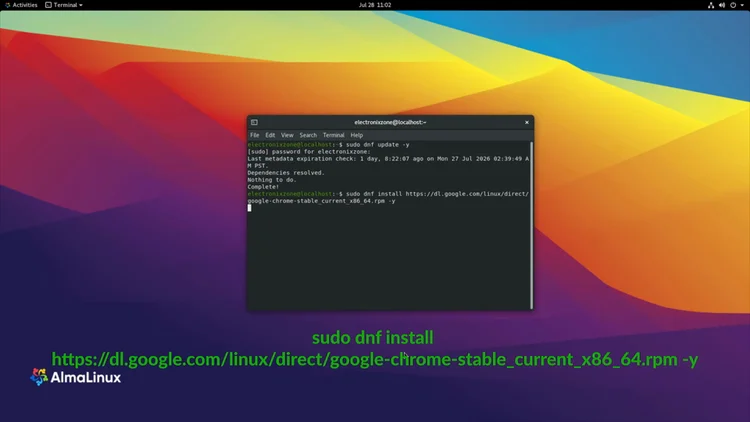
Now for the main step. Run:
sudo dnf install https://dl.google.com/linux/direct/google-chrome-stable_current_x86_64.rpm -y
This one command does everything: it downloads Google's official 64-bit Chrome RPM, resolves and installs the required dependencies, installs the browser itself, and registers Google's repository for future updates — all in a single step.
You'll see DNF work through several packages, including some graphics/font dependencies alongside Chrome itself:
Installing       : vulkan-loader-1.3.283.0-1.el8_10.x86_64            1/4
Installing       : mesa-vulkan-drivers-23.1.4-4.el8_10.alma.1.x86_64  2/4
Installing       : liberation-fonts-1:2.00.3-7.el8.noarch             3/4
Running scriptlet: google-chrome-stable-150.0.7871.186-1.x86_64       4/4
Installing        : google-chrome-stable-150.0.7871.186-1.x86_64       4/4
Running scriptlet: google-chrome-stable-150.0.7871.186-1.x86_64       4/4
You may also see a couple of lines that look alarming but aren't:
error: can't create transaction lock on /var/lib/rpm/.rpm.lock (Resource temporarily unavailable)
error: /tmp/google.sig.AQQgAs: key 1 import failed
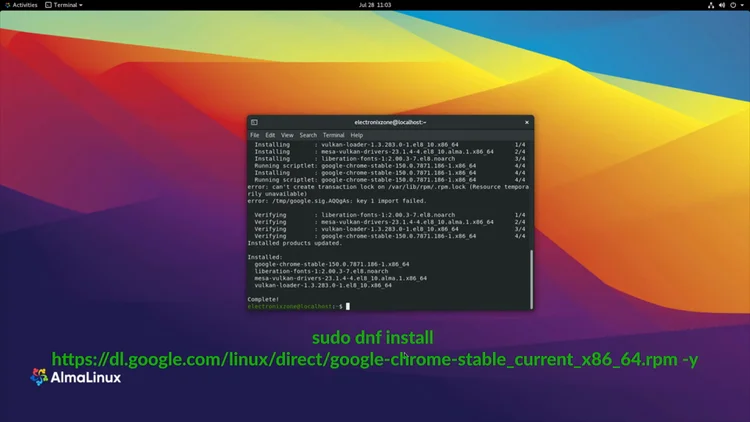
These can appear mid-install without actually stopping anything. Keep watching the output — DNF continues on to verify and finish the install:
Verifying  : liberation-fonts-1:2.00.3-7.el8.noarch             1/4
Verifying  : mesa-vulkan-drivers-23.1.4-4.el8_10.alma.1.x86_64  2/4
Verifying  : vulkan-loader-1.3.283.0-1.el8_10.x86_64            3/4
Verifying  : google-chrome-stable-150.0.7871.186-1.x86_64       4/4
Installed products updated.

Installed:
  google-chrome-stable-150.0.7871.186-1.x86_64
  liberation-fonts-1:2.00.3-7.el8.noarch
  mesa-vulkan-drivers-23.1.4-4.el8_10.alma.1.x86_64
  vulkan-loader-1.3.283.0-1.el8_10.x86_64

Complete!
Complete! at the end, with Chrome listed under Installed:, means it worked.
Confirm Chrome actually installed and check which version you got:
google-chrome --version
Expected output:
Google Chrome 150.0.7871.186
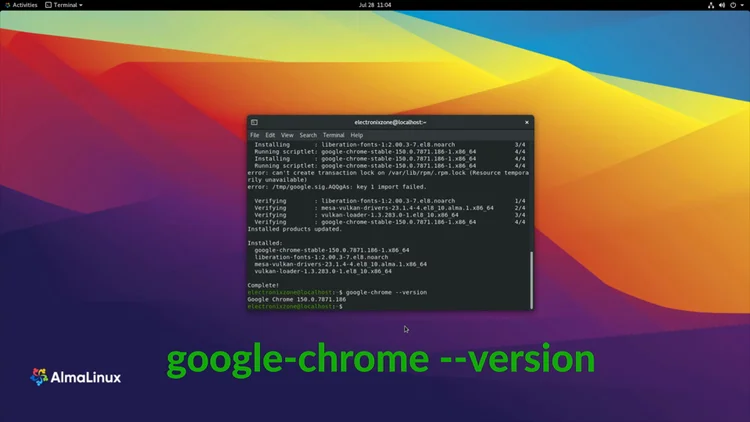
(Your version number will likely be newer by the time you run this, since Chrome updates frequently — that's normal.)
Open your applications menu and click Google Chrome. It should launch straight into the browser, ready to sign in to your Google account if you want to sync bookmarks, extensions, and settings.
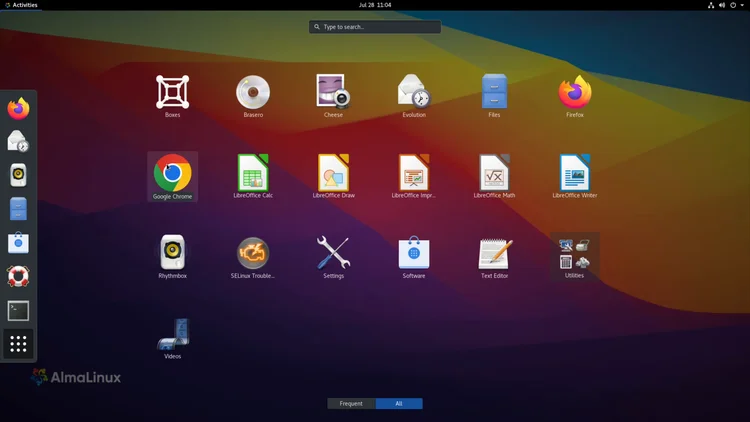
That's it — Chrome is installed, verified, and set up to receive future updates automatically through DNF.
One email a week on local LLMs, DIY AI hardware, and the tools that power them. No spam — unsubscribe anytime.
Subscribe free16-core, 32-thread AMD Ryzen 9 9950X desktop processor (Zen 5, AM5) with 5.7 GHz max boost and Radeon graphics — AMD's flagship mainstream CPU.
AMD X870 ATX motherboard for AM5 with PCIe 5.0, DDR5, USB4, Wi-Fi 7 and 2.5GbE LAN — a modern foundation for Ryzen 9000-series desktop builds.
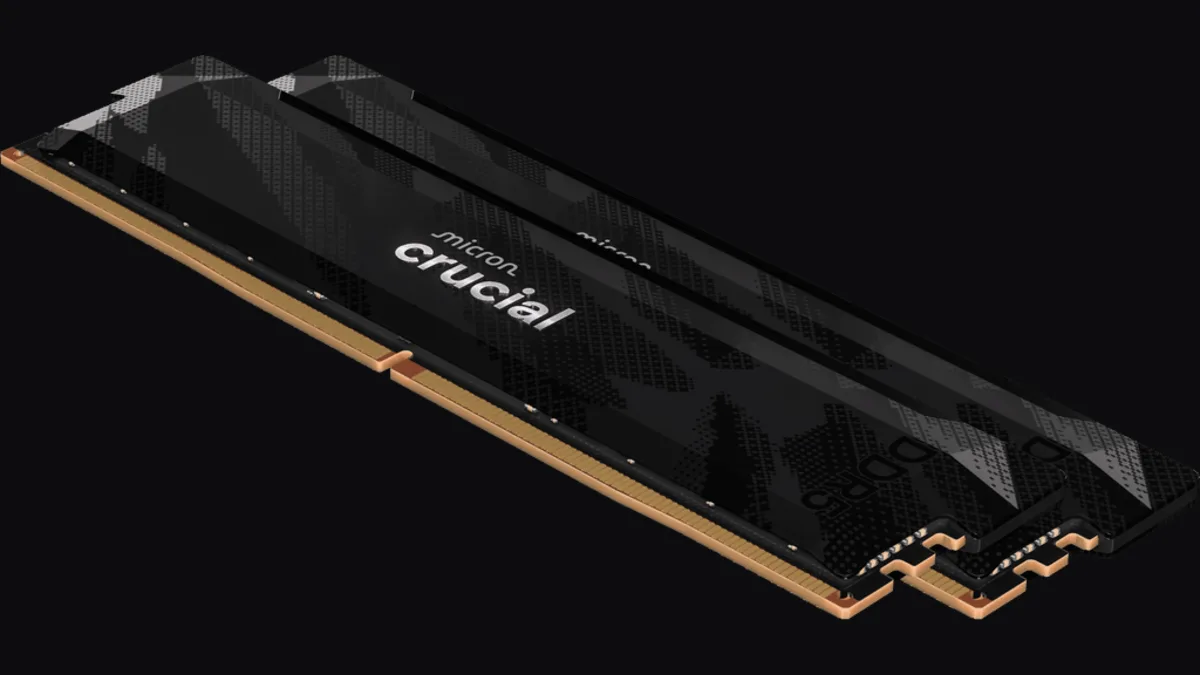
32GB (2x16GB) DDR5-6400 CL32 UDIMM kit from Crucial Pro — 1.35V overclocking memory with Intel XMP 3.0 and AMD EXPO for demanding desktop builds.
fanxiang S880R 1TB PCIe 4.0 NVMe M.2 SSD with built-in heatsink — up to 7300MB/s reads and 3D TLC NAND for high-performance desktop and console storage.