AMD Ryzen 9 3900X
12-core, 24-thread AMD Ryzen 9 3900X desktop processor (Zen 2, AM4) with 4.6 GHz max boost for high-end content creation and multitasking.
3 retailers


This tutorial takes about 4 minutes to complete.
Open your preferred web browser and visit Ventoy.net to access the official download page. Locate the Ventoy Windows zip file, click it to start the download, and wait for the transfer to complete.
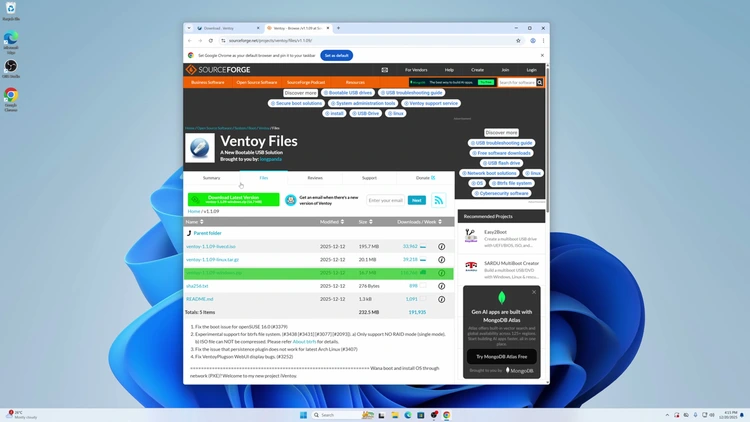
Navigate to your downloads folder, right-click the downloaded zip file, and select Extract All to unpack the contents. Open the extracted Ventoy folder and double-click the "Ventoy to Disk" application to launch the utility.
In the application interface, use the dropdown menu to find the external drive or SSD you intend to use. Verify that the displayed drive letter and capacity match your physical hardware before proceeding.
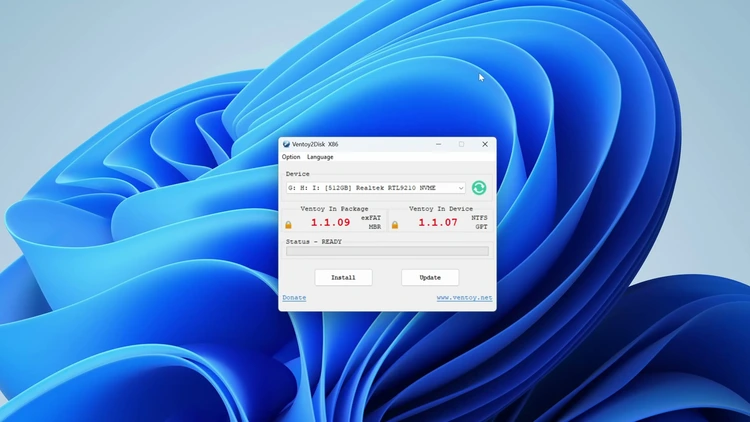
Click the Install button to begin writing the Ventoy bootloader to your selected drive. A prompt will appear asking you to verify your drive selection and type "yes" in all capital letters to confirm.
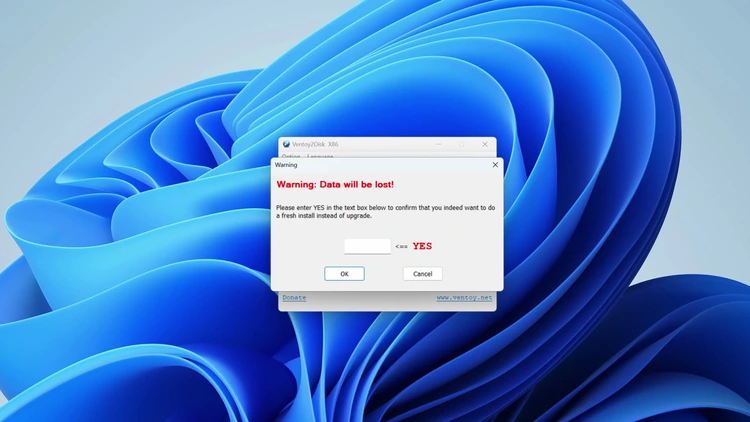
Review the final warning that states the device will be formatted and all data will be lost. Click Yes to finalize the process, wait for the success notification, and click OK to close the application.
Open the newly formatted Ventoy drive in File Explorer and paste your desired bootable ISO files directly into the root directory. Your drive is now ready to boot any operating system you have added to it.
Restart your computer and press the appropriate key, such as F9, F10, F11, or F12, to enter your BIOS or UEFI settings, checking your motherboard or laptop documentation if needed. Move the Ventoy drive to the top of the boot priority list, then save your changes and exit.
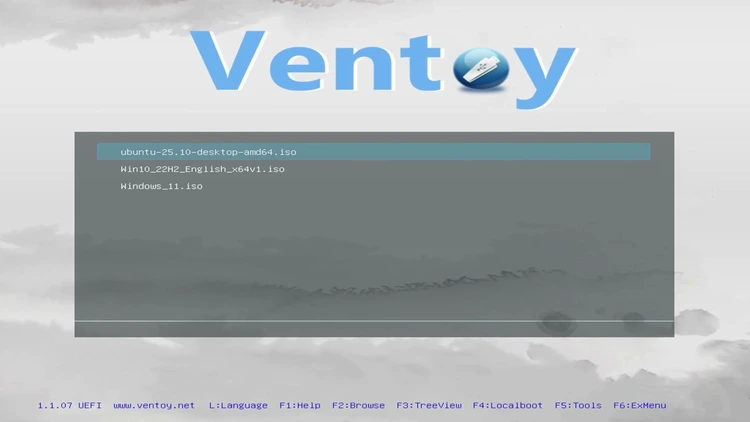
Your system will now display the Ventoy boot menu listing every ISO file you copied. Select each image in turn to confirm it boots correctly, verifying that Ubuntu, Windows 10, and Windows 11 all launch successfully.
One email a week on local LLMs, DIY AI hardware, and the tools that power them. No spam — unsubscribe anytime.
Subscribe free12-core, 24-thread AMD Ryzen 9 3900X desktop processor (Zen 2, AM4) with 4.6 GHz max boost for high-end content creation and multitasking.
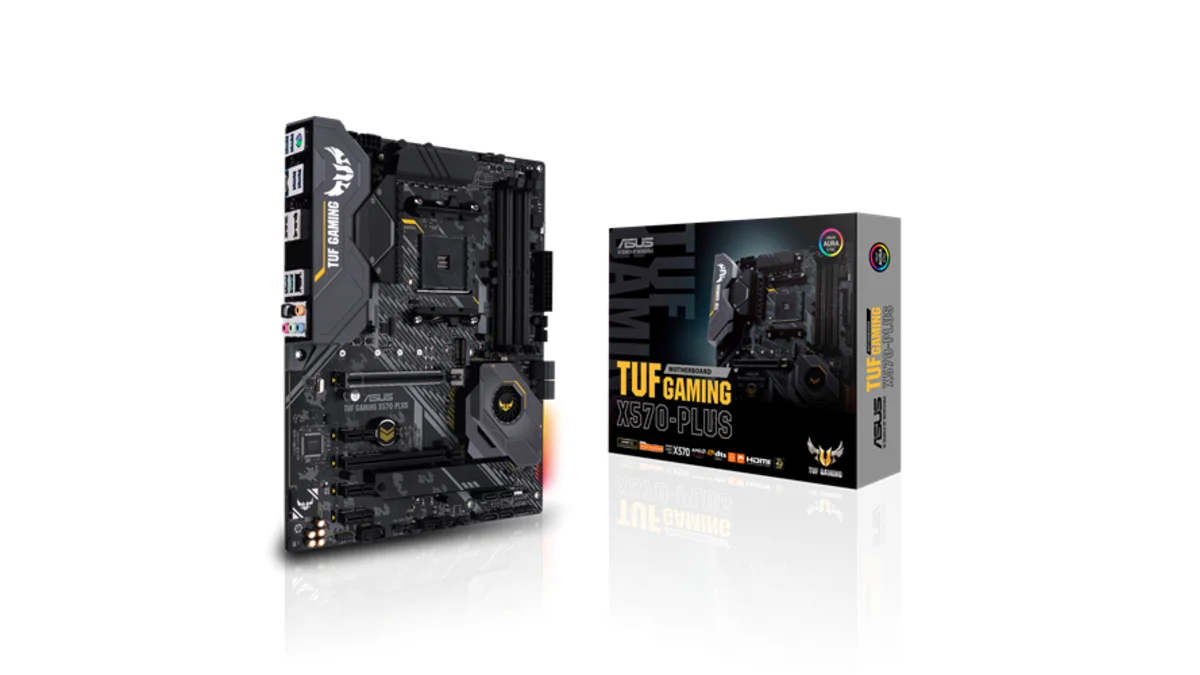
AMD X570 ATX motherboard for AM4 with PCIe 4.0, DDR4 memory support and USB 3.2 Gen 2 ports - a durable foundation for Ryzen 3000-series desktop builds
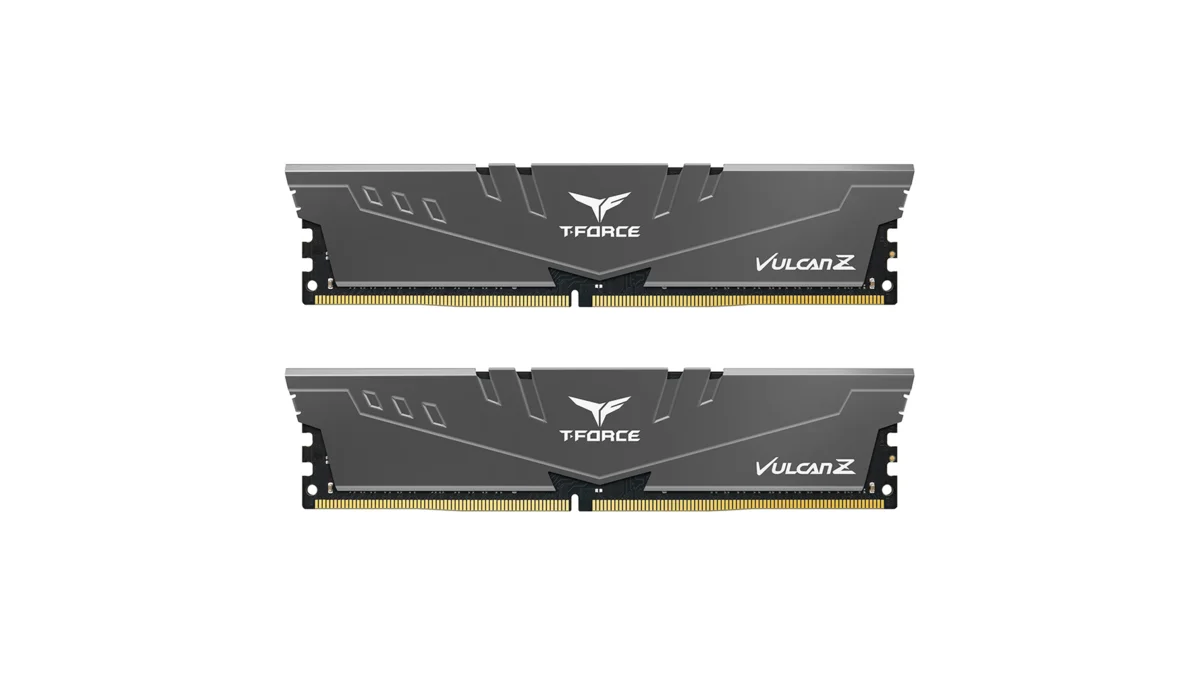
TEAMGROUP T-Force Vulcan Z 64GB DDR4 UDIMM kit - reliable overclocking memory with Intel XMP 2.0 profiles for AM4 desktop builds and Ryzen 3000-series
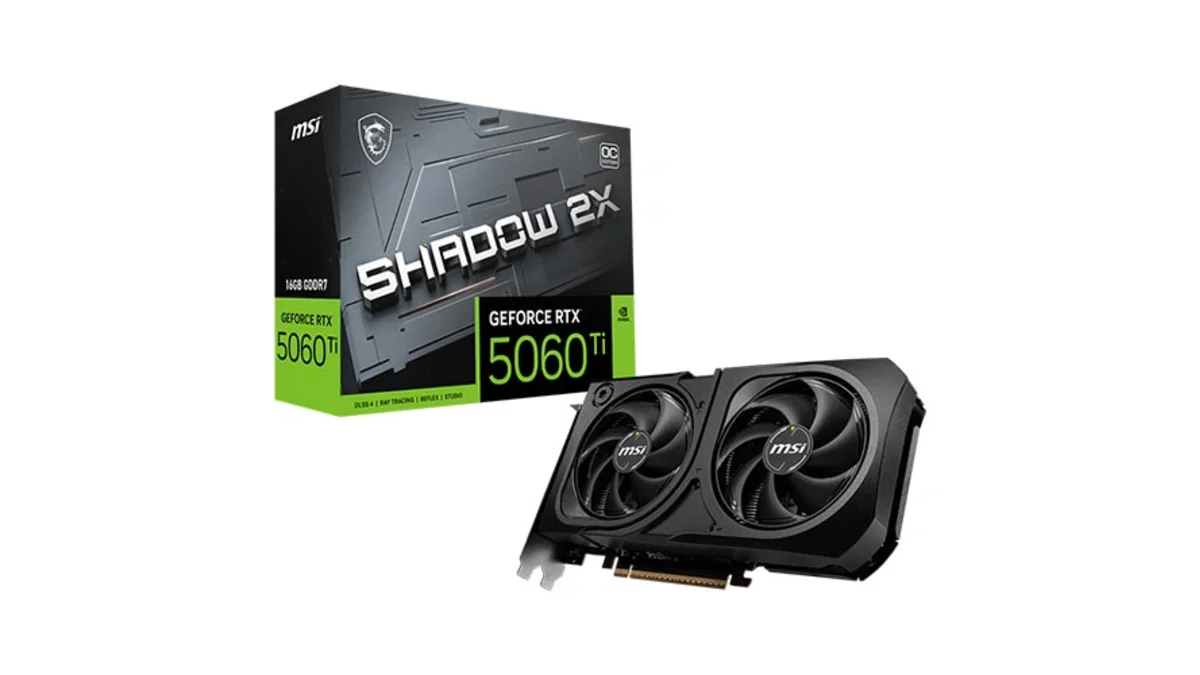
MSI GeForce RTX 5060 Ti 16GB GDDR7 graphics card with dual-fan thermal design and HDMI 2.1b DisplayPort 2.1b for gaming and content creation
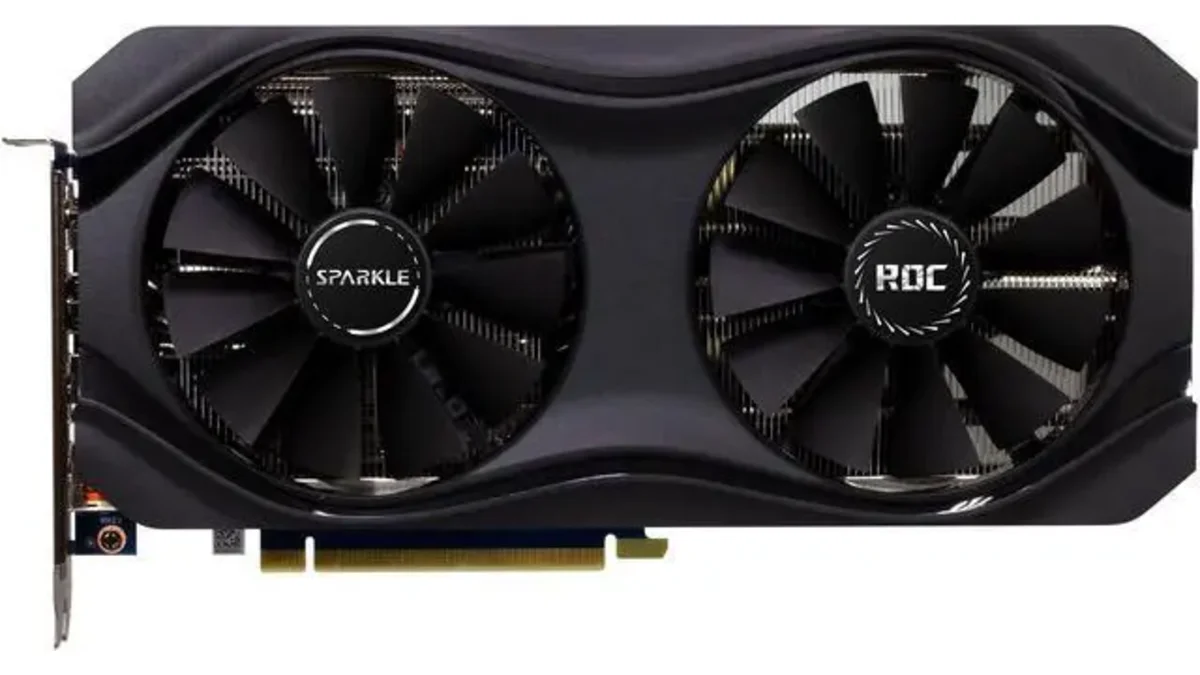
Sparkle Intel Arc A770 ROC OC Edition graphics card with 16GB GDDR6 dual DBB fans and metal backplate for gaming content creation and video editing
Microsoft Windows 11 Pro - the professional edition of Windows 11 with advanced security, remote desktop, and enterprise management features.
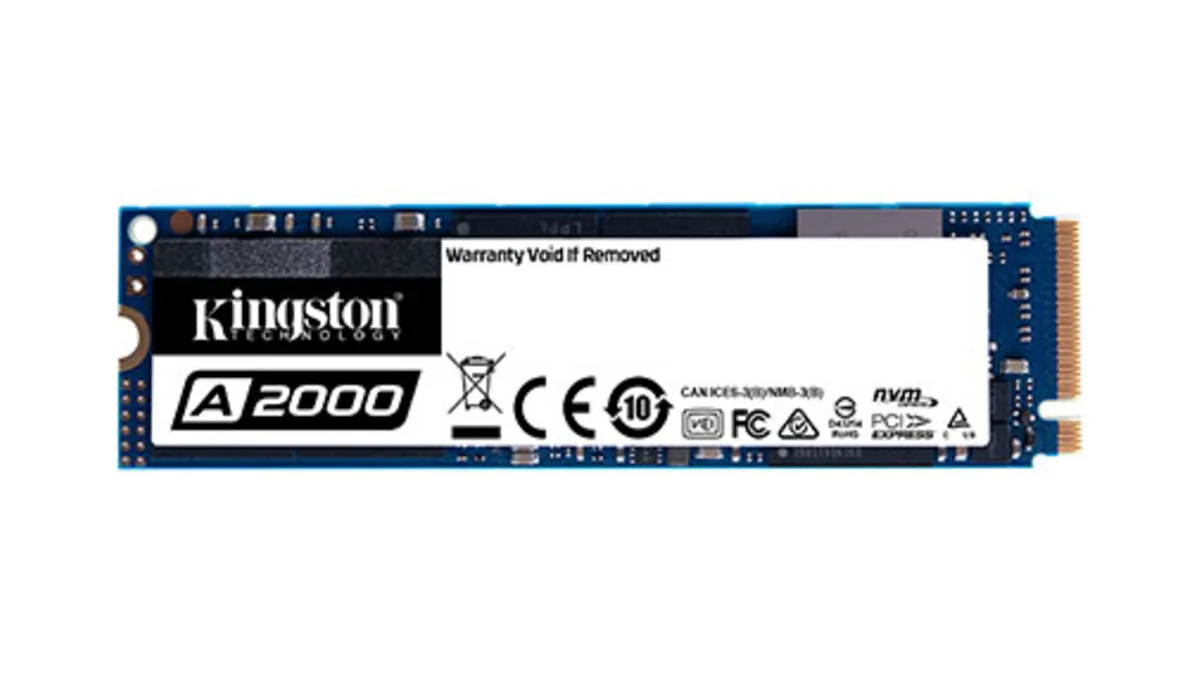
Kingston A2000 1TB PCIe 3.0 x4 NVMe M.2 SSD - reliable budget-friendly storage for everyday computing on desktops and laptops with fast sequential performance
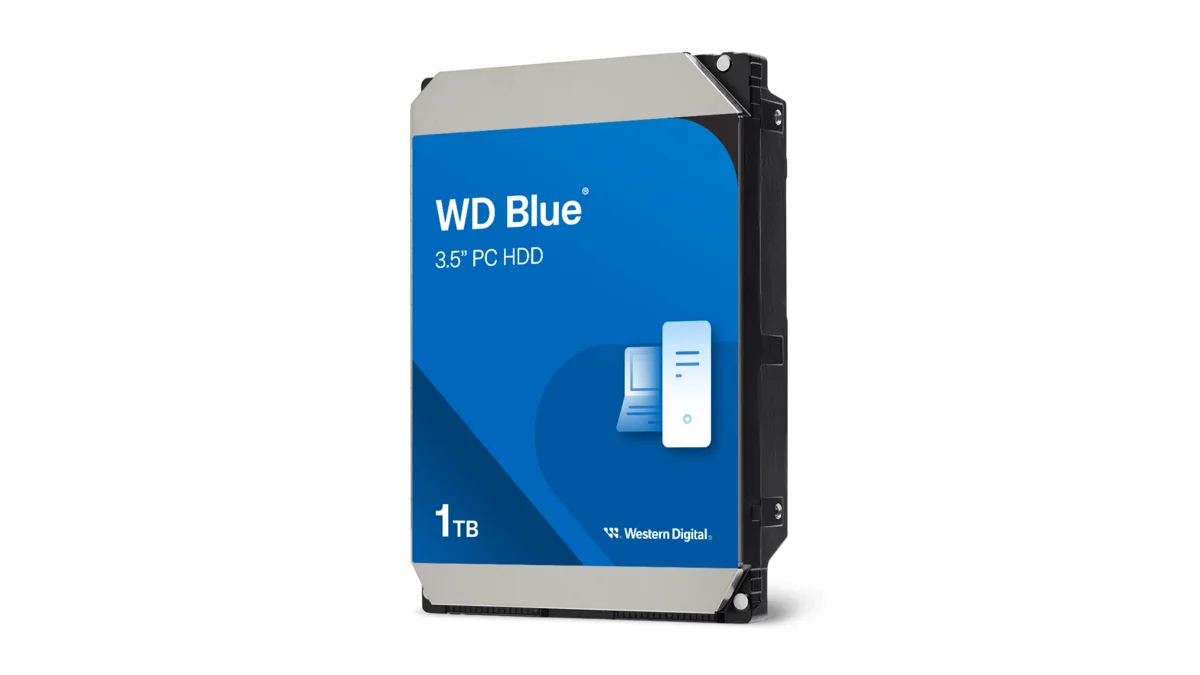
Western Digital Blue WD10EZEX 1TB 3.5" desktop hard drive with SATA III interface - reliable high-capacity storage for everyday computing needs.
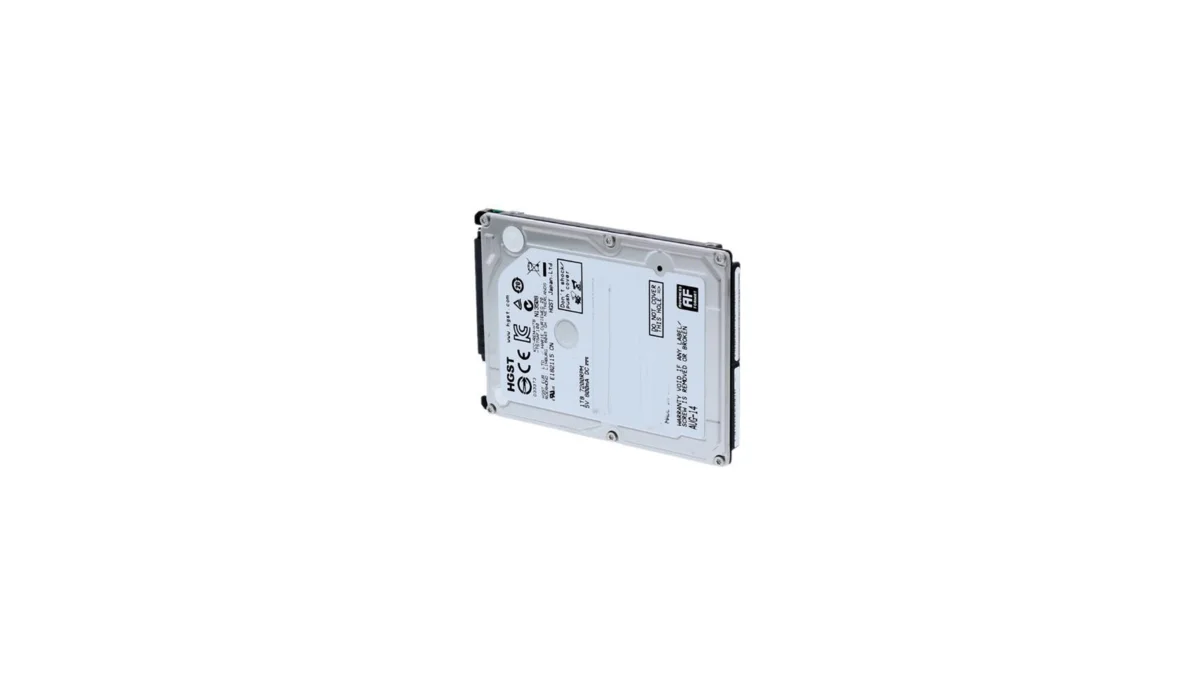
HGST Travelstar Z5K1000 1TB 2.5" laptop hard drive - reliable energy-efficient storage for desktops and workstations with SATA III interface
fanxiang S880R 1TB PCIe 4.0 NVMe M.2 SSD with built-in heatsink — up to 7300MB/s reads and 3D TLC NAND for high-performance desktop and console storage.