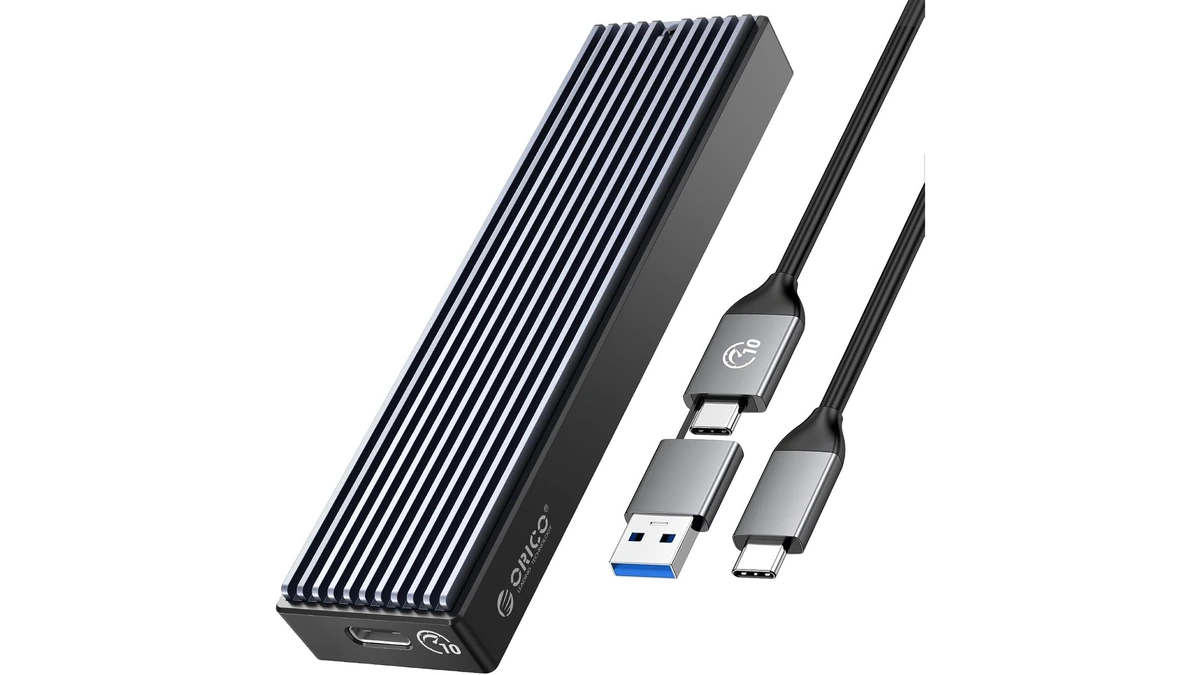
ORICO M.2 NVMe SSD Enclosure (10Gbps)
ORICO USB 3.1 Gen 2 (10Gbps) M.2 NVMe SSD enclosure supporting 2230/2242/2260/2280 form factors up to 8TB, with UASP support for fast external drive performance.
3 retailers


This tutorial takes about 7 minutes to complete.
Open your web browser and navigate to ventoy.net. Click the download button, select the Ventoy Windows Zip, and save the file to a known location like your Downloads folder.
Navigate to your saved file, extract the contents, and double-click VentoyToDisk.exe inside the extracted folder to open the installer. Confirm the initial prompt to launch the application.
In the Ventoy installer window, open the device dropdown menu and select your external NVMe SSD from the available list.
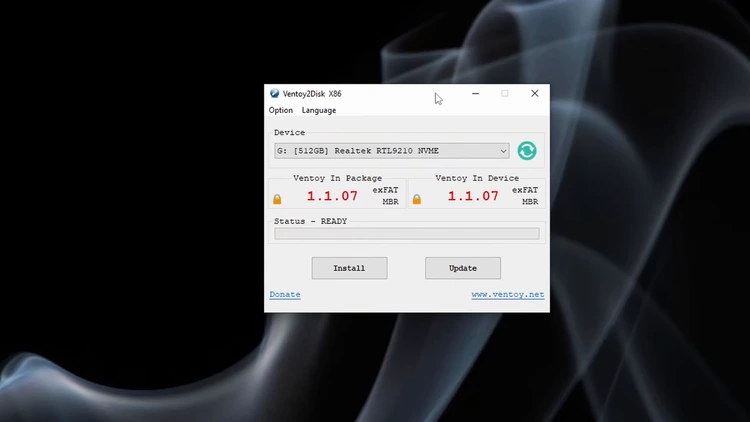
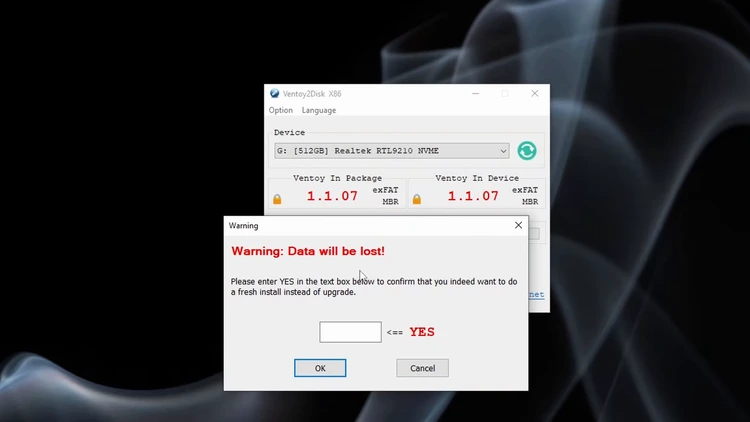
Click the Install button, then type "yes" and click OK through all subsequent confirmation dialogs to erase the drive and finish the setup.
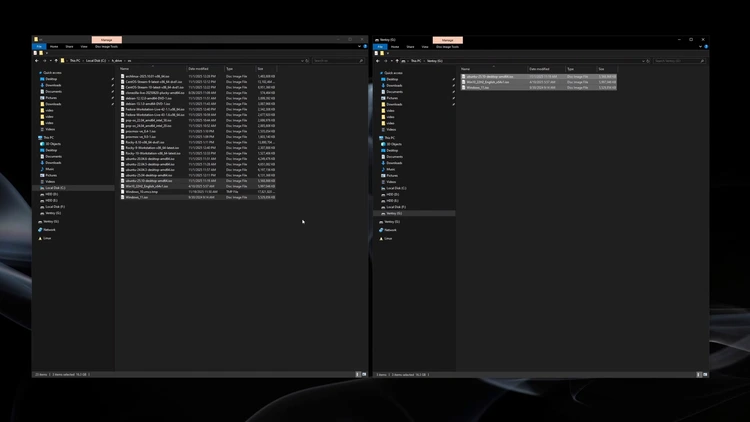
Open the newly formatted drive in File Explorer and drag and drop your desired ISO or virtual hard disk files directly onto the root partition.
Restart your computer and press the appropriate key (F9, F10, F11, or F12) to enter the BIOS. Move your external NVMe SSD to the top of the boot priority list, then save and exit.

Upon rebooting, the Ventoy menu will display all your copied images. Select any ISO to confirm that it boots successfully.
One email a week on local LLMs, DIY AI hardware, and the tools that power them. No spam — unsubscribe anytime.
Subscribe freeORICO USB 3.1 Gen 2 (10Gbps) M.2 NVMe SSD enclosure supporting 2230/2242/2260/2280 form factors up to 8TB, with UASP support for fast external drive performance.
fanxiang S880R 1TB PCIe 4.0 NVMe M.2 SSD with built-in heatsink — up to 7300MB/s reads and 3D TLC NAND for high-performance desktop and console storage.
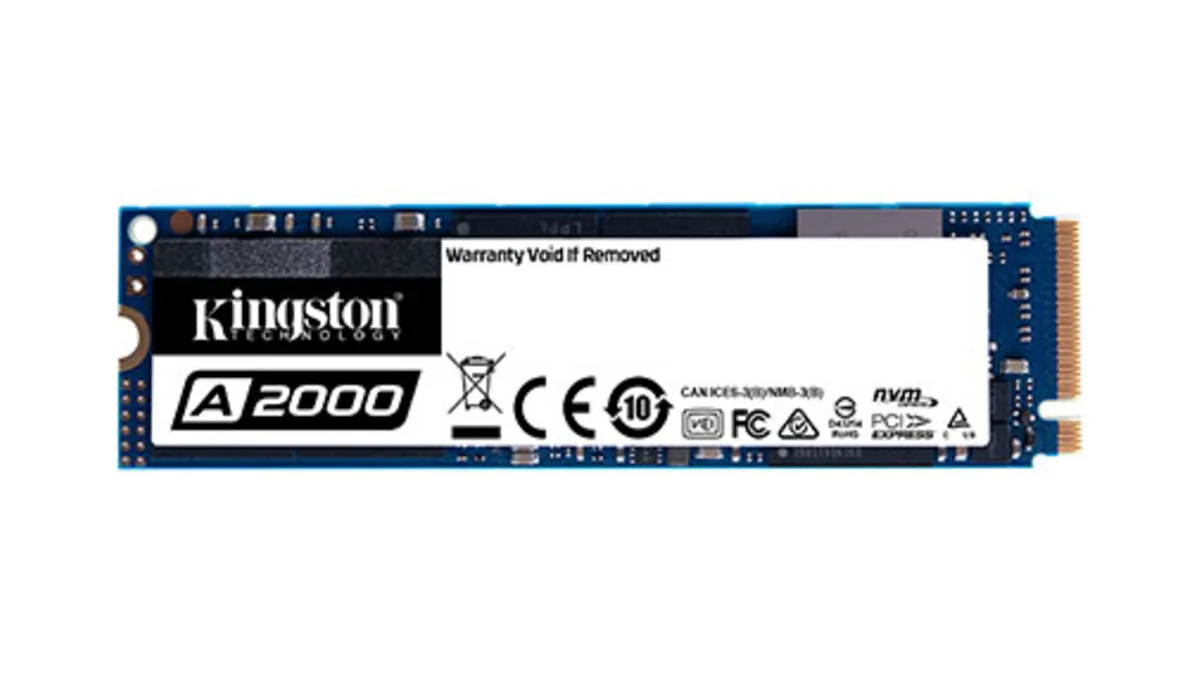
Kingston A2000 1TB PCIe 3.0 x4 NVMe M.2 SSD - reliable budget-friendly storage for everyday computing on desktops and laptops with fast sequential performance