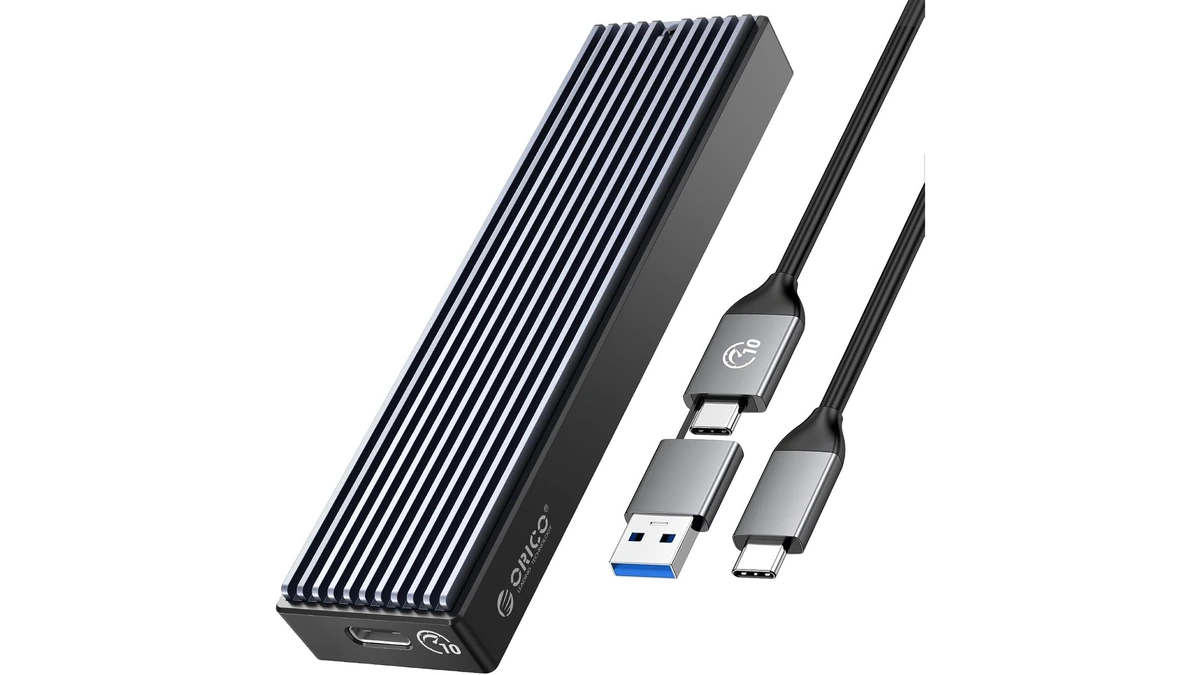
ORICO M.2 NVMe SSD Enclosure (10Gbps)
ORICO USB 3.1 Gen 2 (10Gbps) M.2 NVMe SSD enclosure supporting 2230/2242/2260/2280 form factors up to 8TB, with UASP support for fast external drive performance.
3 retailers


This tutorial takes about 12 minutes to complete.
This guide shows how to install Ubuntu 26.10 on your PC, from downloading the ISO to your first login, and which installer options to pick as a beginner and why. It follows the video, with the exact keys, button names and options from the recording.
New to Ventoy? The Ventoy page explains what it is, and the full Ventoy walkthrough shows the Windows steps in more detail. If you want to know how to install Ventoy on other Linux distributions instead of Windows, see the related tutorials at the bottom of this page.
Warning: this is a fresh install. Erase disk and install Ubuntu wipes the whole hard disk, and there is no disk partitioning or dual boot. Back up anything important first.
You need a PC, a USB stick of 8 GB or larger, and at least 25 GB of free space, which is the minimum Ubuntu 26.10 requires. You will also need a second computer, or the same PC while it still runs its current system, to download the ISO and prepare the USB stick. The video does this part on Windows 11, because many people switching to Linux are coming from Windows.
A wired internet connection is the easiest and most reliable connection, because Ubuntu can download updates during the install. Wi-Fi works too, and you just connect on the installer screen. If Wi-Fi is not working for you, use a wired connection instead.
Jump to a chapter in the video: Intro and requirements · Get the ISO · Ventoy USB · Copy ISO · Boot menu · Install Ubuntu · First boot
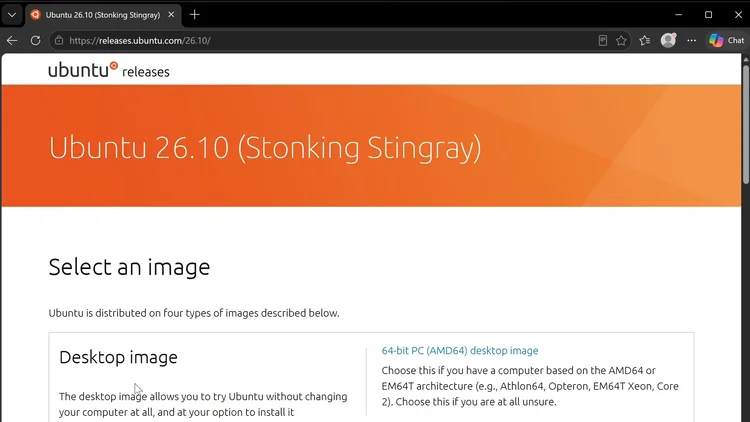
Open your browser and go to releases.ubuntu.com/26.10. This is where the official Ubuntu 26.10 ISO image is. Scroll to Select an image and look for the desktop image.
If you are running an Intel or AMD CPU, click the 64-bit PC (AMD64) desktop image. Your download should start. The video skips the wait. When the download is done, open your Downloads folder, and you will see the Ubuntu 26.10 desktop image there.
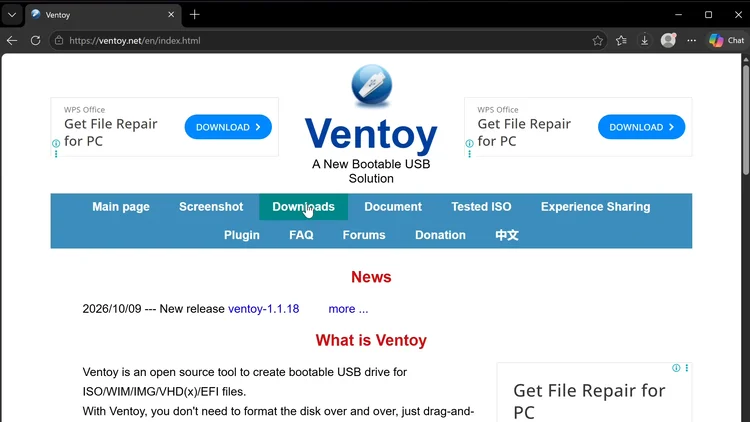
To put the ISO on a USB stick, the video uses Ventoy. It is free, and you can keep many ISOs on one stick, so the same drive can hold Ubuntu and other systems later.
Go to ventoy.net, click Downloads and scroll down. Look for the Ventoy Windows .zip file and click it. Your download should start shortly.
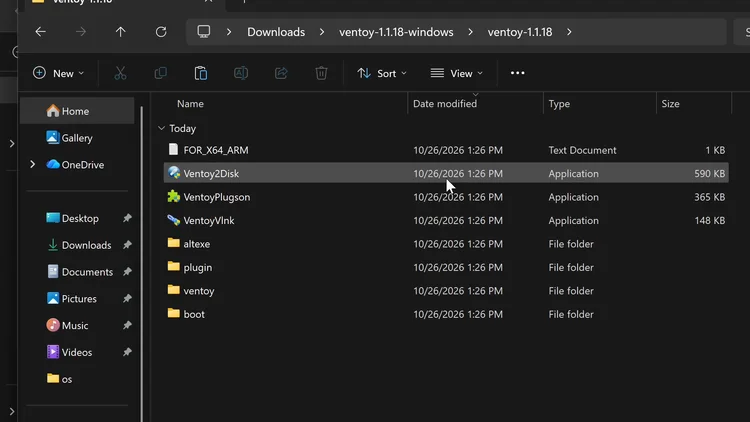
Go back to your Downloads folder. You should see the Ventoy Windows .zip file. It needs to be extracted, so right-click it, click Extract All and then click Extract.
Now Ventoy has been extracted. Go inside the Ventoy folder and double-click the Ventoy2Disk application. Click Yes to give administrator access. You should now see the Ventoy application.
Connect your external USB storage device. If you do not see it in the Device menu, click the refresh button. When it appears, your USB drive is showing in the Ventoy window.
If for some reason it is not showing, open the Options menu and click Show All Devices. This should show all the hard drives on your PC, and it is turned off by default.
Warning: do not format your main drive. Make sure you select the correct drive that you want to format. Also make a backup of your USB drive first, because all information on the drive will be formatted and deleted.
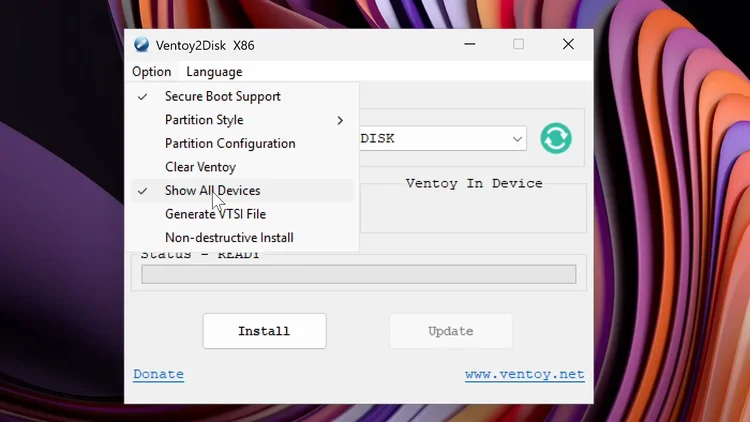
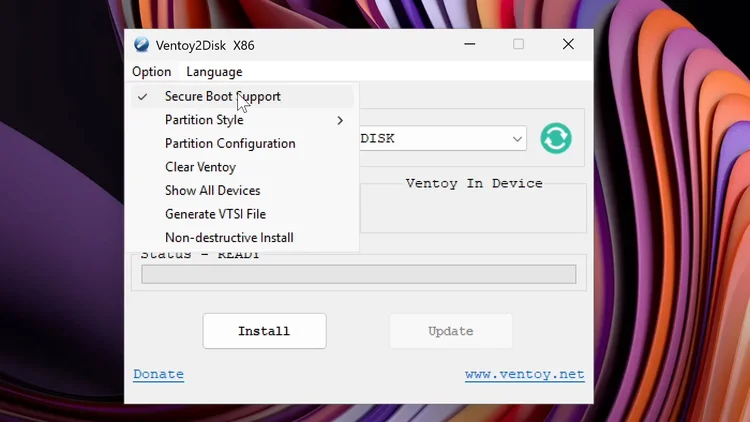
In the Options menu, make sure Secure Boot Support is selected. This makes sure your Ventoy drive has secure boot support, which matters on PCs that have Secure Boot turned on.
Now install Ventoy on the drive: click Install. A warning says the device will be formatted and all the data will be lost. Click Yes.
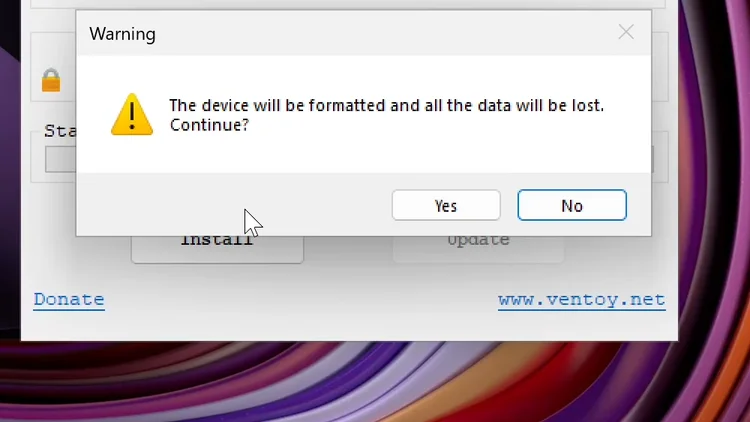
A second window double-checks that you want to format and erase the drive. Make sure you have everything backed up, then click Yes again.
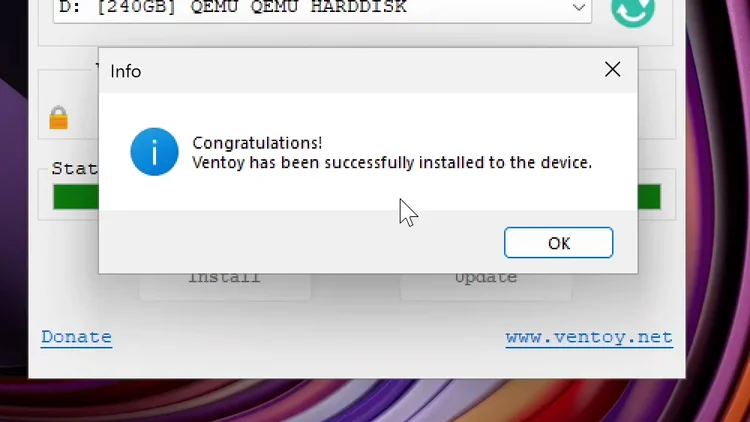
When it is finished you will see Congratulations: Ventoy has been successfully installed to the device. Close that message, and then close the Ventoy application.
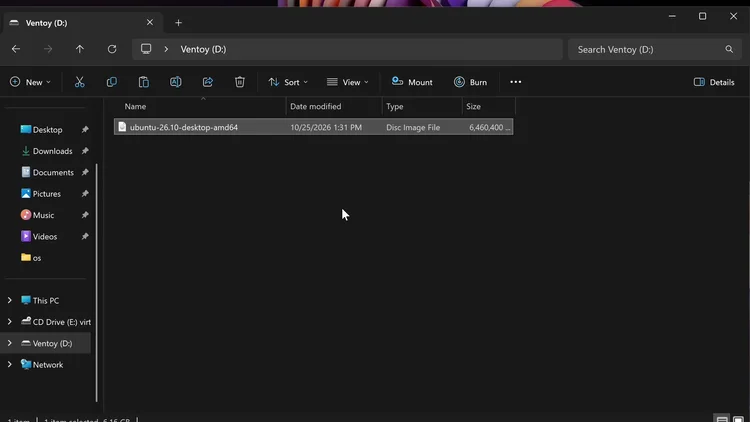
Open your file manager and go to Downloads. Find your Ubuntu 26.10 ISO, right-click it and click Copy. Then go to your Ventoy drive and paste the ISO there. Wait until the ISO has finished copying to the Ventoy drive, which takes a little while, and then close the window.
Tip: for blazing fast speeds and more storage space, use an external NVMe drive. The NVMe enclosure tutorial shows how to build your own NVMe drive with an external NVMe enclosure, and the Orico M.2 NVMe enclosure page has the product details.
Shut down your computer and plug the USB into the PC you are installing on. Restart and tap the boot menu key right as it powers on. The key depends on the brand. Here are the common keys to boot into the boot menu or into the BIOS.
| Brand | Boot menu key | BIOS setup key |
|---|---|---|
| Dell | F12 | F2 |
| HP | Esc, then F9 | Esc, then F10 |
| Lenovo | F12 (or the Novo button) | F2 or F1 |
| ASUS | Esc or F8 | Del or F2 |
| Acer | F12 (turn on "F12 Boot Menu" in BIOS first) | F2 or Del |
| MSI (motherboard) | F11 | Del |
| Gigabyte (motherboard) | F12 | Del |
| ASRock (motherboard) | F11 or F8 | F2 or Del |
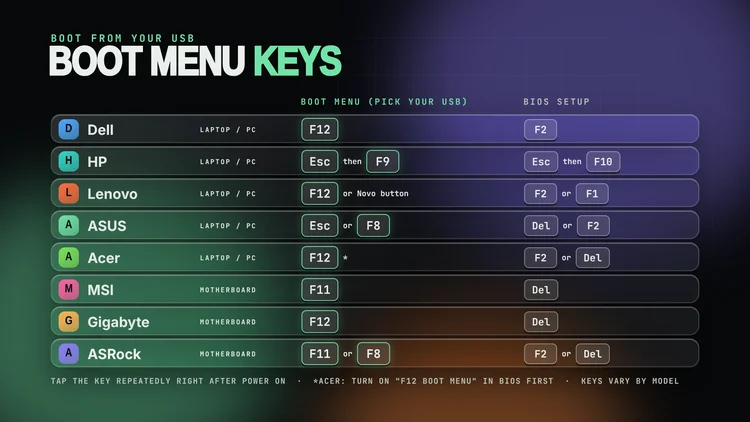
Keys vary by model. The table lists the common keys. If yours does not work, check the manual of your computer or motherboard.
Tap the key, do not hold it. Tap it repeatedly right after you press the power button, with the USB already plugged in. The boot menu lets you pick the USB drive once, and the BIOS setup key opens the firmware settings, where you can change the boot order.
Acer: on some models the F12 boot menu must first be enabled in the BIOS. Press F2, go to Main, set F12 Boot Menu to Enabled, then save and restart. Lenovo: many models also have a small Novo button that opens a boot menu.
If the key does nothing: fast boot can use up your keystrokes. On a Windows PC, hold Shift and click Restart, then choose Use a device and pick your USB drive. To open the BIOS setup that way, go to Troubleshoot, Advanced options, then UEFI Firmware Settings.
The boot menu keys for Dell, HP, Lenovo, ASUS, Acer, MSI and Gigabyte are the ones said in the video. The BIOS setup keys, ASRock, the Novo button and the Acer setting come from the manufacturers' support pages and other published lists: Dell, HP, MSI, ASRock, Acer and the Gigabyte BIOS manual.
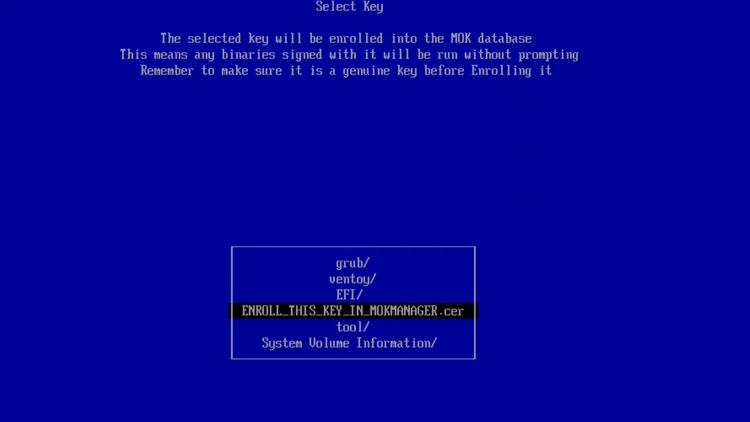
If you get "verification failed security violation", this is one of the Secure Boot errors. The fix only takes a minute. Click OK. When you see "Press any key to perform MOK management", press Enter.
Go to Enroll key from disk and press Enter. Choose VTOYEFI and press Enter. Then scroll down until you see ENROLL_THIS_KEY_IN_MOKMANAGER.cer and press Enter. The selected key will be enrolled into the MOK database.
Click Continue. It will ask you to enroll the key, so say yes. Then reboot, and start again from the boot menu.
In the boot menu, select your Ventoy drive, which is the first drive shown in the video, and press Enter. You have now booted into Ventoy, and it lists the ISO files on your drive. Select the Ubuntu 26.10 ISO and press Enter, then boot into normal mode.
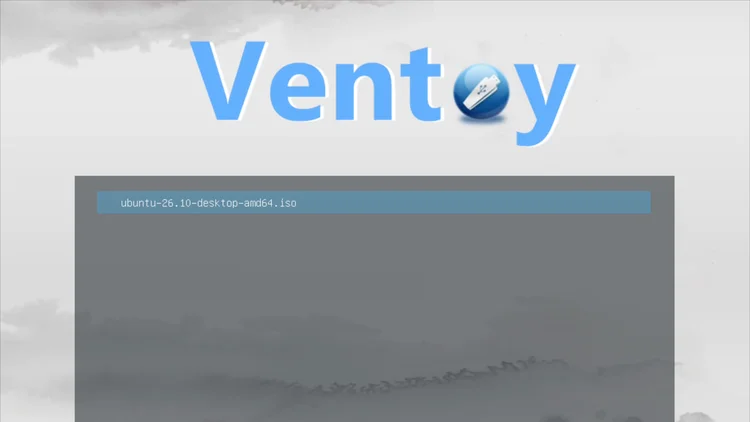
Select Try or Install Ubuntu and wait for Ubuntu to start.
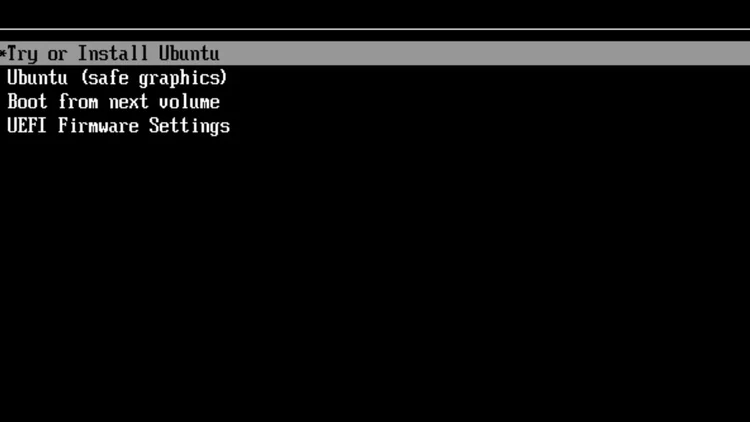
When you see that you have booted into the Ubuntu installation media, you can close the welcome window if you want to. You could test out Ubuntu first, for example open the browser and try different applications. To get back to the installation process, click the first icon.
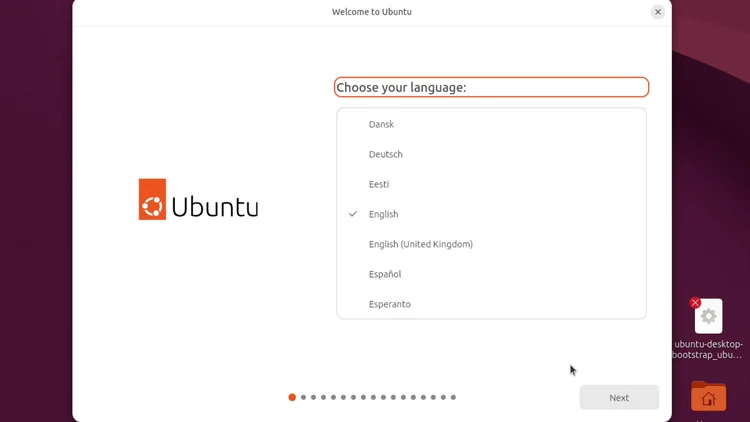
The installer asks one question per screen, and you click Next after each one. These are the choices from the video and the reason for each.
Select your language. The video chooses English. You can customize Ubuntu for your needs, and the video leaves everything else at its default. Click Next.
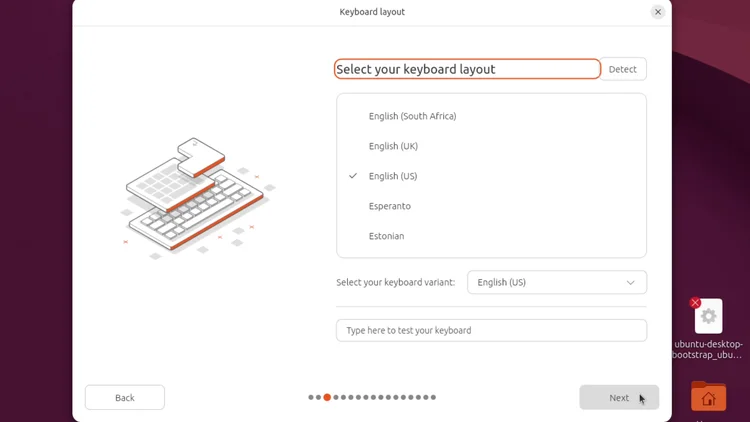
Select your keyboard layout, which is English (US) in the video, and click Next.
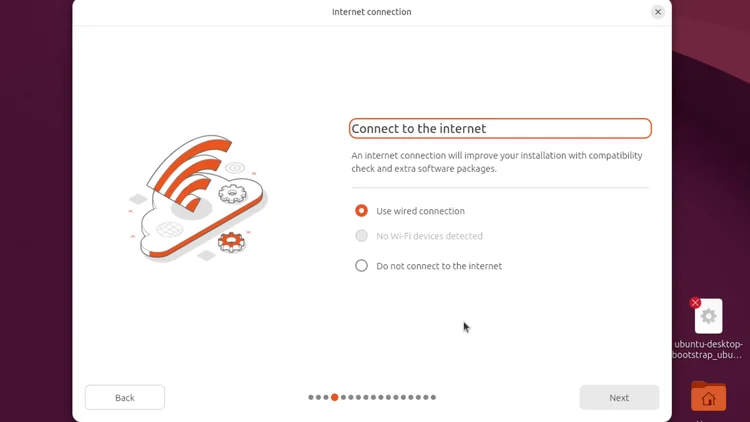
Connect your computer to a wired connection if you can. It is more stable and more reliable. The video has no Wi-Fi card, so it uses the wired connection. This also lets the installer download the extra software and packages during the install. Click Next.
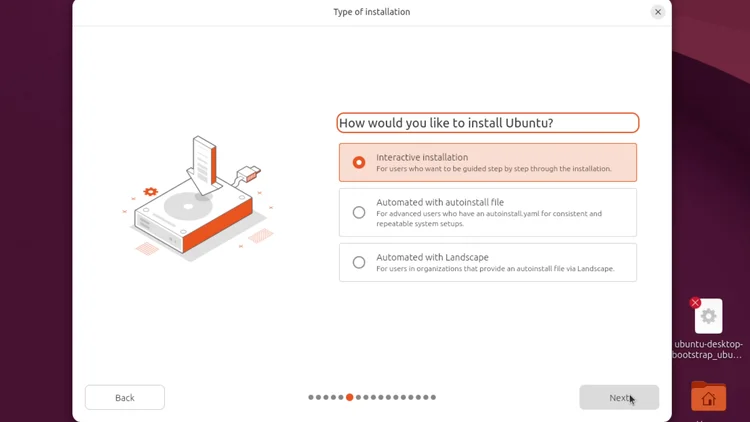
Select Interactive Installation and click Next.
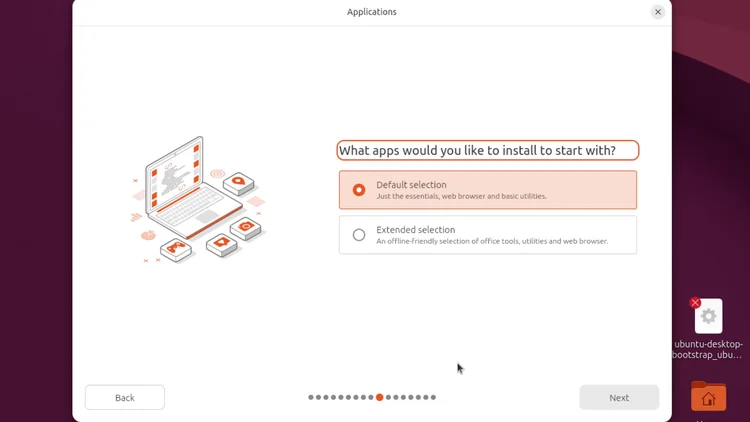
If you just want basic applications on your Ubuntu install, select Default Selection. If you want the full desktop experience with a suite of helpful software, click Extended Selection. The video picks Extended Selection. Click Next.
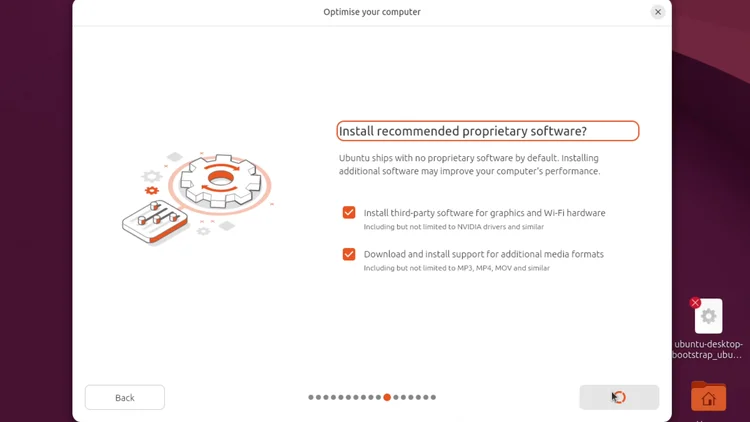
The video recommends installing the third-party software for graphics cards and Wi-Fi. If you had a Wi-Fi card that was not detected, or you have an NVIDIA graphics card, this downloads the correct drivers. Also click Download and install support for additional media formats, which helps with music and video playback compatibility. Click Next.
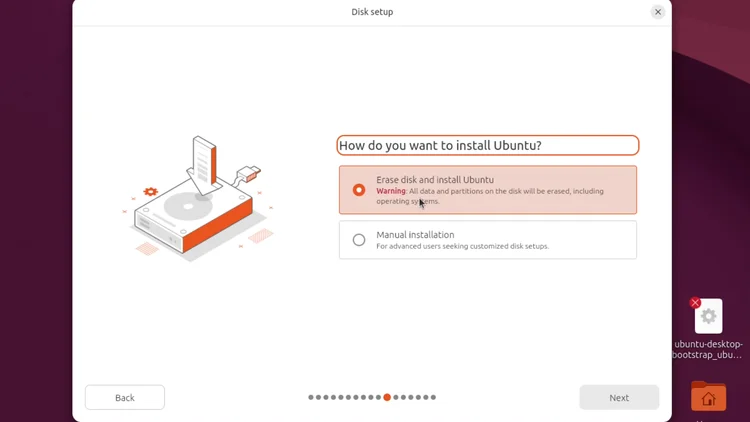
Select Erase disk and install Ubuntu. Remember, this is a fresh install: there is no disk partitioning and no dual boot. Click Next, then select the hard disk you want to install Ubuntu on. Your Ventoy drive also shows up in this list, so make sure you do not format that one. Click Next.
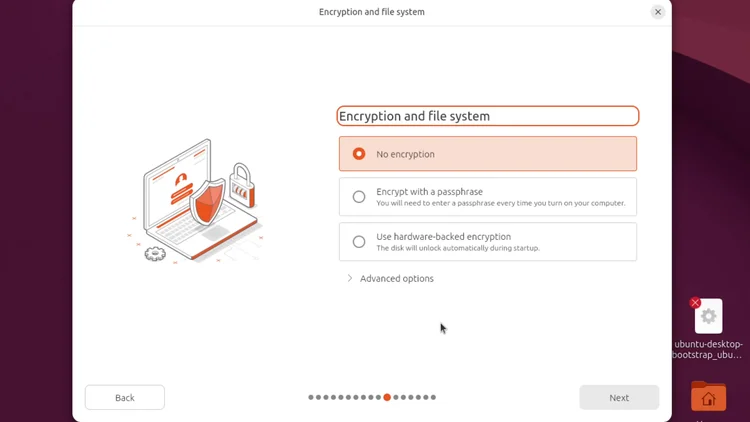
For this installation the video selects no encryption. For advanced users, you can use encryption with a passphrase to protect your files. Click Next.
Here you create your user account. Type your name and username, and you can also change the computer's host name. Select a secure password. The video likes to require the password to log in, and leaves Active Directory unchecked, which is for advanced users. Click Next.
Select your time zone and click Next.
This is a review of the choices you made. If you are happy with everything you selected, click Install.
The Ubuntu 26.10 installation begins. This takes a while, so the video fast-forwards through it. When the installation is complete, click Restart now. Remove the installation media and press Enter.
Now log in. You go through a few quick settings to get everything running. Click Next to start.
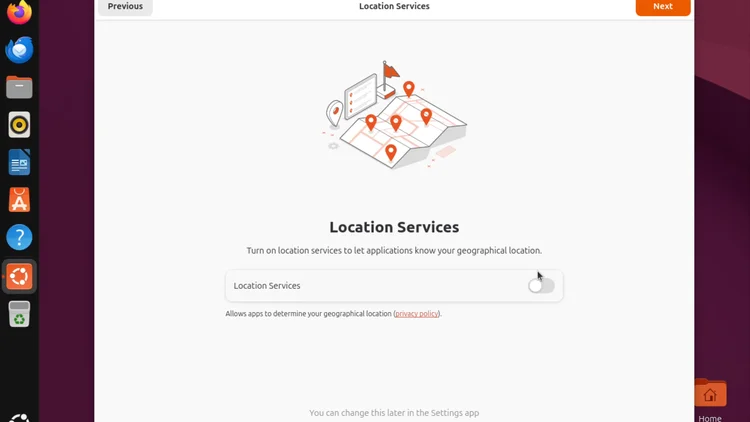
Location services: if you want them turned on, you can leave them on, but the video keeps them off. Click Next.
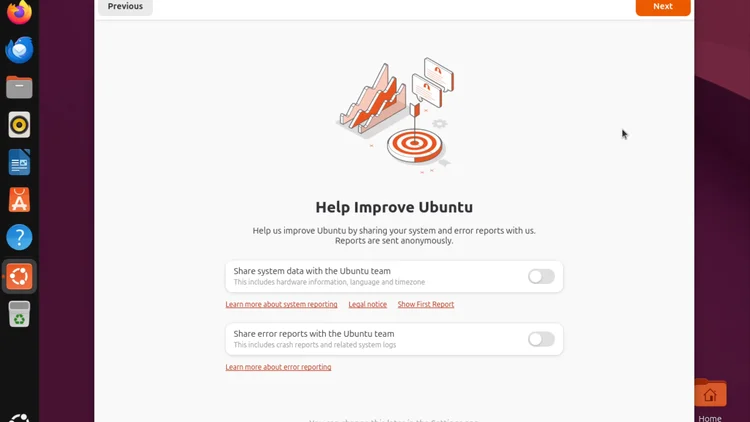
Sharing your system data: if you want to share your system data with Ubuntu, you can check these options. The video leaves them off. Click Next.
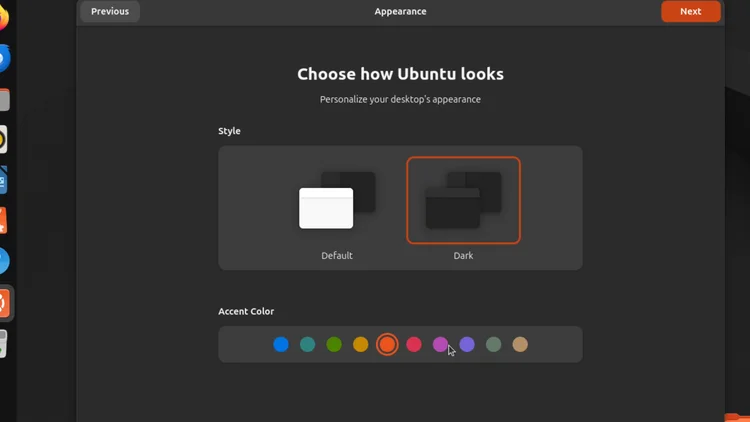
Appearance: the video likes dark mode and goes with the purple color. Click Next and then click Finish.
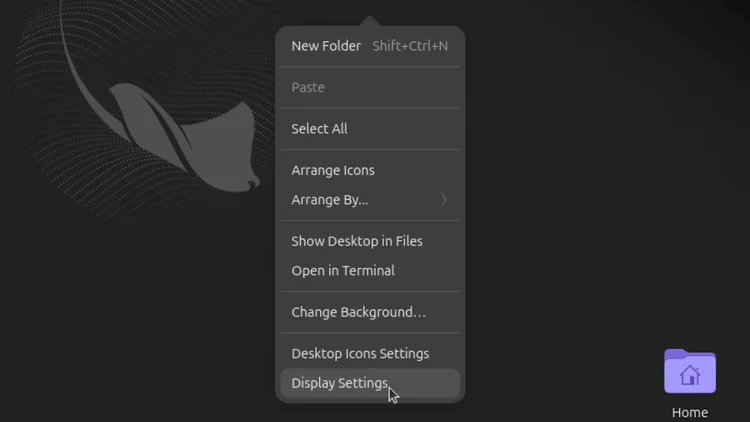
If you want to fix the resolution on your screen, right-click the desktop, go down to Display Settings and then go to Resolution. The video brings its resolution up to 4K. Click Apply and then Keep Changes.
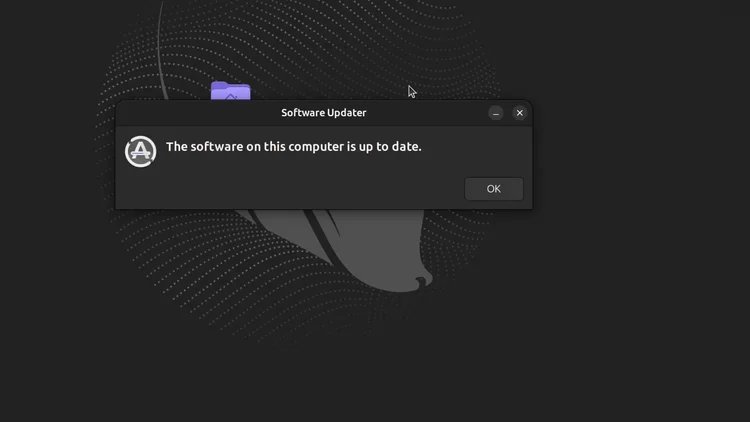
Open the applications menu and go to Software Updater. It checks for the latest software updates. In the video the message says the software on this computer is up to date, and you can click OK.
You have now downloaded the Ubuntu 26.10 ISO, made a Ventoy USB, booted it with your boot menu key, installed Ubuntu with the Erase disk option and finished the first-boot setup. Your fresh Ubuntu 26.10 install is ready. In the next video you will see how to get AI running on your PC.
How to Install Ventoy on a Drive from Windows 11: the Ventoy steps used here, in detail.
How to Install Ventoy on Ubuntu 26.04: make the same USB from Ubuntu.
How to Install Ventoy on Ubuntu 24.04: make the same USB from Ubuntu 24.04.
How to Install Ventoy on Debian 13: the same install on Debian 13.
How to Install Ventoy on Arch Linux: the same install on Arch Linux.
How to Install Ventoy on CachyOS: the same install on CachyOS.
How to Install Ventoy on Bazzite: the same install on Bazzite.
Orico M.2 NVMe Enclosure Unboxing, Setup & Speed Test: build a fast external drive for your Ventoy setup.
One email a week on local LLMs, DIY AI hardware, and the tools that power them. No spam — unsubscribe anytime.
Subscribe freeORICO USB 3.1 Gen 2 (10Gbps) M.2 NVMe SSD enclosure supporting 2230/2242/2260/2280 form factors up to 8TB, with UASP support for fast external drive performance.