
Ventoy Guide: Install Ventoy on Linux, Windows 10 and 11 (13 Guides)

Ventoy is a free, open-source tool that turns one USB drive into a multiboot drive. You install it on the drive once, copy ISO files onto it like normal files, and when you boot from the drive Ventoy shows a menu of every ISO you copied. This page is the hub for my Ventoy series: what Ventoy is, which guide to follow for your system, the steps that are the same everywhere, and answers to the questions viewers ask most.
Last updated: October 25, 2026. Everything below comes from my own Ventoy videos and the written guides that go with them. For anything these guides do not cover, check the official Ventoy documentation at ventoy.net.
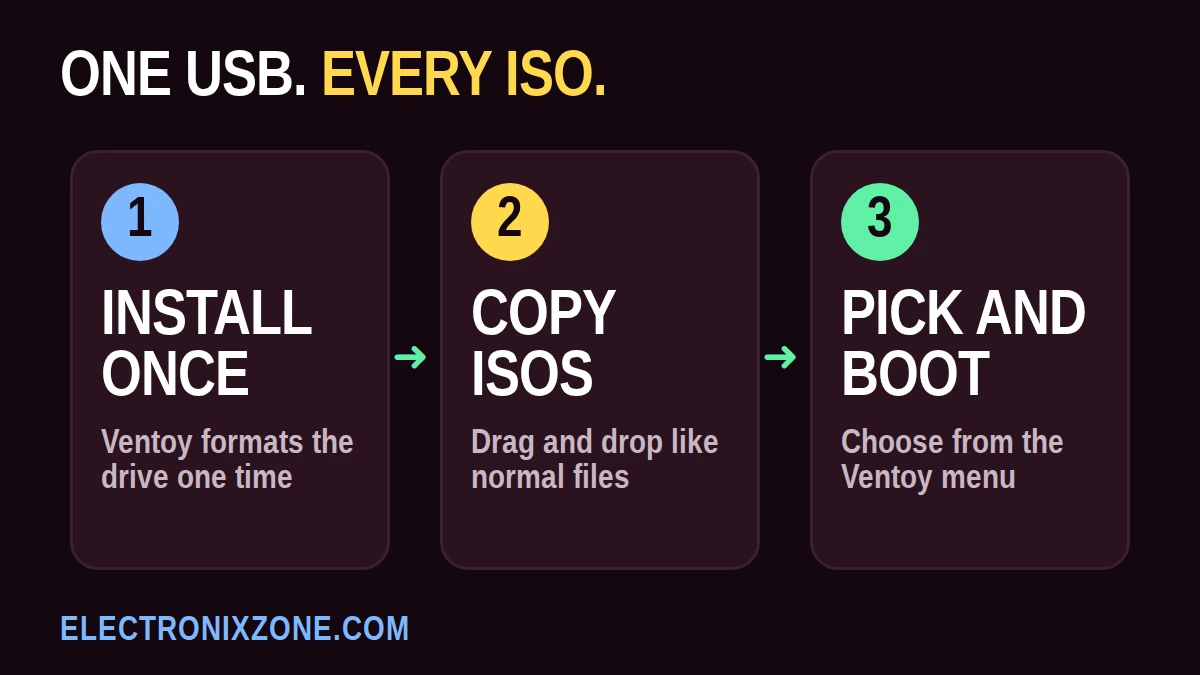
The short version
- Install Ventoy on the drive one time. Installing erases the drive, so back up first.
- Copy ISO files onto the drive. You never reinstall Ventoy to add or remove an ISO.
- Boot from the drive and pick an ISO from the Ventoy menu.
What is Ventoy and why use it?
The old way of installing an operating system goes like this: download an ISO, grab a flash tool, wipe the USB drive and wait for it to burn. If you want to try a different distro tomorrow, you wipe the drive and do it all again. One USB drive, one operating system.
Ventoy changes that. After the one-time install, the drive behaves like a normal folder. You drag and drop your ISO files onto it, whether that is a Linux distro or a Windows installer. There is no flashing, no wiping and no waiting for a tool to extract files. When you boot from the drive, Ventoy takes over the boot process and shows a menu listing every ISO you copied. Use the arrow keys to pick one and press Enter.
It is not only for installing Linux. In the explainer I list what else fits on the drive: Windows installers, system rescue tools, an antivirus boot disk and disk cloning software. You can keep as many operating systems on one drive as its storage allows. That is why it suits distro hoppers, IT people and anyone who likes to tinker.
New to the idea? Start with the What Is Ventoy? video.
Which Ventoy guide should I follow?
Follow the guide for the system you are using today, not the one you plan to install. Ventoy runs on the computer you use to prepare the drive, and the steps look different on each system, so the series has one guide per system. Click your system below.
 Ubuntu 24.04
 Ubuntu 26.04
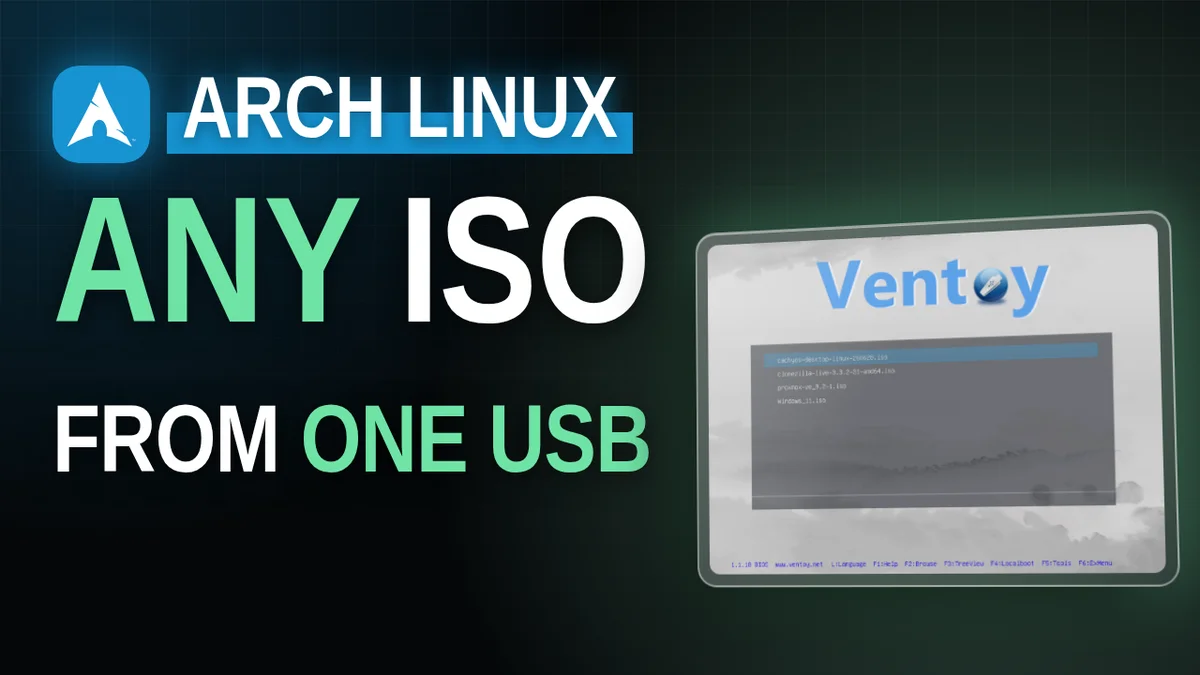 Arch Linux
 Bazzite
 CachyOS
 Debian 13
 Kali Linux
 Manjaro
 openSUSE Tumbleweed
 Pop!_OS 24.04
 Zorin OS 18.1
 Windows 10
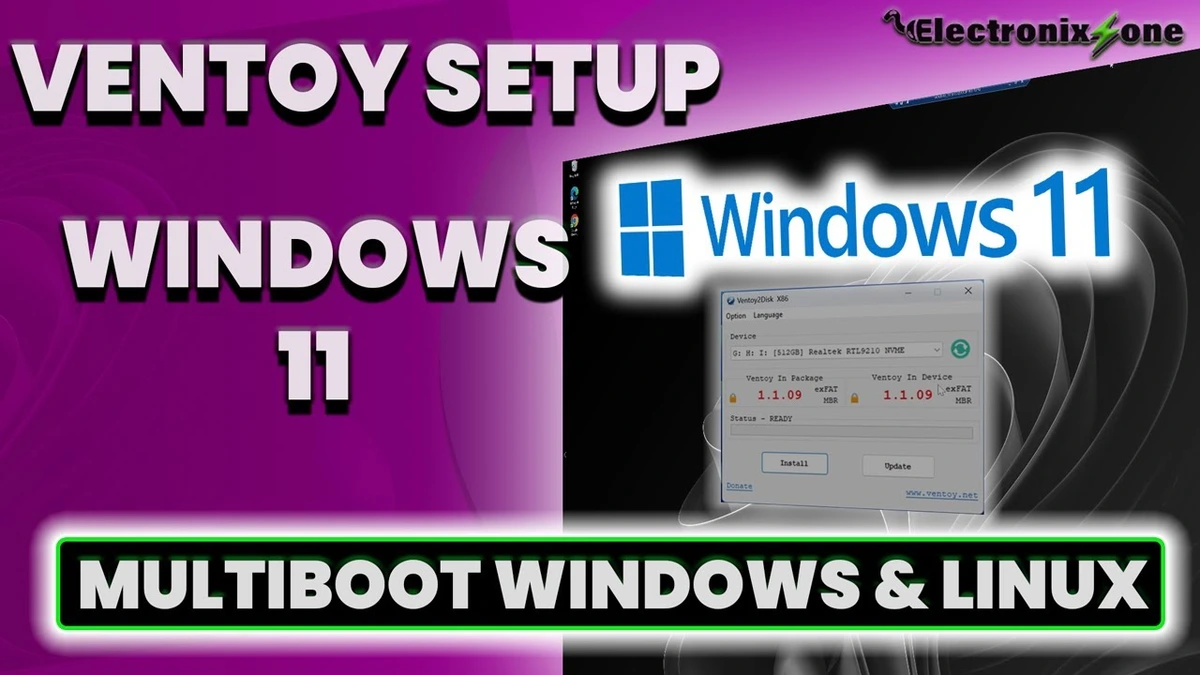 Windows 11
 External NVMe SSD
If your system is not listed, reply to the newsletter email or leave a comment on a video and tell me which one. That decides what I record next. The same information in a table, with the video for each guide:
| Your system | How you run Ventoy | Written guide | Video |
|---|---|---|---|
| Ubuntu 24.04 | Extract linux.tar.gz, run VentoyGUI.x86_64, enter your password (sudo) |
Guide | Video |
| Ubuntu 26.04 | Extract, right-click VentoyGUI.x86_64, click Run, type your password (sudo) |
Guide | Video |
| Arch Linux | Extract, right-click VentoyGUI.x86_64, click Run, type your password |
Guide | Video |
| Bazzite | Extract, right-click VentoyGUI.x86_64, choose Run Executable, enter your password |
Guide | Video |
| CachyOS | Extract, right-click VentoyGUI.x86_64, click Run, enter your password |
Guide | Video |
| Debian 13 | Extract, right-click VentoyGUI.x86_64, click Run, enter your password |
Guide | Video |
| Kali Linux | Extract, right-click VentoyGUI.x86_64, click Execute, enter your password |
Guide | Video |
| Manjaro | Extract, right-click VentoyGUI.x86_64, click Run, type your password |
Guide | Video |
| openSUSE Tumbleweed | Extract, right-click VentoyGUI.x86_64, click Run, enter your password |
Guide | Video |
| Pop!_OS 24.04 | Terminal: sudo ./VentoyWeb.sh, then open http://127.0.0.1:24680 in your browser |
Guide | Video |
| Zorin OS 18.1 | Extract, right-click VentoyGUI.x86_64, click Run, enter your password |
Guide | Video |
| Windows 10 | Run VentoyToDisk.exe (this video formats the drive as FAT32 in Disk Management first) |
Guide | Video |
| Windows 11 | Extract the zip, open the Ventoy to Disk application, confirm the erase warnings | Guide | Video |
| External NVMe SSD (from Windows) | Run VentoyToDisk.exe, select the external NVMe SSD |
Guide | Video |
Before you start
Every guide uses the same short list:
- A computer running the system in the guide.
- An external USB drive. Installing Ventoy erases everything on it.
- Your password on Linux, because the Ventoy GUI needs sudo privileges.
- Access to https://ventoy.net to download Ventoy.
- A few ISO files you want to boot. The Linux videos use CachyOS, Clonezilla, Proxmox and Windows 11.
For the best speed, the Windows 10 guide recommends USB 3.0, 3.1, 3.2 or Type-C ports and good-quality drives from brands such as Kingston, SanDisk or Samsung.
Choose your drive
Any drive you can dedicate to Ventoy works. A regular flash drive is fine, and an external NVMe SSD gives you more storage and faster copying (see the NVMe section below). Installing Ventoy erases the drive, so use one that holds nothing you need.
These are Amazon best-seller lists, not my personal picks. As an Amazon Associate I earn from qualifying purchases.



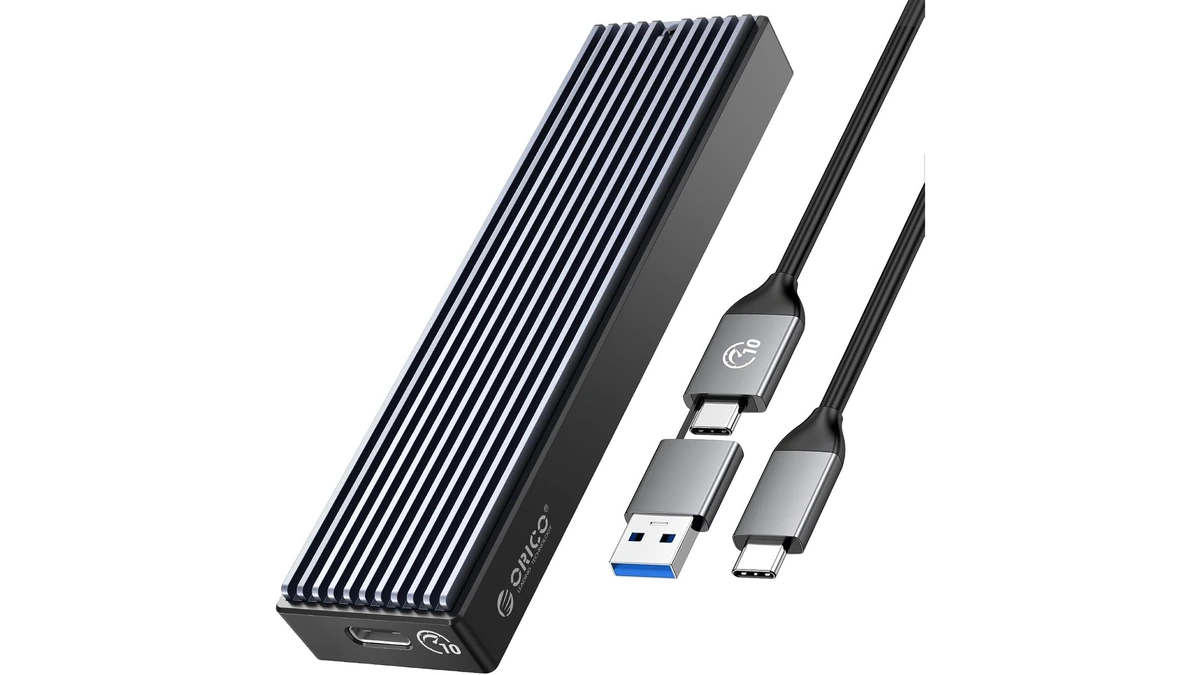
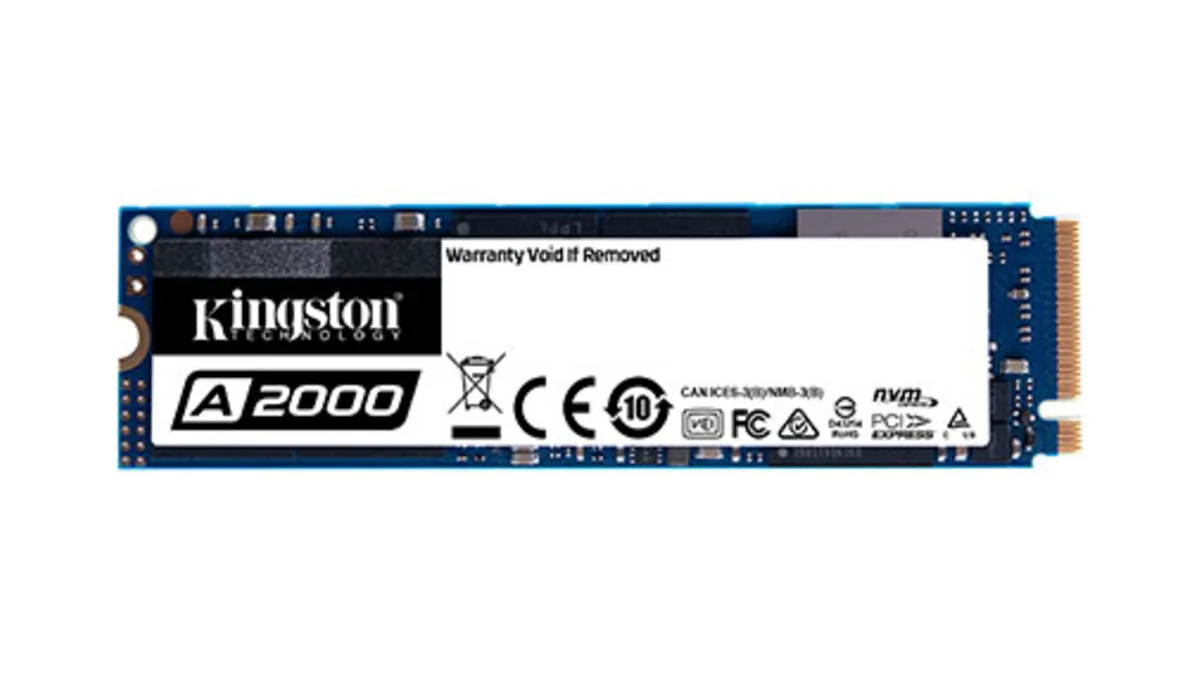
In my NVMe build video I use the ORICO enclosure below. My NVMe guide also features two NVMe SSDs. Specs and where to buy are on each product page.
The steps are the same on every system
The details change, the flow does not. This is the flow in the Linux guides:
- Download Ventoy. Go to ventoy.net, open Downloads and download the
linux.tar.gzfile. - Extract it. Right-click the file and extract it.
- Move the folder (most guides). Most Linux guides move the Ventoy folder to your home folder to keep things organized.
- Run the Ventoy GUI. On an AMD or Intel processor, run
VentoyGUI.x86_64and enter your password when asked. The menu entry is named Run on most systems, Run Executable on Bazzite and Execute on Kali. Pop!_OS is the exception and starts Ventoy from the terminal. - Select your drive. If it is not listed, click the refresh button. If it still does not show up, open Options and click Show All Devices.
- Install Ventoy to the drive and confirm the warning that all data on it will be erased.
- Copy your ISOs to the Ventoy drive like files on any normal drive.
- Boot and test each ISO from the Ventoy menu.
On Windows the flow is the same, but you download the Windows zip from ventoy.net, extract it and open the Ventoy to Disk application (VentoyToDisk.exe in the NVMe and Windows 10 guides) instead of the GUI file. The Windows 11 and NVMe guides then select the target drive, click Install and confirm the warnings. The Windows 10 video does extra preparation first: it cleans and formats the drive as FAT32 in Disk Management, installs Ventoy, then checks in Disk Management that the drive now shows two partitions.
One warning applies everywhere. Show All Devices lists every drive in your computer, including your main hard drive. Select the correct drive carefully, because installing Ventoy formats it.
Booting from your Ventoy drive
After the install, restart the computer and open the BIOS or boot menu. The key depends on your motherboard or laptop. The Windows 11 and NVMe guides use F9, F10, F11 or F12, and the Windows 10 video uses Delete, F2 or F11. Check your manufacturer's documentation for the exact key. Move the Ventoy drive to the top of the boot priority list, save and exit, and the Ventoy menu appears with every ISO you copied.
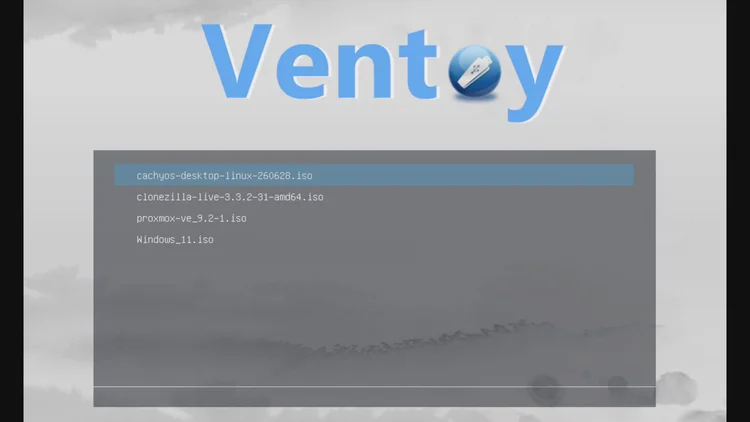
The Ventoy boot menu from the Arch Linux guide, with four ISOs on one drive.
A faster drive: Ventoy on an external NVMe SSD
Ventoy works on a regular flash drive. For the biggest toolkit, I run it on an external NVMe drive in a USB enclosure. You get much more storage for ISOs, copying them takes seconds instead of minutes, and booting is fast. In my test on that setup, a 16.3 GB transfer finished in just under 30 seconds, at about 600 MB/s. That is one setup on my hardware, so your speed depends on your drive, enclosure and port. Need a drive? See Choose your drive above.
You can still use the drive for regular files alongside the ISOs. The install steps are in How to Install Ventoy on an External NVMe SSD. To build the drive itself, see the Orico M.2 NVMe enclosure unboxing, setup and speed test.
Ventoy FAQ
What is Ventoy?
A free, open-source tool that makes a USB drive bootable for many ISOs at once. You install it once, copy ISO files onto the drive and pick one from the boot menu.
Will installing Ventoy erase my drive?
Yes. Ventoy formats the device and all the data on it is lost, so back up anything you need before you click Install.
Do I need to reinstall Ventoy every time I add an ISO?
No. Install Ventoy once, then add or remove ISO files by copying them to the drive like files on any normal drive.
Can I put several operating systems on one Ventoy drive?
Yes. Copy multiple ISO files to the drive and boot any of them from the menu. My videos use CachyOS, Clonezilla, Proxmox and Windows 11, and the Windows 11 guide shows Windows 11, Windows 10 and Ubuntu on one drive.
What if my drive does not show up in the Ventoy window?
Click the refresh button. If it still does not appear, open Options and click Show All Devices. That list includes every drive in your computer, even your main hard drive, so select the correct one very carefully. See the Ubuntu 24.04 guide for the screenshots.
What if I do not see my Ventoy drive after installing?
In the Debian 13 video the suggestion is to reboot your computer.
Which Ventoy file do I run on Linux?
On an AMD or Intel processor, run VentoyGUI.x86_64. It needs sudo privileges, so enter your password when asked.
How do I run Ventoy on Pop!_OS?
Open the terminal, go into the Ventoy folder with cd and run sudo ./VentoyWeb.sh. Enter your password, then open http://127.0.0.1:24680 in your browser. When you finish, press Ctrl+C in the terminal to stop the Ventoy server. The full steps are in the Pop!_OS guide.
How do I boot from the Ventoy drive?
Restart, open the BIOS or boot menu with the key for your motherboard, and make the Ventoy drive the first boot device. Press Enter on it to reach the Ventoy menu.
Which file system should the drive use?
In my Windows 10 video I formatted the drive as FAT32 first, and that guide lists FAT32, exFAT and NTFS. The other guides let Ventoy format the drive. For details beyond my videos, see the official Ventoy documentation at ventoy.net.
Is Ventoy free?
Yes. In the explainer I describe it as a free, open-source tool.
What comes next
I am turning the steps on this page into a one-page multiboot USB checklist: choose the drive, install Ventoy, copy your ISOs, test the boot, and what to do if it does not boot. It is free for newsletter subscribers.
Get the free multiboot USB checklist
This newsletter follows my tutorial series in order. My plan: browsers, then Ventoy (the boot drive, done), then installing the distros from that drive, then running Ollama, LM Studio and llama.cpp on them. I will send one email when each series is finished, not on a fixed weekday. Reply with the distro you want installed first and I will read it.
Never miss an issue
One email a week on local LLMs, DIY AI hardware, and the tools that power them. No spam — unsubscribe anytime.
Subscribe free