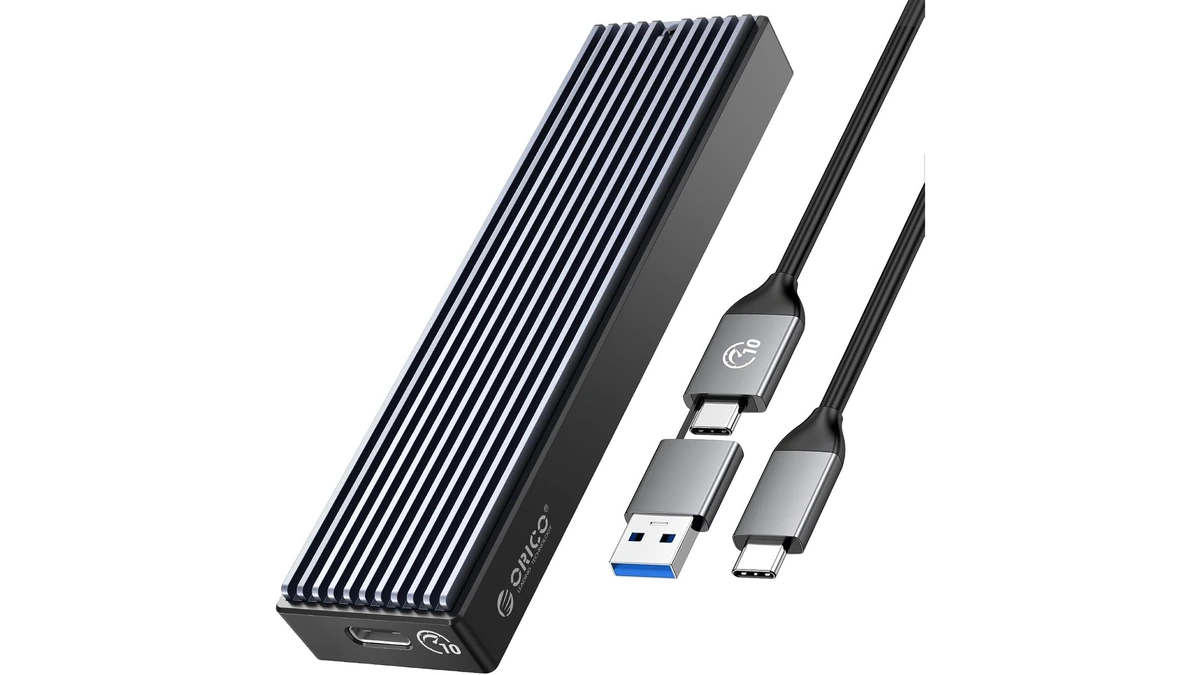
ORICO M.2 NVMe SSD Enclosure (10Gbps)
ORICO USB 3.1 Gen 2 (10Gbps) M.2 NVMe SSD enclosure supporting 2230/2242/2260/2280 form factors up to 8TB, with UASP support for fast external drive performance.
3 retailers

This tutorial takes about 6 minutes to complete.
This guide shows how to install Ventoy on Pop!_OS 24.04, copy ISO files onto the Ventoy drive, and boot four of them from one external drive. It follows the video.
New to Ventoy? The Ventoy page explains what it is, what it does and how it can help you.
Warning: Installing Ventoy formats the device and erases everything on it. Back up your files first.
You need a computer running Pop!_OS 24.04, an external drive, your password, access to https://ventoy.net to download Ventoy, and a few ISO files you want to boot. The video uses CachyOS, Clonezilla, Proxmox and Windows 11.
Jump to a chapter in the video: Intro · Download Ventoy · Extract folder · Start server · Install Ventoy · Add your ISOs · Boot test
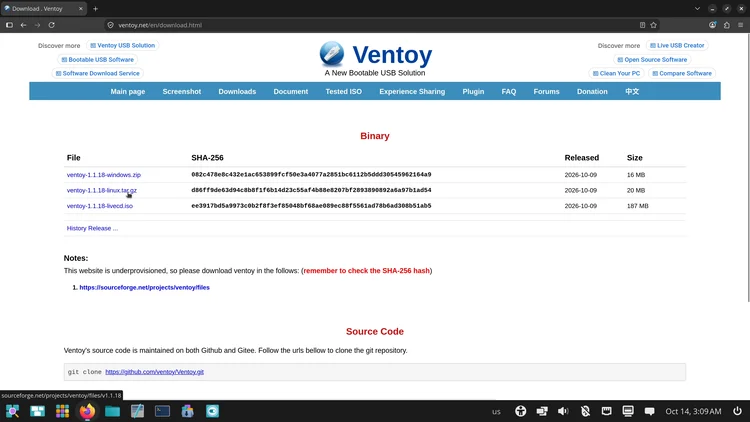
Open your favorite browser and type https://ventoy.net in the address bar, then press Enter. Go to Downloads, find the linux.tar.gz file and click it. The download should start shortly. When it has finished, click the folder button and close the browser.
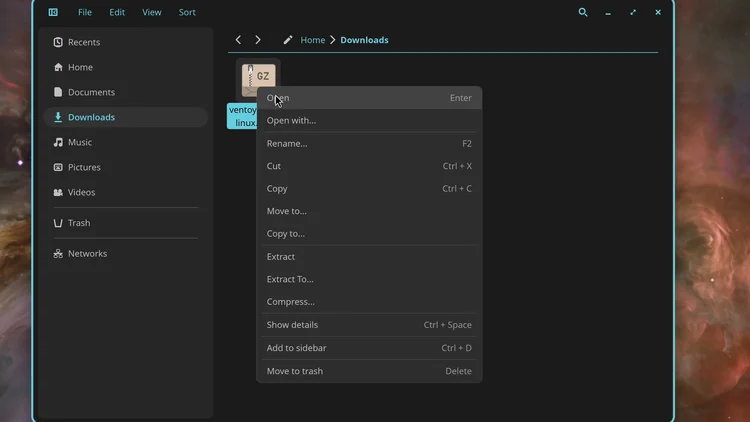
Right-click the linux.tar.gz file, click Open and then Extract. You now have the Ventoy folder. You can delete the linux.tar.gz file.
Right-click the Ventoy folder, click Cut, go to your home folder and paste it there.
Open your terminal and go into the Ventoy folder:
cd ~/ventoy-1.1.18-linux/ventoy-1.1.18/
Then start the Ventoy server:
sudo ./VentoyWeb.sh
Enter your password when asked. The terminal prints the address of the Ventoy server, http://127.0.0.1:24680. Highlight the address and copy it.
Go to your browser and paste the address in the address bar. The Ventoy application is now running on the server.
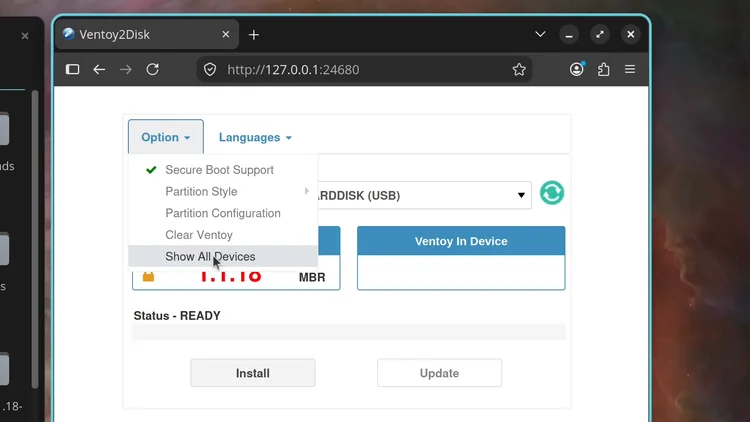
Connect your external drive and open your file manager. If you do not see your device in the menu, click the refresh button. If you still cannot see your drive, open Options and click Show All Devices, which shows all the hard drives on your PC.
Warning: Show All Devices lists every drive on your computer, including your main hard drive. Make sure you select your external drive, and do not format your main hard drive.
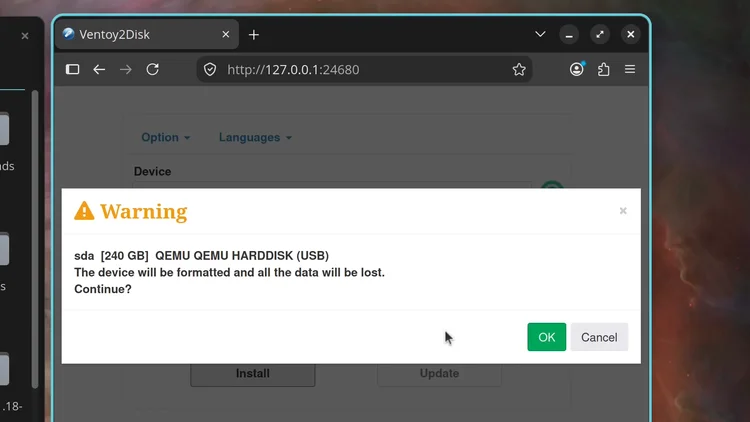
Make a backup of all your files first: everything on the drive will be formatted and erased. With your external drive selected, click Install. A message says the device will be formatted and all data will be lost; click Continue. Ventoy double checks; click Continue again. When Ventoy reports that it has been successfully installed to the device, click OK.
Close Ventoy, go back to the terminal and press Ctrl+C to close the Ventoy server. Then close the terminal.
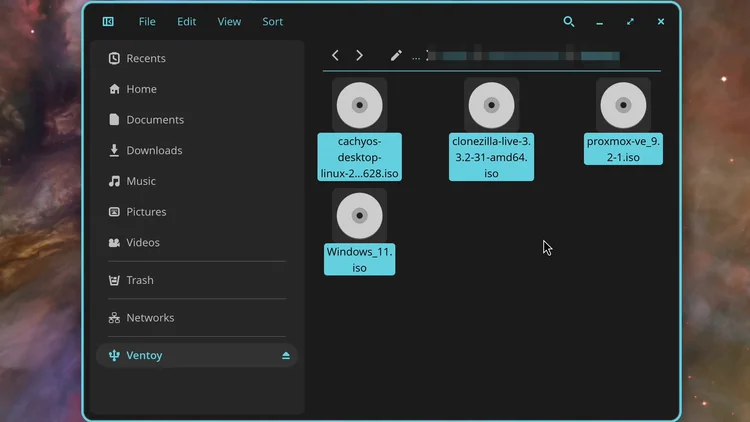
Open the os folder that holds your ISO files. The video has CachyOS, Clonezilla, Proxmox and Windows 11 ISOs there. Highlight them and copy them, then click your Ventoy drive and paste the ISO files there. Wait until the files have finished copying.
Tip: For blazing fast speeds, use an external NVMe storage drive. The NVMe tutorial linked below shows how to make one with an NVMe enclosure.
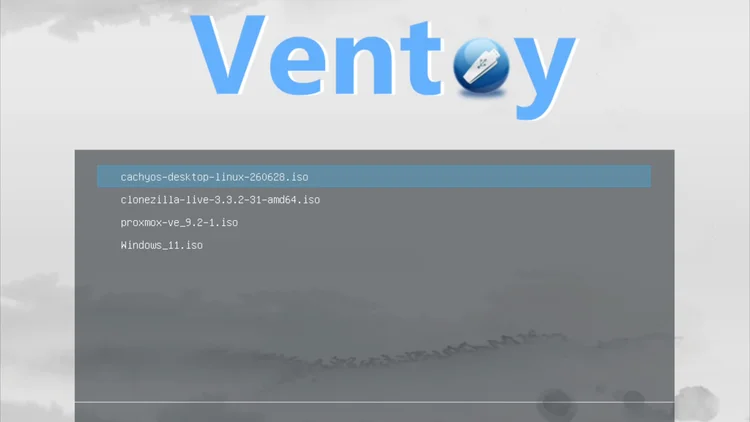
Shut down your computer. Check your motherboard's manufacturer's documentation to see how to boot into the boot menu or the BIOS, and make sure the first boot device is your Ventoy drive. Select the Ventoy drive and press Enter. You are now in the Ventoy boot screen, which lists CachyOS, Clonezilla, Proxmox and Windows 11. Select an ISO and boot in normal mode. In the video all four loaded successfully.
One email a week on local LLMs, DIY AI hardware, and the tools that power them. No spam — unsubscribe anytime.
Subscribe freeORICO USB 3.1 Gen 2 (10Gbps) M.2 NVMe SSD enclosure supporting 2230/2242/2260/2280 form factors up to 8TB, with UASP support for fast external drive performance.